

What you can do with attachments
- Ask questions about a document, spreadsheet, or image you’ve just attached
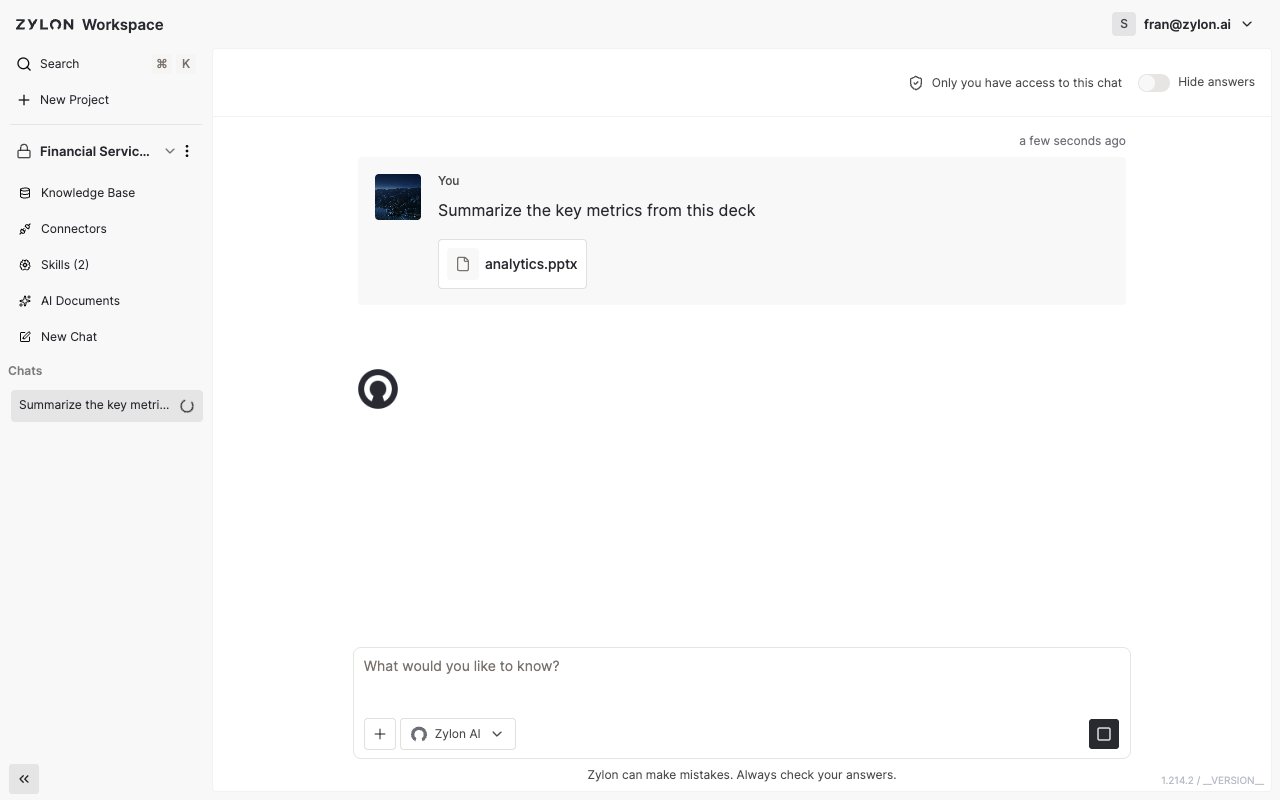
- Get a summary, explanation, or analysis of its content
- Use a file as context for problem-solving or decision-making
- Attach more than one file to the same message
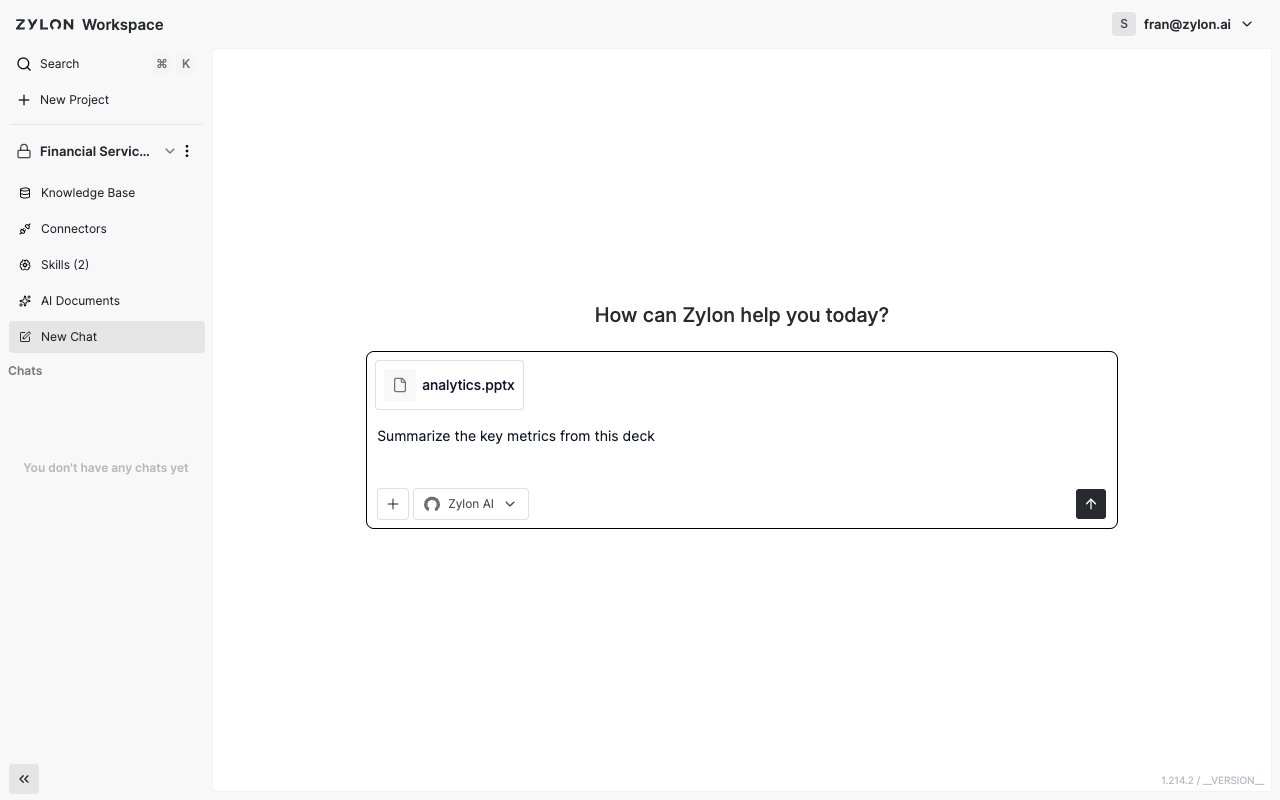
- Combine attachments with a text prompt for more specific instructions
How to attach a file
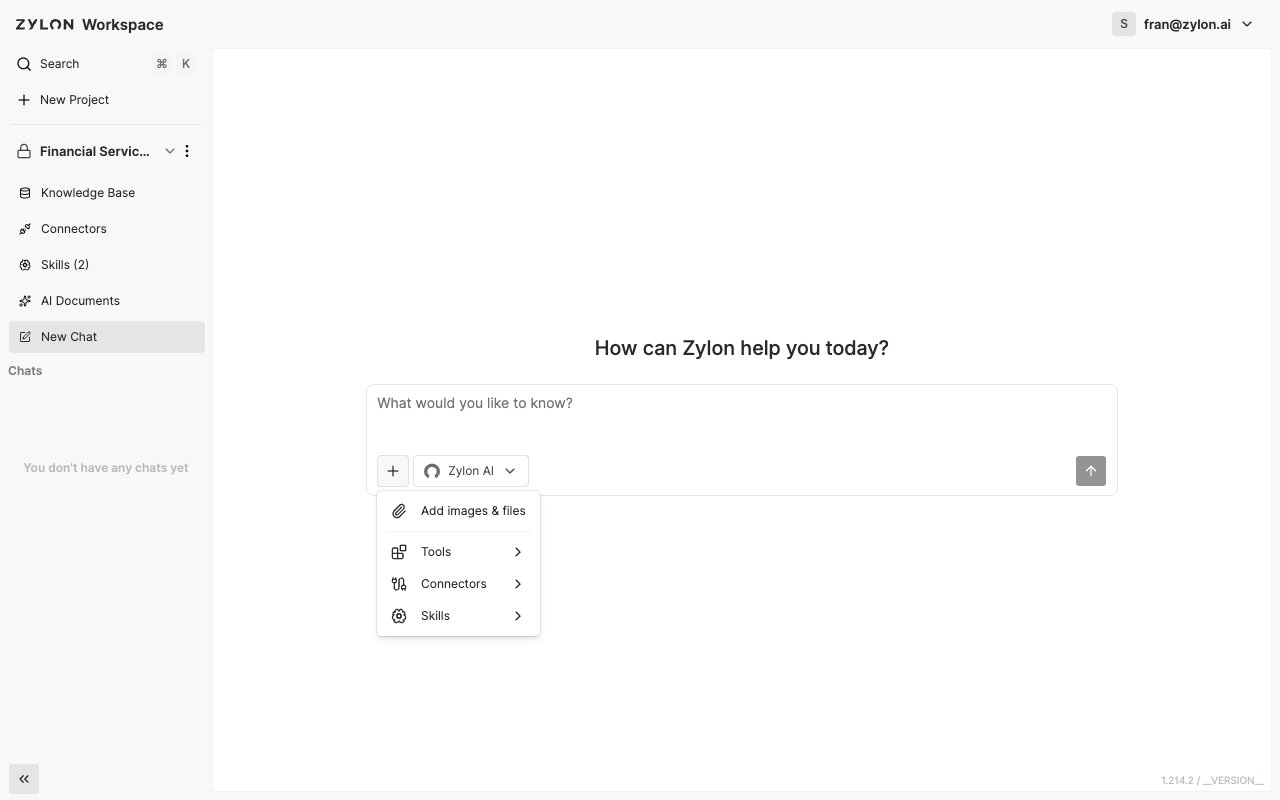
There are two ways to attach a file to a message:- Click the + button in the chat box, then choose Add images & files, and pick one or more files from your device.
- Or simply drag and drop files straight onto the chat box.
Supported file types
- Images — JPG, PNG, GIF, WebP, SVG, BMP
- Documents — PDF, Word, PowerPoint, Excel, CSV/TSV, plain text, HTML, RTF, ODT, EPUB, Outlook email (
.msg,.eml)
Exactly which file types and how many files you can attach depends on how your admin has configured Zylon for your organization.
Limitations
- The number of files per message and the maximum file size are set by your admin, and may vary by file type.
- If a file is larger than usual, Zylon warns you before continuing — you can still send it, or add it to the project’s Knowledge Base instead, which handles large files better.
- Understanding an image depends on its clarity and resolution; very large or complex files may produce less detailed results.
- Your organization’s selected AI model has to support the type of file you’re attaching (for example, image understanding).