

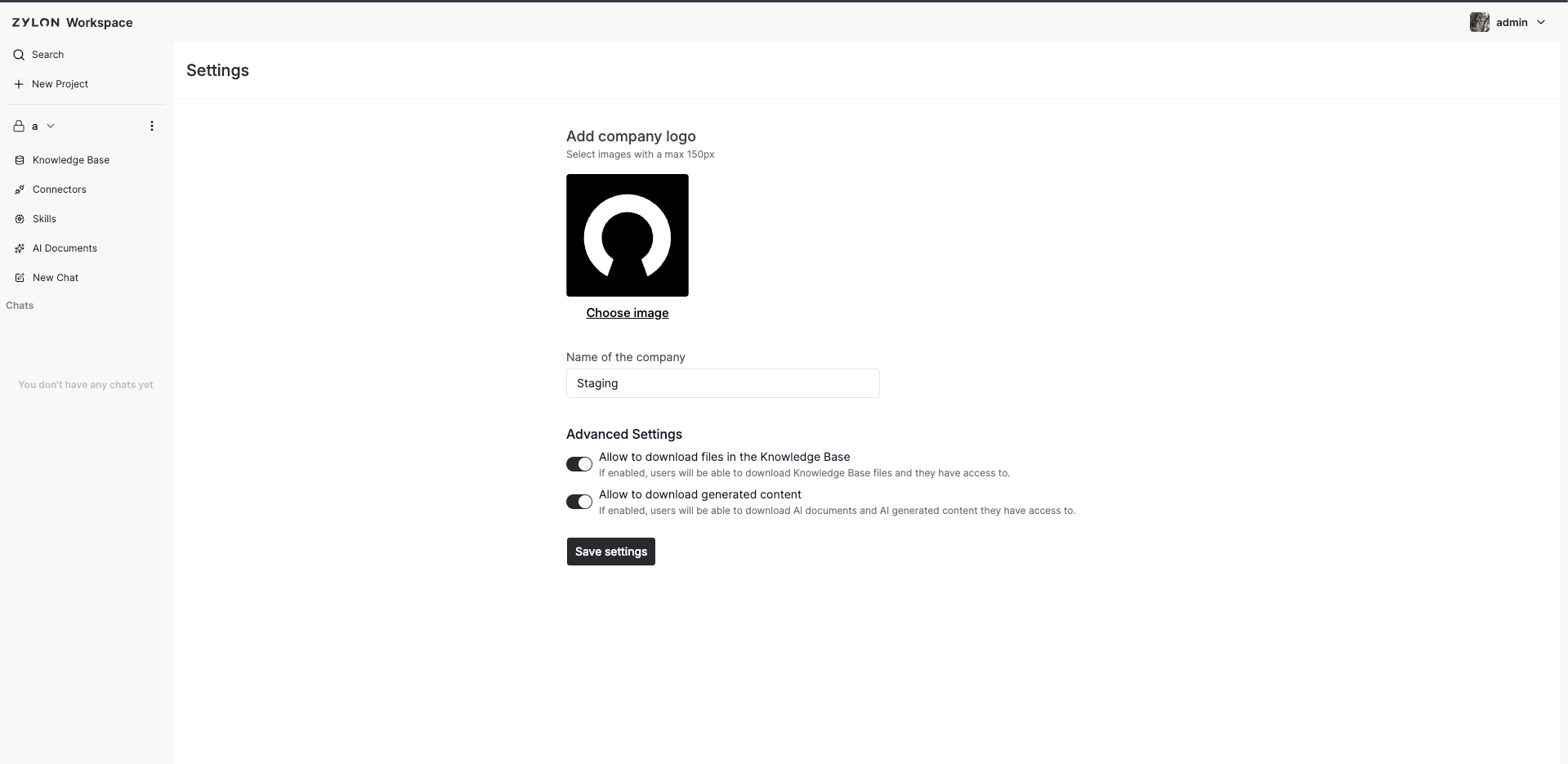
Enable or block downloads
Only Workspace administrators can change these settings.- Select the Workspace name in the upper-right corner.
- Select Settings.
- Under Advanced Settings, set either or both download controls.
- Select Save. The change applies across the Workspace.
What each setting controls
Turn on the setting shown in the table to allow the corresponding download action. Turning it off blocks that action throughout the Workspace. ✓ means the setting controls the action; ✕ means it does not.
Users can still view processed Knowledge Base content, citations, AI responses, and AI Documents when the relevant download setting is disabled, provided they otherwise have access. Non-download actions, such as reporting an issue, also remain available.
Important considerations
- These are Workspace-wide controls. They apply to all projects in the Workspace once the settings are saved.
- Enabling Knowledge Base file downloads does not grant extra access. Users must also have access to the project and the relevant Download Files project permission.
- Disabling a setting also blocks the corresponding download actions through the Zylon API; it is not limited to hiding buttons in the Workspace interface.
- Blocking downloads does not change access to external links supplied by a connected source. Apply the source system’s own sharing and download policies where needed.
- Review the settings regularly with your security or compliance team, especially before adding sensitive source material or enabling document exports.