

Overview
Quotas let Operators control how many AI requests or tokens accounts and gateways can use within a period. Use them to limit bursts of activity, set daily or monthly allowances, or give over-limit chats a lower priority. Open Backoffice > Platform > Quotas with Operator access. If Quotas is missing, ask your platform administrator to enable quota management. The page has two tabs:- Usage shows current consumption for each attached account or gateway.
- Specs lists saved quotas. Open a quota to review its limits, edit it, or manage its attachments.
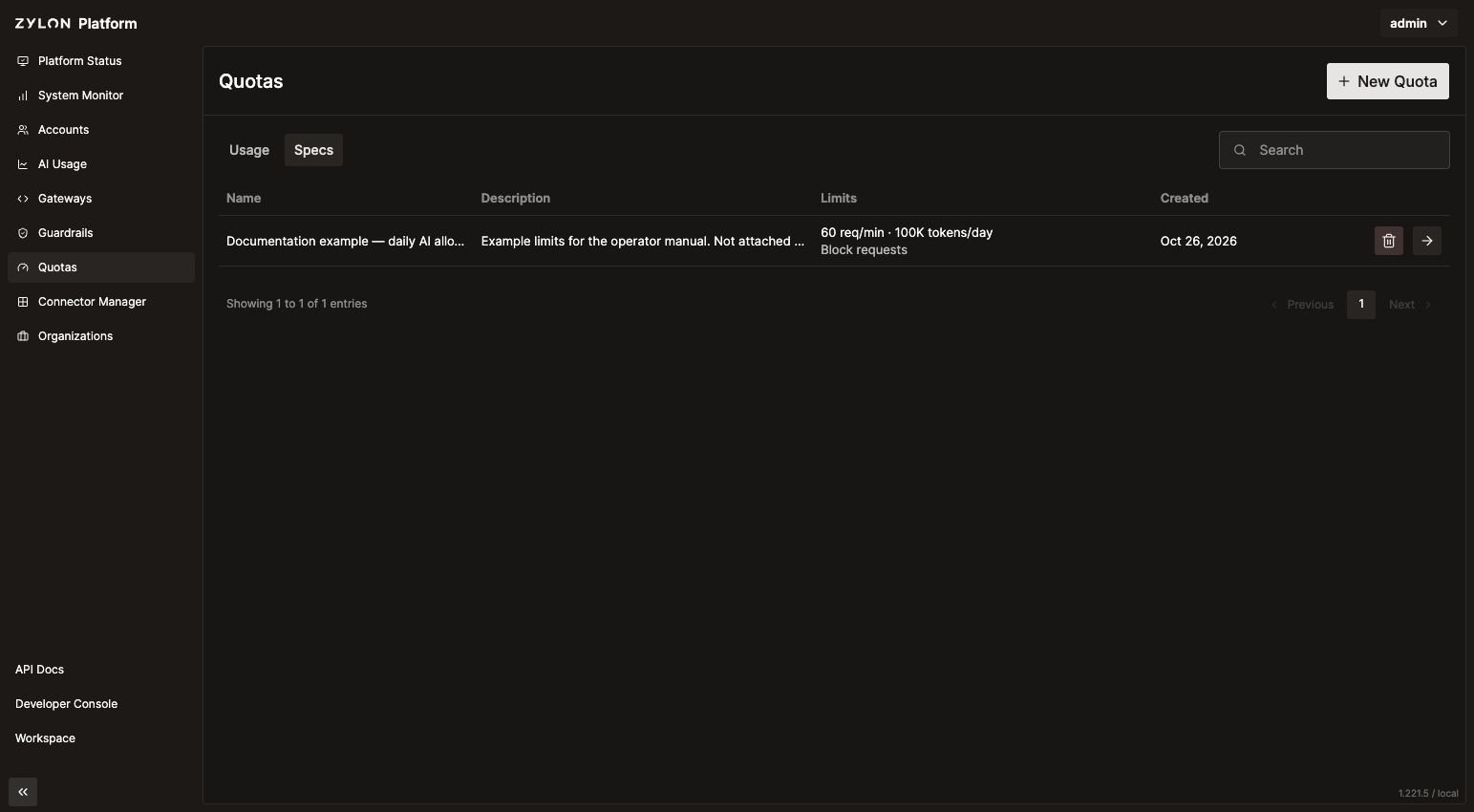
How quotas work
A quota is a reusable set of limits. Creating it does not apply any limits until you attach it to an account or gateway. Each attachment gets its own allowance. For example, attaching a quota of 100,000 tokens per day to two accounts gives each account 100,000 tokens per day; they do not share a single allowance. When an account calls a gateway, the quotas attached to both apply. A gateway quota controls the combined traffic through that gateway. Quotas are attached to accounts or gateways, rather than individual API tokens.Metrics and reset periods
Each limit has a Metric, Window, and Max. You can combine request and token limits in one quota.
Minute and hour limits help control request rates. Day and month limits set longer allowances. Counters reset at the start of each UTC minute, hour, day, or calendar month, according to the selected window. These are calendar boundaries, not a rolling period starting with the first request.
When a limit is reached
Choose how the quota handles requests in When a limit is reached:
A blocking quota takes precedence over a quota that deprioritizes requests. Reaching any applicable blocking limit can therefore prevent a request, even if another quota allows it to continue.
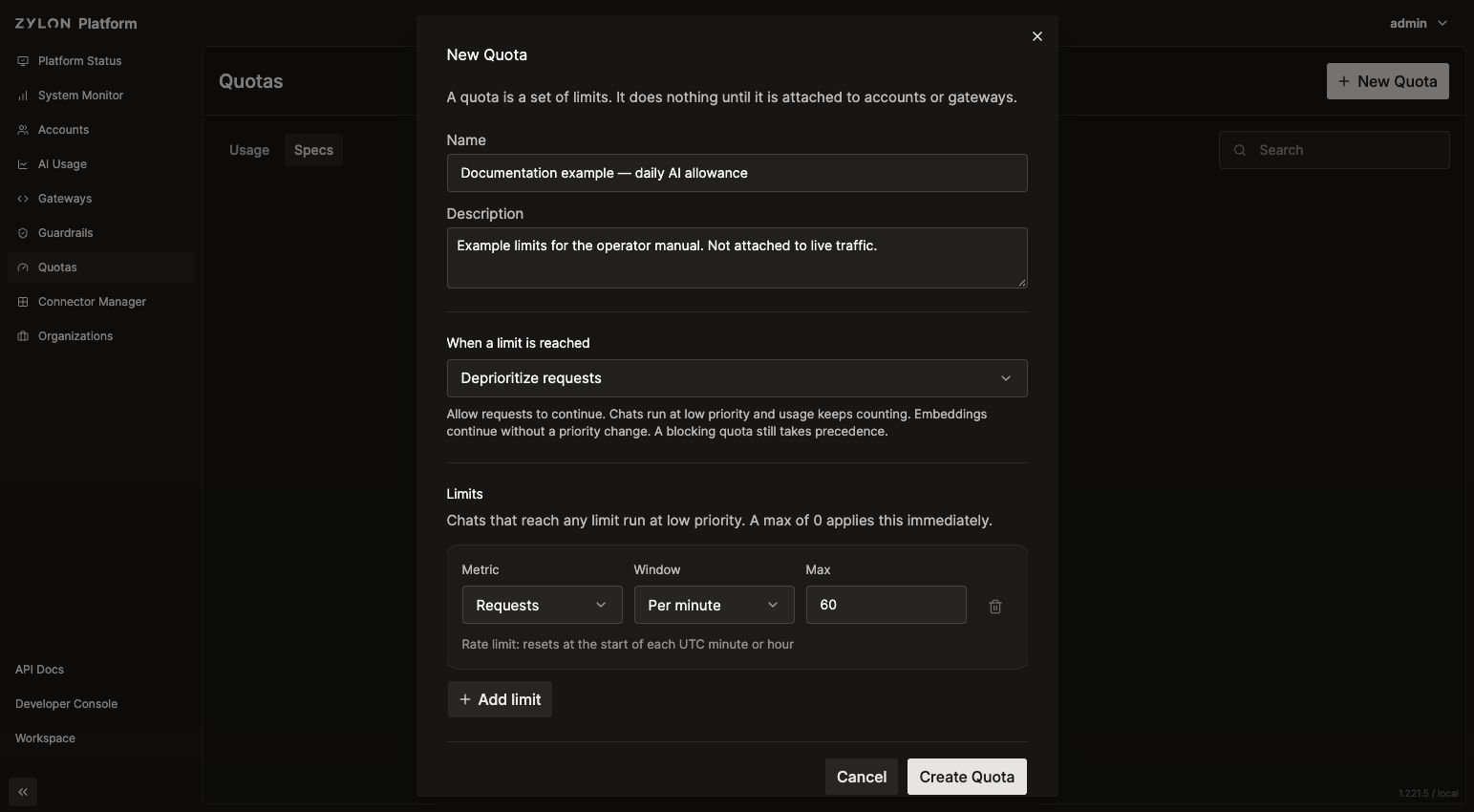
Create a quota
- Open Quotas and click New Quota.
- Enter a Name and an optional Description that explain the intended allowance.
- Choose Block requests or Deprioritize requests.
- Set the first limit’s Metric, Window, and Max.
- Click Add limit for each additional limit. Use the trash icon to remove an unwanted row.
- Click Create Quota. Scroll down in the form if the button is below the visible area.
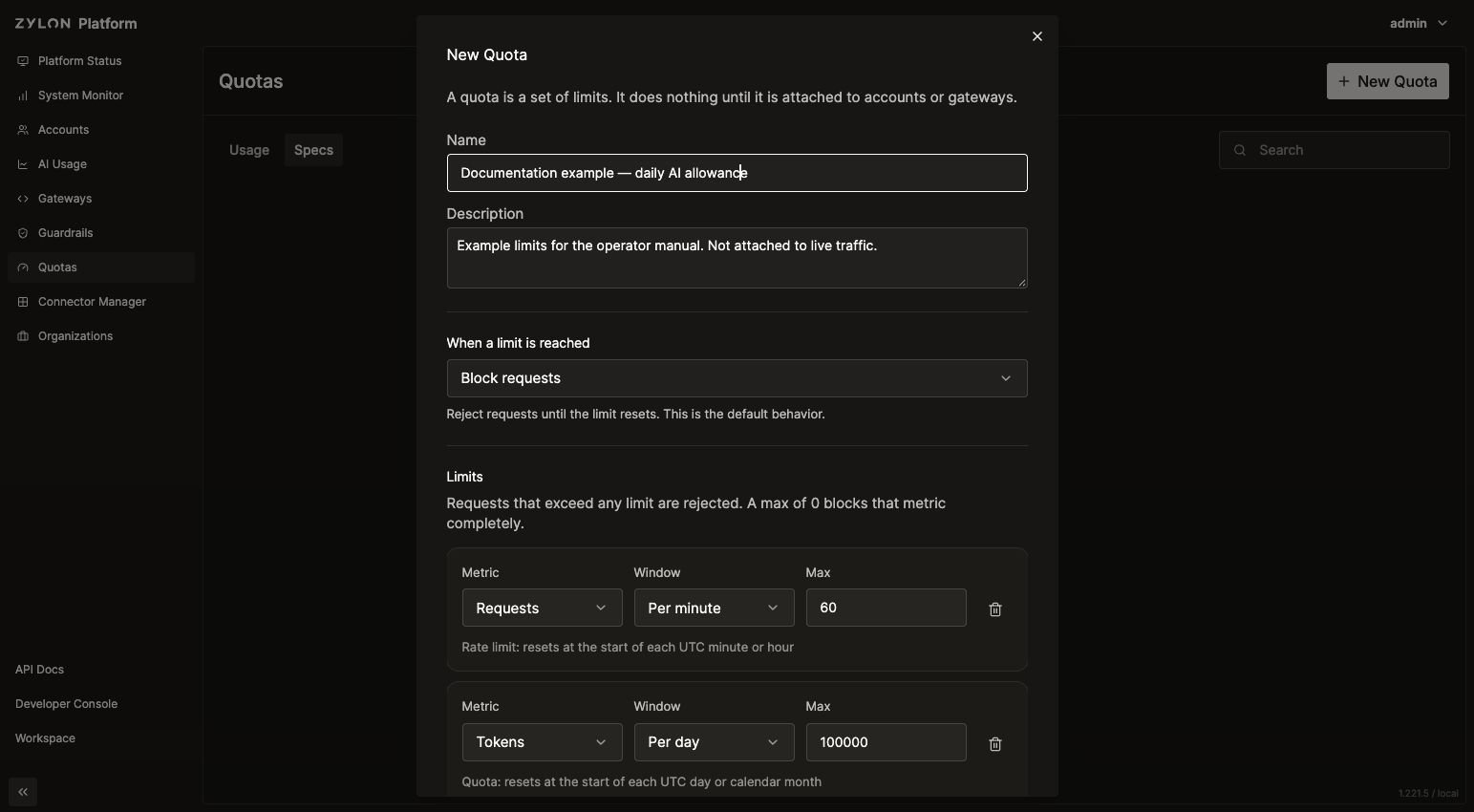
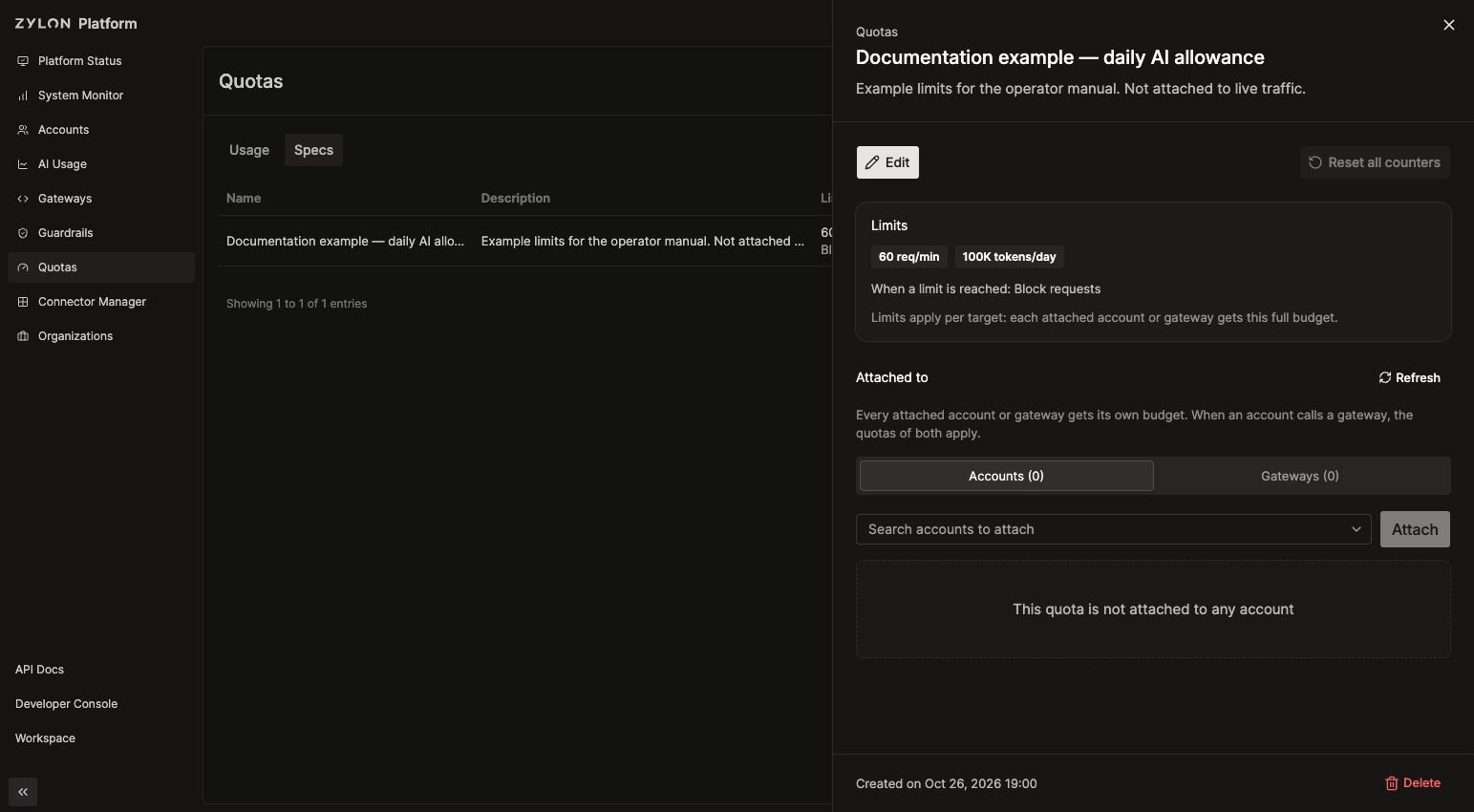
Attach a quota
- In Specs, open the quota using its details arrow.
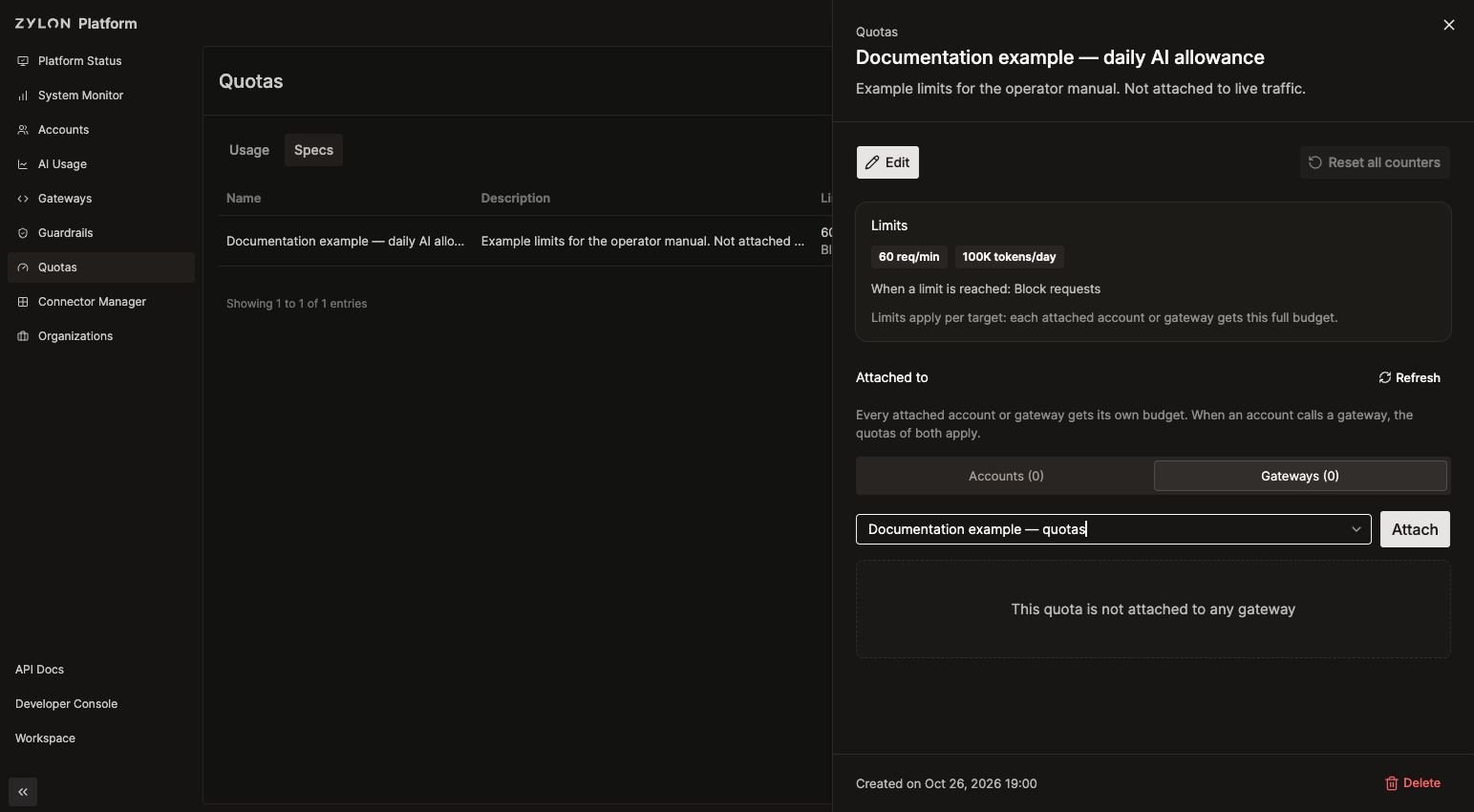
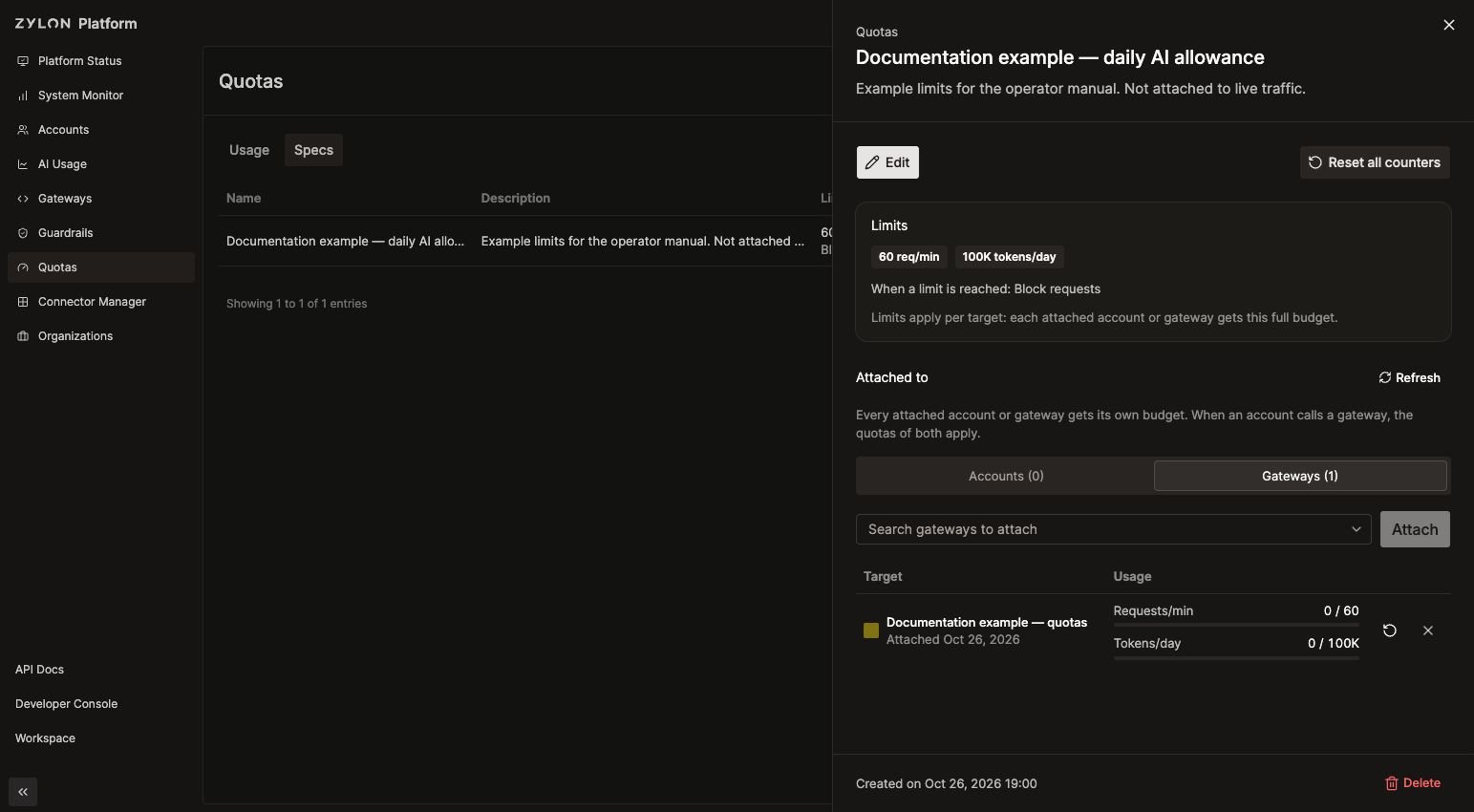
- Under Attached to, select Accounts or Gateways.
- Search for and select the account or gateway.
- Click Attach.
- Check that the target appears in the table with its usage counters. Repeat for other targets as needed.
Quota changes can take about 30 seconds to take effect. Allow time for a change to apply before checking its effect on requests.
Monitor usage
Open Usage to compare current consumption with each limit. Each row represents one quota attached to one account or gateway. Click the quota name to open its details.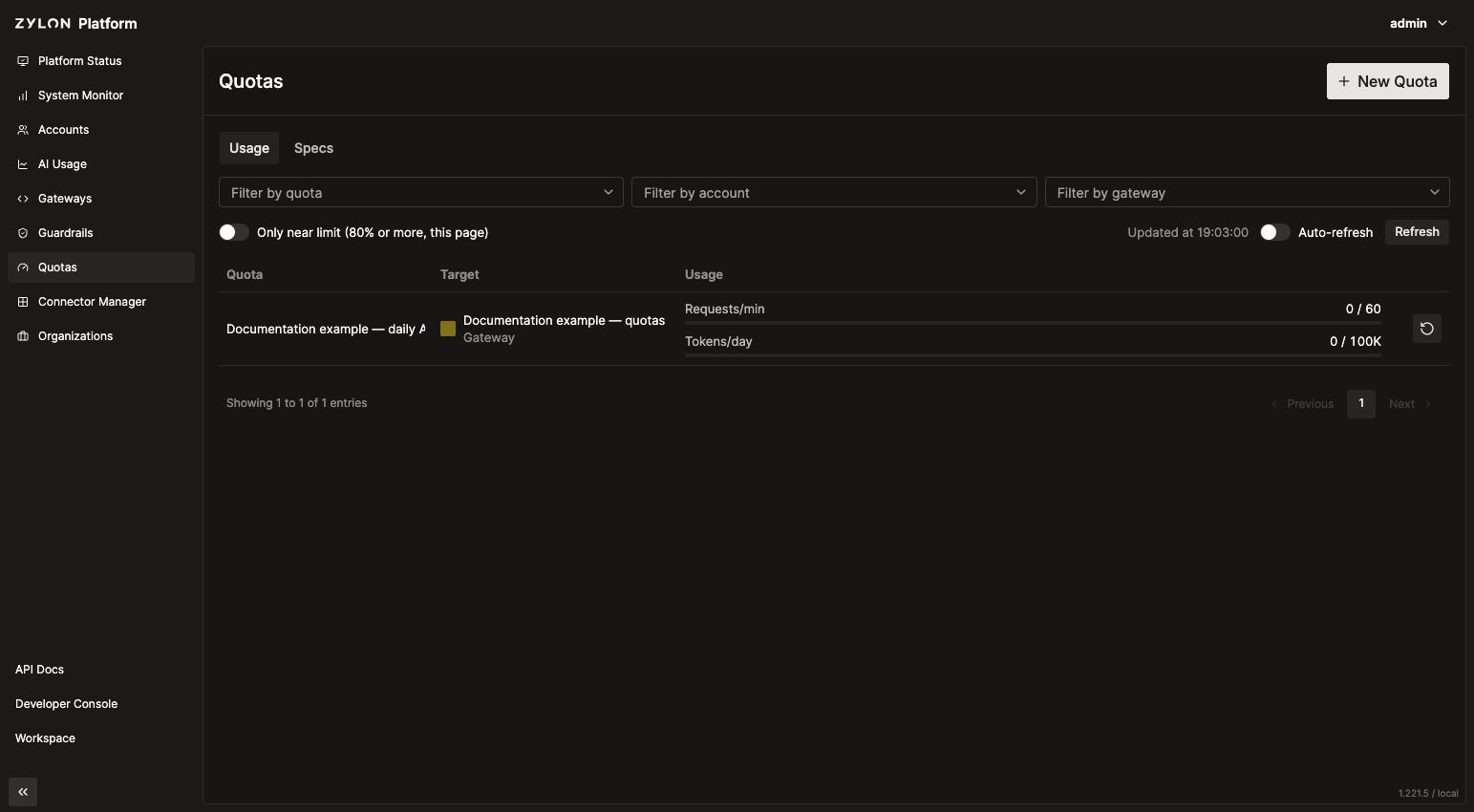
- Use Filter by quota, Filter by account, or Filter by gateway to narrow the results.
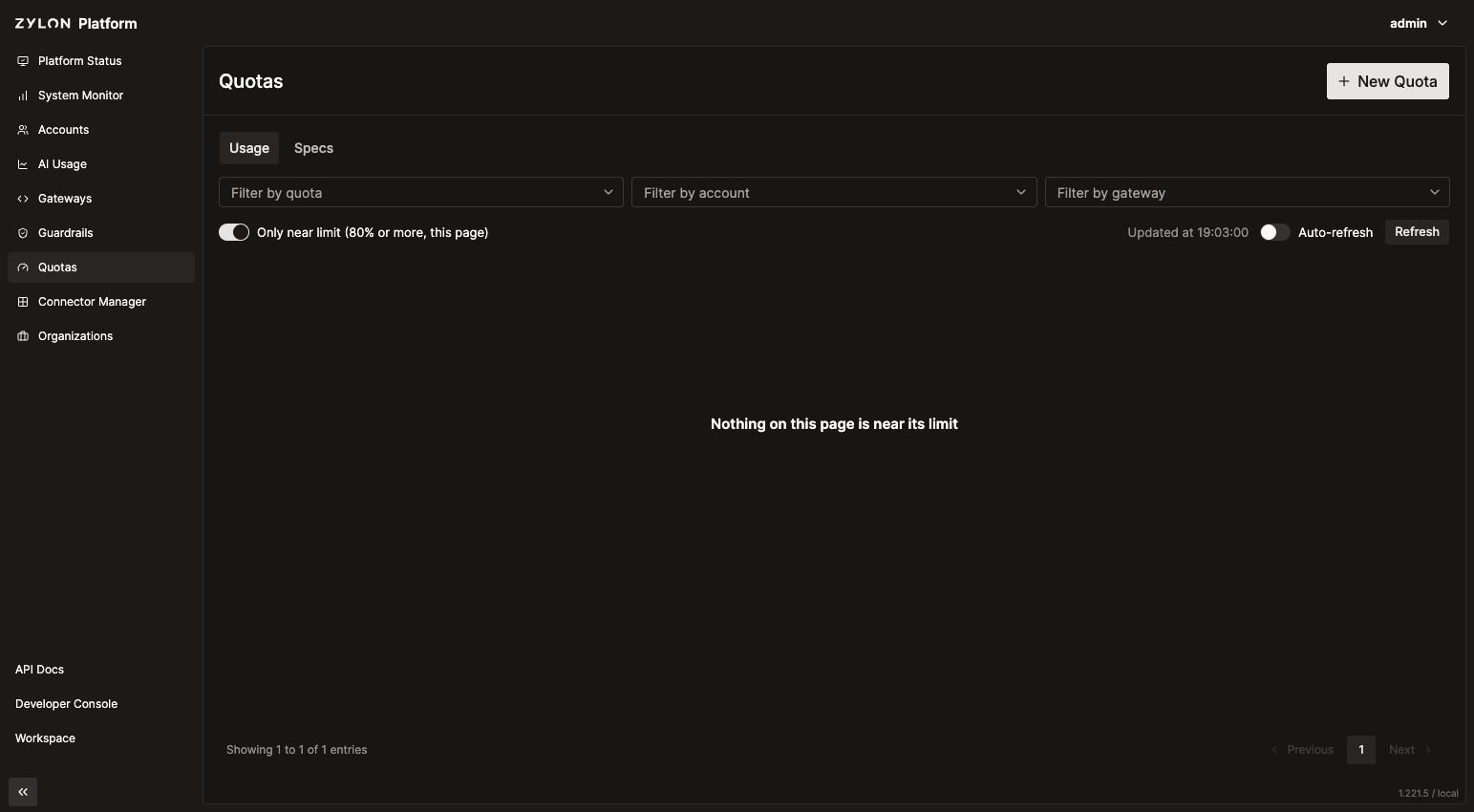
- Enable Only near limit (80% or more, this page) to focus on attachments approaching or at a limit. This checks the current page only; check other pages when reviewing a larger list.
- Click Refresh for an updated reading, or enable Auto-refresh to refresh every 30 seconds. Updated at shows when usage was last refreshed.
- Hover over a usage bar to see exact values and the reset time. The reset time is displayed in your local time.
Reset counters
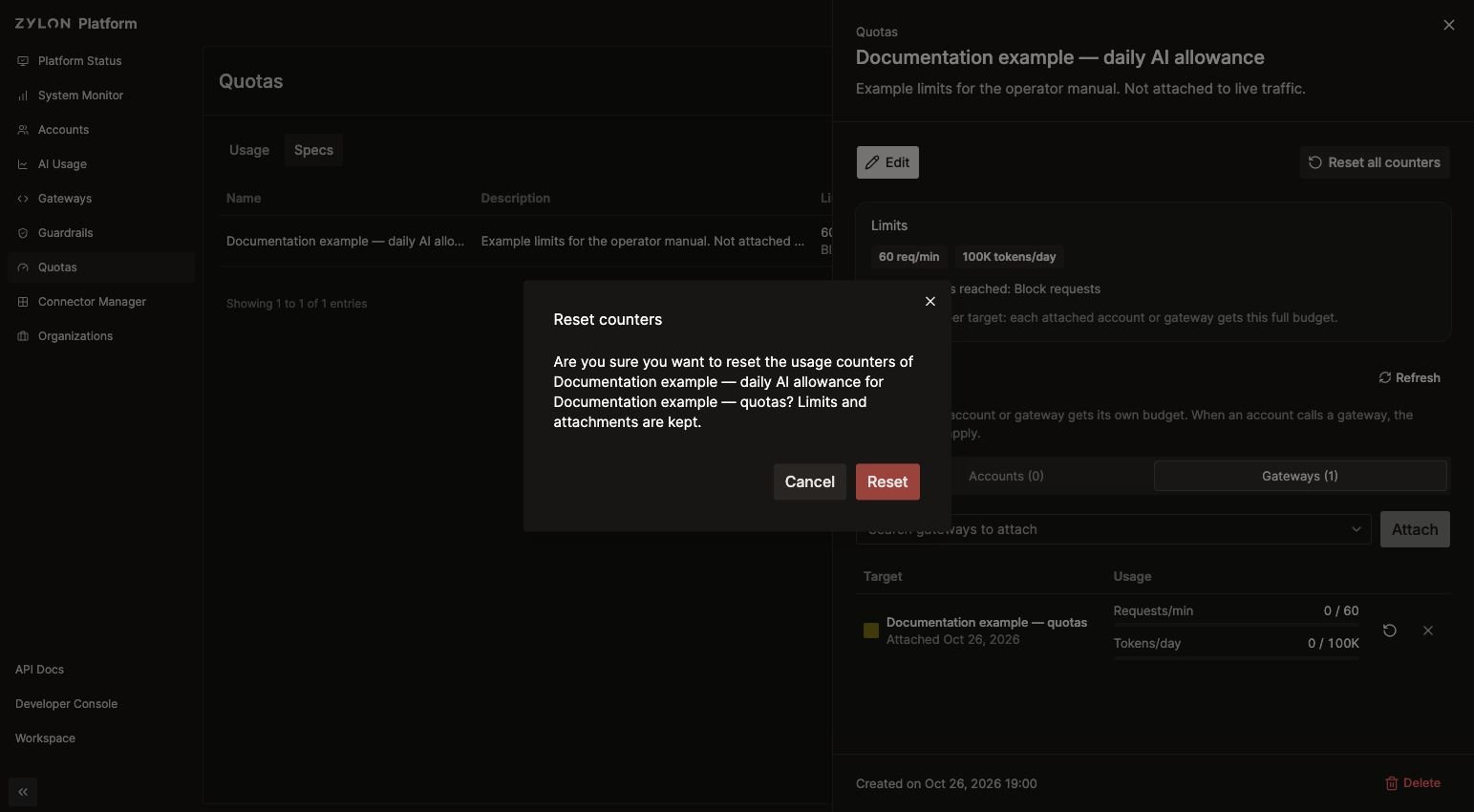
Reset counters when you want to restore an allowance before its normal reset time.- Open the quota and select the Accounts or Gateways tab.
- Click the target row’s Reset counters icon. The same action is available from Usage.
- Check the quota and target names in the confirmation, then click Reset.
Edit or remove a quota
Edit limits
Open the quota, click Edit, update the name, description, behavior, or limits, then click Save. Changes affect every target attached to that quota, so check the attachment list before saving.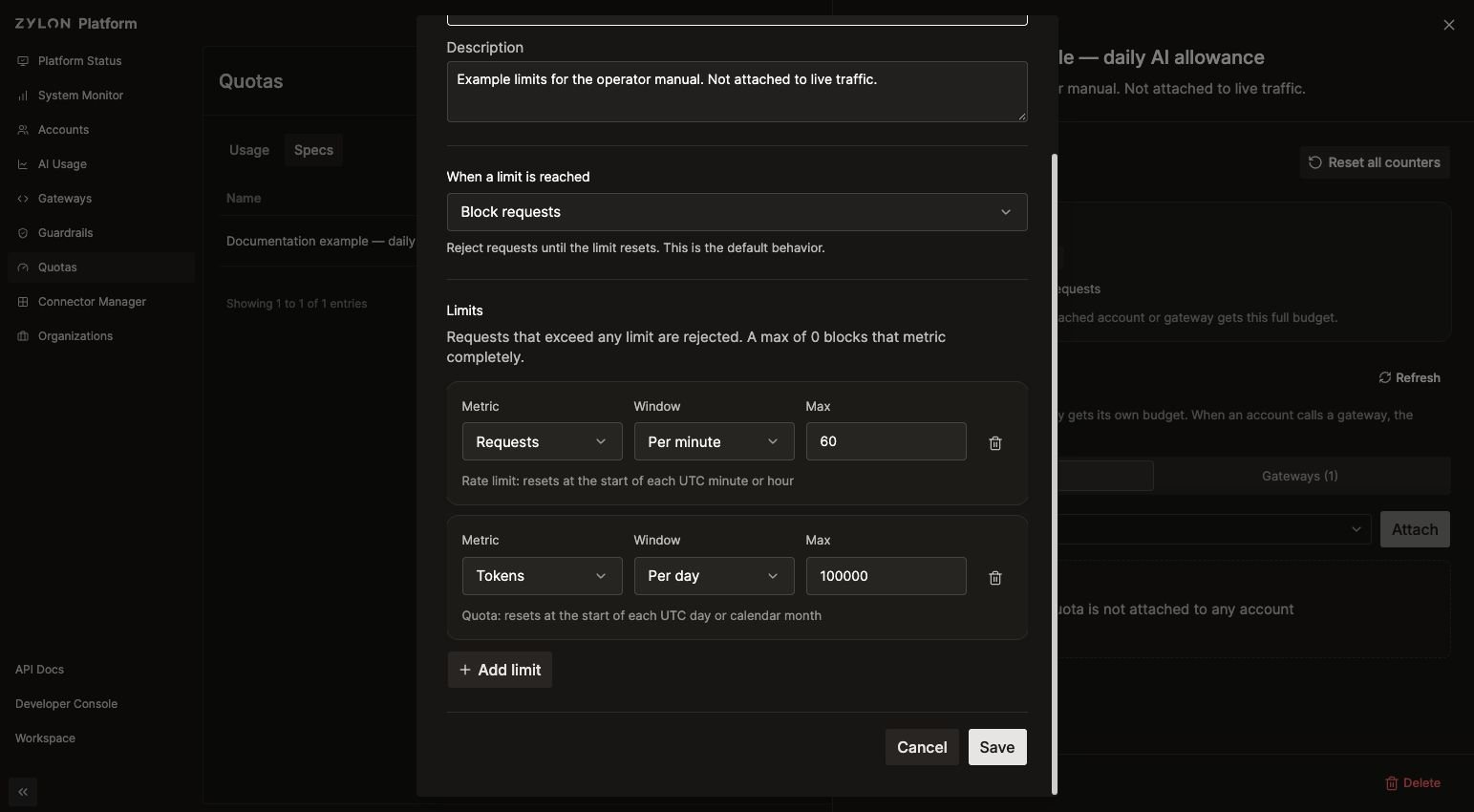
Detach one account or gateway
In the quota’s Accounts or Gateways tab, click the target row’s Detach icon and confirm. This removes that quota from the selected target while keeping the quota and its other attachments. Other quotas attached to the same target still apply.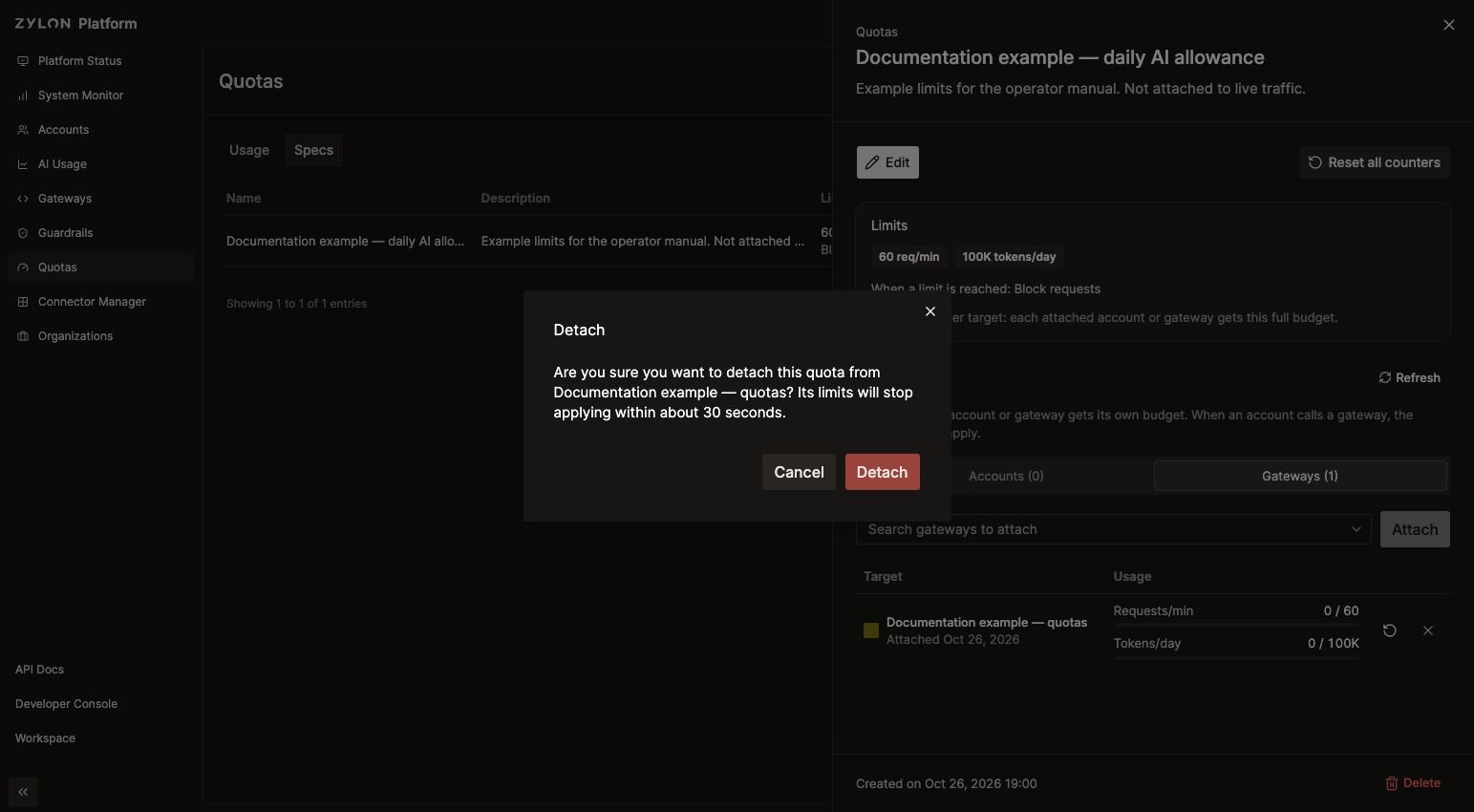
Delete the quota
Click Delete in the details panel, or the quota’s trash icon in Specs. Review the confirmation before deleting.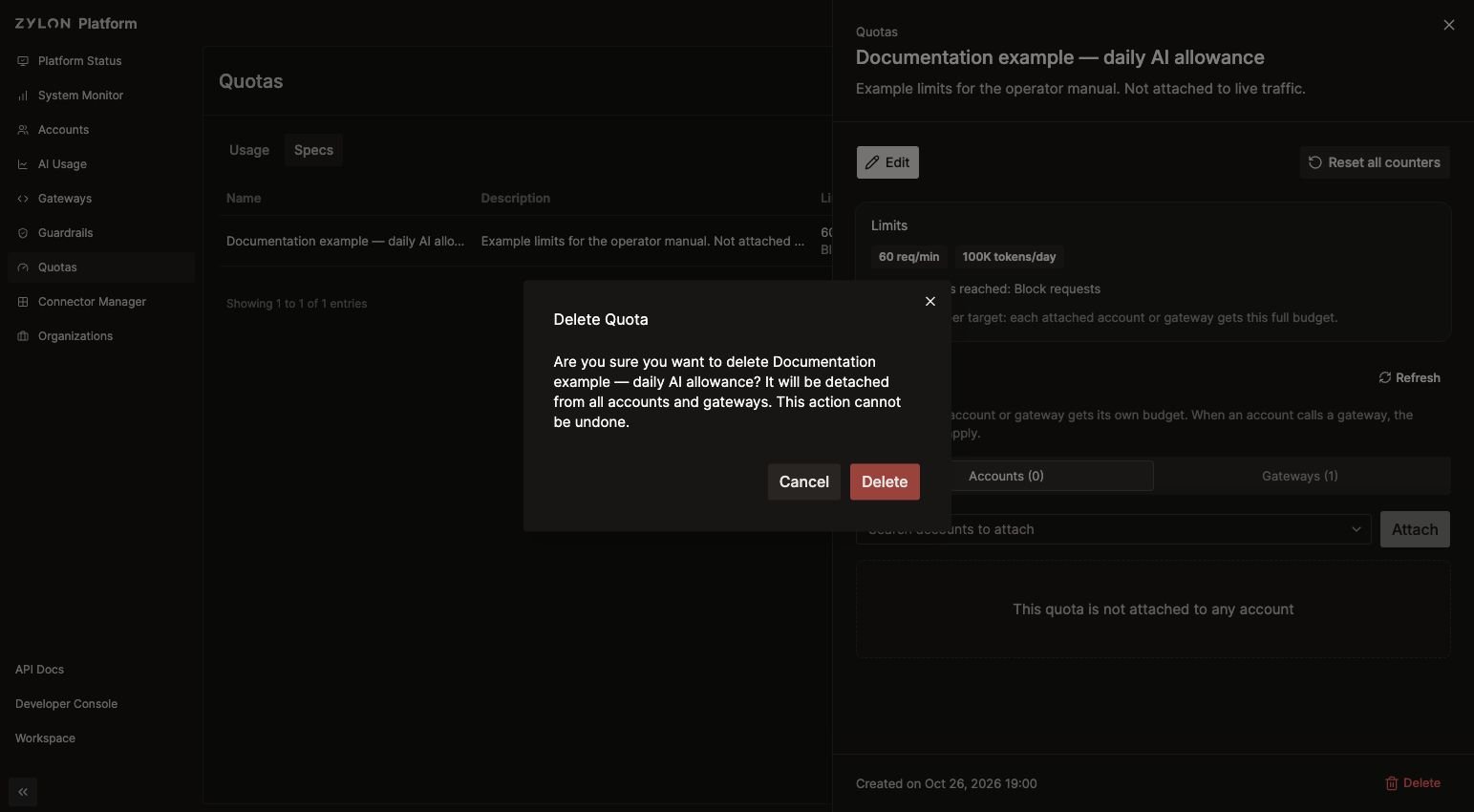
Notes and limitations
- A quota must contain at least one limit. Each metric and window combination can appear only once, giving up to eight different limits per quota.
- Limits use whole numbers of zero or more; empty, negative, or fractional maximums are invalid.
- Token usage is counted after a response, so consumption can exceed the configured maximum. Treat a token limit as usage control rather than an exact spending cap.
- Deprioritize requests does not stop consumption at the maximum and does not lower embedding priority.
- Quotas measure requests and tokens. They do not define a monetary budget or a limit on account creation, storage, or file uploads.
- This page describes quota allowances. Use the Usage Dashboard to review broader AI activity and historical usage.