> ## Documentation Index
> Fetch the complete documentation index at: https://docs.zylon.ai/llms.txt
> Use this file to discover all available pages before exploring further.
# Attach files in chat
> Drop images and documents straight into a chat message so Zylon can read and use them.
**Upcoming release — Zylon 1.58**
These docs are published ahead of release so you can prepare your API integrations. The release image is not yet available. For installations running 1.57, use the [1.57 documentation](/en/v1.57/overview).
Attach files directly to your chat messages — images, spreadsheets, PDFs, Word documents, presentations, and more — so Zylon can read them and use them as context when responding.
Ask your IT administrator to enable file attachments in your system configuration [with the Operator Manual](/en/v1.58/operator-manual/configuration/features/overview) if you don't see this option.
***
## What you can do with attachments
* Ask questions about a document, spreadsheet, or image you've just attached
* Get a summary, explanation, or analysis of its content
* Use a file as context for problem-solving or decision-making
* Attach more than one file to the same message
* Combine attachments with a text prompt for more specific instructions
***
## How to attach a file
There are two ways to attach a file to a message:
1. Click the **+** button in the chat box, then choose **Add images & files**, and pick one or more files from your device.
2. Or simply **drag and drop** files straight onto the chat box.
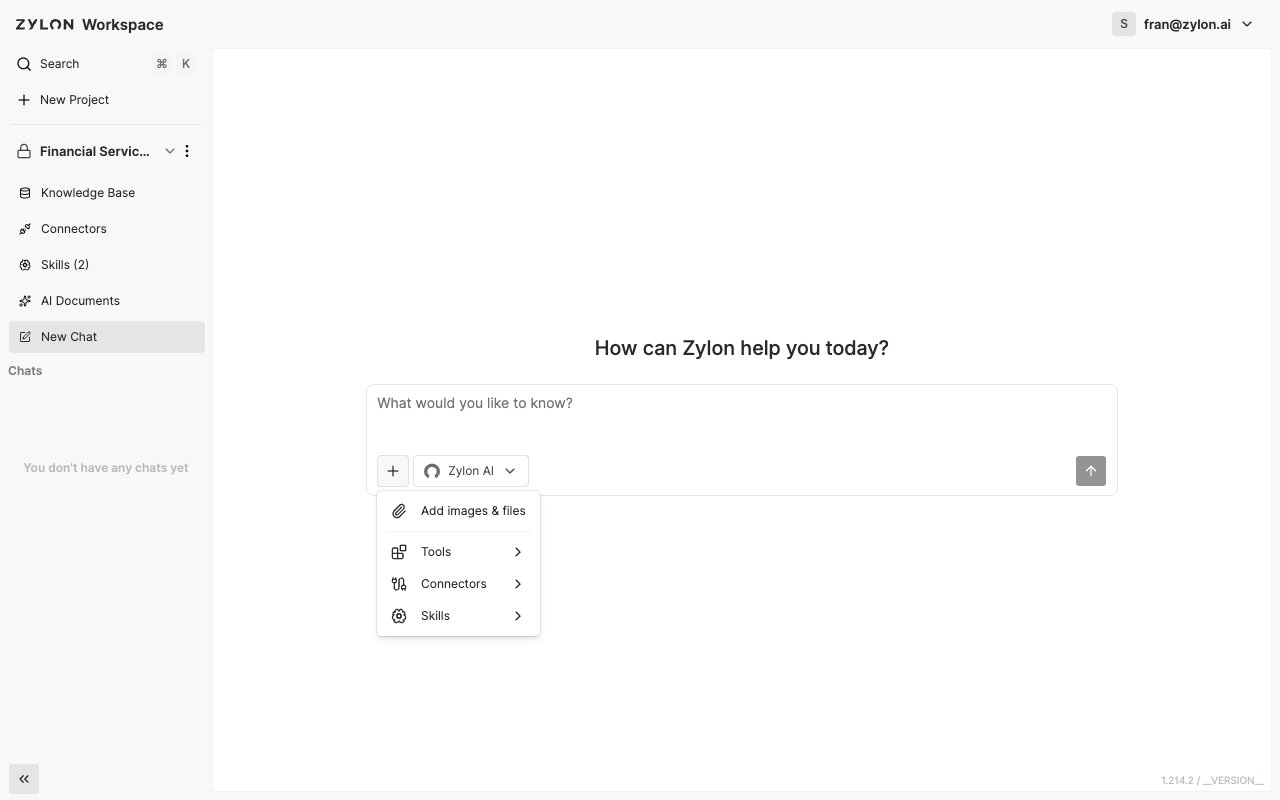 Once attached, each file shows up as a chip above the message box — add your question or instructions and send.
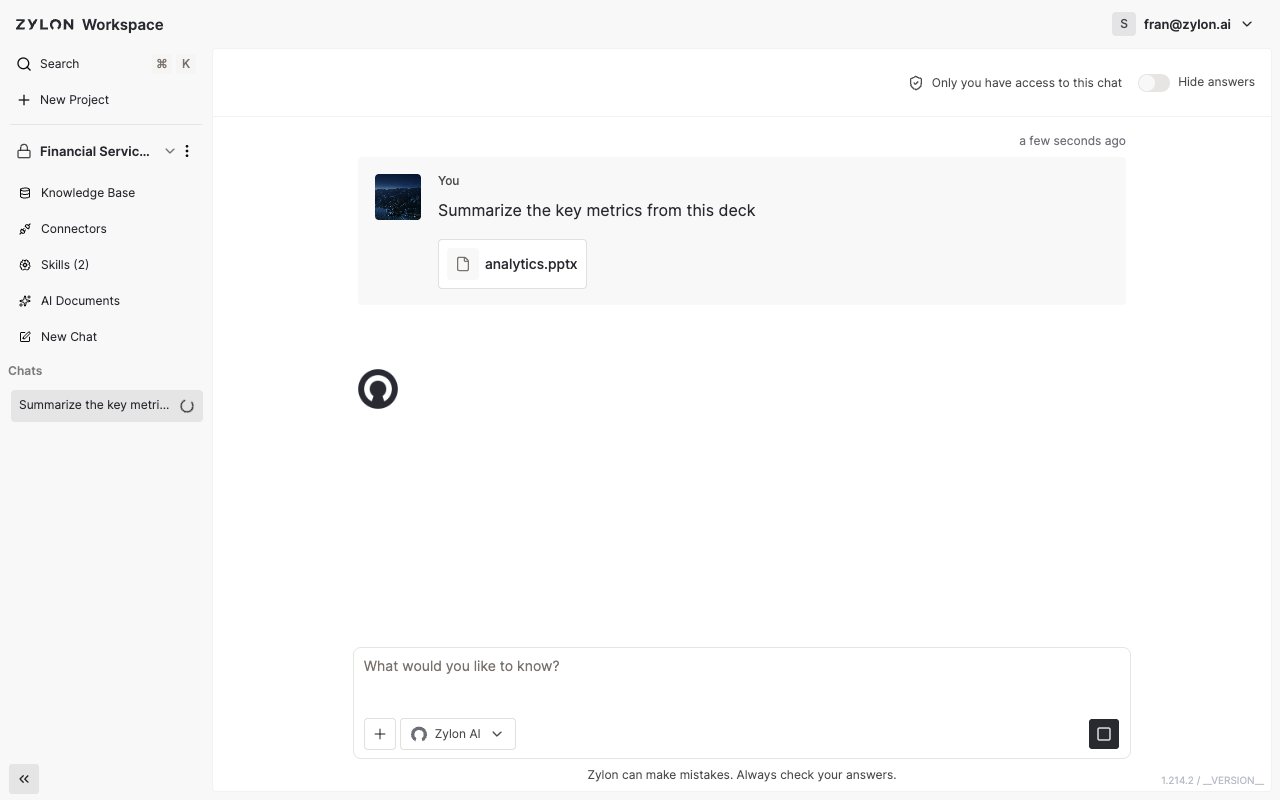
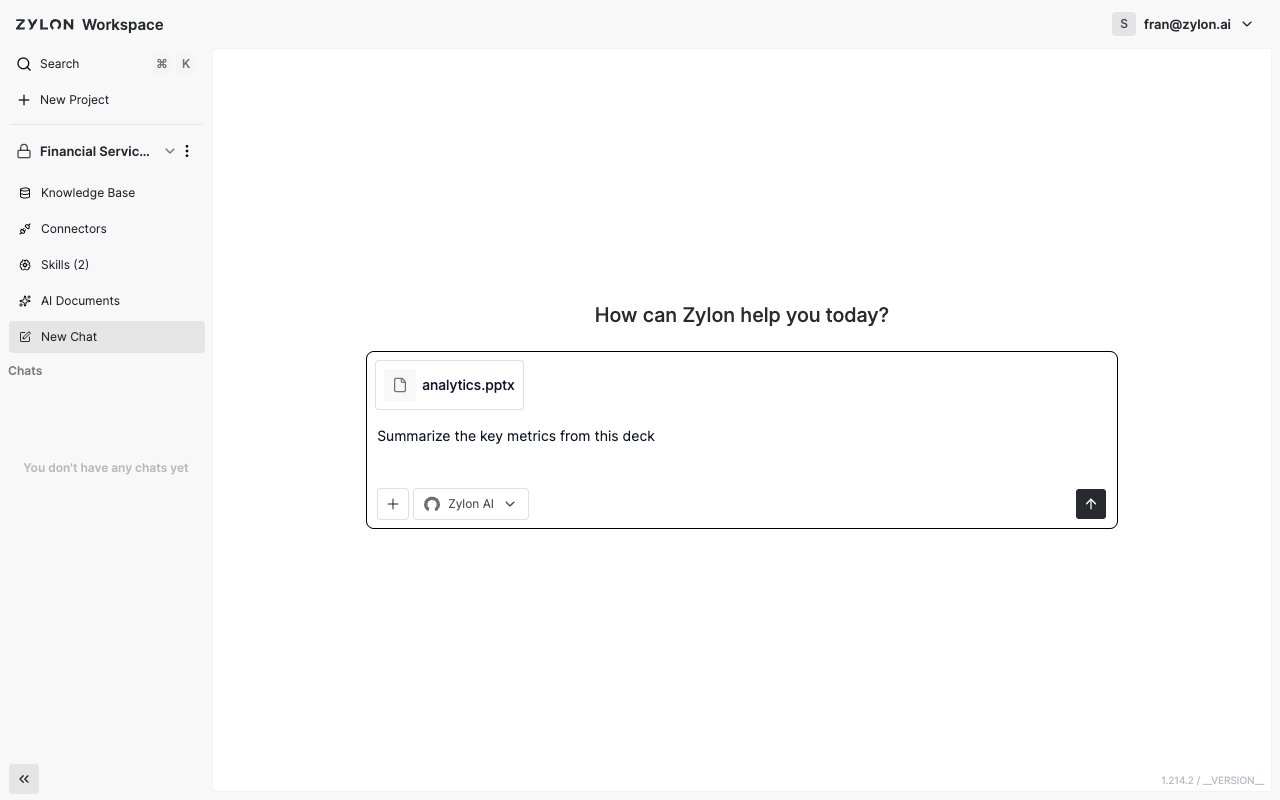 Your message keeps the attachment alongside it in the conversation, so you can always see what Zylon was looking at.
 ***
## Supported file types
* **Images** — JPG, PNG, GIF, WebP, SVG, BMP
* **Documents** — PDF, Word, PowerPoint, Excel, CSV/TSV, plain text, HTML, RTF, ODT, EPUB, Outlook email (`.msg`, `.eml`)
Exactly which file types and how many files you can attach depends on how your admin has configured Zylon for your organization.
***
## Limitations
* The number of files per message and the maximum file size are set by your admin, and may vary by file type.
* If a file is larger than usual, Zylon warns you before continuing — you can still send it, or add it to the project's Knowledge Base instead, which handles large files better.
* Understanding an image depends on its clarity and resolution; very large or complex files may produce less detailed results.
* Your organization's selected AI model has to support the type of file you're attaching (for example, image understanding).
This documentation is built and hosted on [Mintlify](https://mintlify.com), a developer documentation platform.
***
## Supported file types
* **Images** — JPG, PNG, GIF, WebP, SVG, BMP
* **Documents** — PDF, Word, PowerPoint, Excel, CSV/TSV, plain text, HTML, RTF, ODT, EPUB, Outlook email (`.msg`, `.eml`)
Exactly which file types and how many files you can attach depends on how your admin has configured Zylon for your organization.
***
## Limitations
* The number of files per message and the maximum file size are set by your admin, and may vary by file type.
* If a file is larger than usual, Zylon warns you before continuing — you can still send it, or add it to the project's Knowledge Base instead, which handles large files better.
* Understanding an image depends on its clarity and resolution; very large or complex files may produce less detailed results.
* Your organization's selected AI model has to support the type of file you're attaching (for example, image understanding).
This documentation is built and hosted on [Mintlify](https://mintlify.com), a developer documentation platform.