> ## Documentation Index
> Fetch the complete documentation index at: https://docs.zylon.ai/llms.txt
> Use this file to discover all available pages before exploring further.
# Creating a Skill
> Create a Skill with chat or the editor, or install a Skill file in your project.
**Upcoming release — Zylon 1.58**
These docs are published ahead of release so you can prepare your API integrations. The release image is not yet available. For installations running 1.57, use the [1.57 documentation](/en/v1.57/overview).
Project admins and editors can add a new Skill directly inside a project.
## Create a Skill with chat
You can describe the task you want in everyday language; you do not need to write code.
1. First, [install the organization Skill **Skill Creator**](/en/v1.58/user-manual/skills/installing-from-organization) in your project. Open **Skills > New Skill > Install from organization**, find **Skill Creator**, and click **Install**. If it is not available, ask your organization admin to make it available.
2. Return to **Skills > New Skill** and choose **Create with Chat**. Zylon opens a new chat with Skill Creator selected for you.
3. Describe what you want the new Skill to do. Answer the assistant's questions and ask for changes until the instructions fit your task.
4. Download the `.skill` file the assistant provides, then [upload and install it](#upload-a-skill-file) in the project. You can then [select your new Skill in chat](/en/v1.58/user-manual/skills/using-skills-in-chat) to try it.
For example:
> Help me create a Skill that turns our weekly support notes into a short report. Include the main problems, what we fixed, and what still needs attention. Use plain language and bullet points.
**Create with Chat** appears only when Skill Creator is installed and enabled in this project. A project admin or editor can install it; viewers should ask one of them for help. If your operator has disabled code execution in Workspace, Skill Creator cannot run the code steps needed to package and test a Skill. See [Code execution](/en/v1.58/user-manual/tools/code-execution).
## Create a Skill in the editor
Choose **Skills > New Skill > Create from editor**. Fill in the name, description, and **Skill Instructions**, then save. Use this option if you already know the instructions you want the assistant to follow.
## Upload a Skill file
1. Open your project and go to the **Skills** tab in the sidebar.
2. Click **New Skill**, then choose **Upload from your device**.
3. Drag a Skill file onto the dropzone (a `.zip`, `.skill`, or `SKILL.md` file), or click **Add Files** to browse your device.
4. Check the name and description Zylon picked up from the file.
5. Click **Install**.
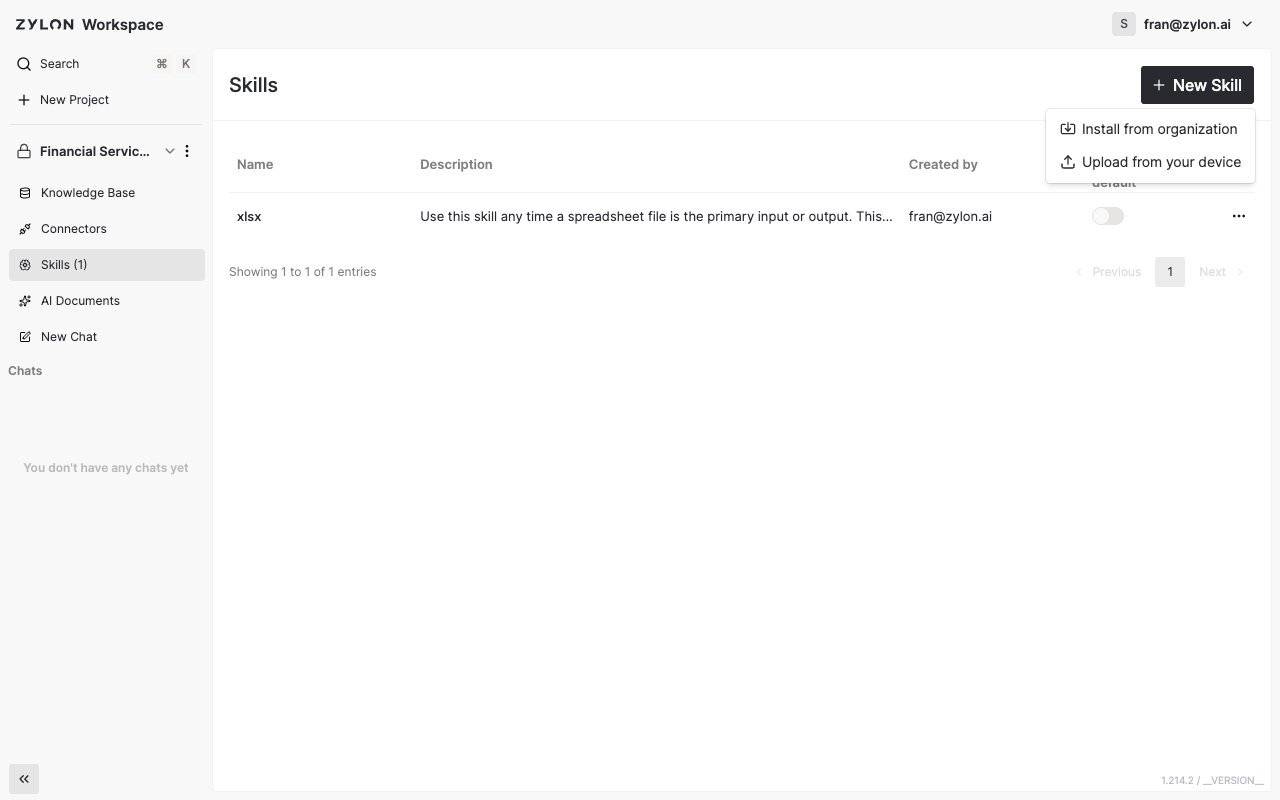 Your new Skill now appears in the project's Skills list and is ready to use in chat.
Only upload Skills from sources you trust — a Skill's instructions run automatically whenever someone uses it.
Need a Skill that everyone in the organization can reuse, not just this project? Ask an admin to publish it from [Managing Organization Skills](/en/v1.58/user-manual/managing-organization-skills), then [install it](/en/v1.58/user-manual/skills/installing-from-organization) into any project that needs it.
This documentation is built and hosted on [Mintlify](https://mintlify.com), a developer documentation platform.
Your new Skill now appears in the project's Skills list and is ready to use in chat.
Only upload Skills from sources you trust — a Skill's instructions run automatically whenever someone uses it.
Need a Skill that everyone in the organization can reuse, not just this project? Ask an admin to publish it from [Managing Organization Skills](/en/v1.58/user-manual/managing-organization-skills), then [install it](/en/v1.58/user-manual/skills/installing-from-organization) into any project that needs it.
This documentation is built and hosted on [Mintlify](https://mintlify.com), a developer documentation platform.