> ## Documentation Index
> Fetch the complete documentation index at: https://docs.zylon.ai/llms.txt
> Use this file to discover all available pages before exploring further.
# Quick Start Guide
> Get productive with Zylon Workspace in 15 minutes
**Upcoming release — Zylon 1.58**
These docs are published ahead of release so you can prepare your API integrations. The release image is not yet available. For installations running 1.57, use the [1.57 documentation](/en/v1.57/overview).
Complete these essential tasks to start using Zylon effectively. This guide takes about 15 minutes and covers everything you need to be productive.
## Step 1: Create Your First Project (3 minutes)
Projects organize your AI work by topic or team. Start with a simple personal project.
1. **Click "Create Project"** from your dashboard
2. **Name it descriptively** - e.g., "Personal Research" or "Customer Support"
3. **Keep it private** for now (you can share it later)
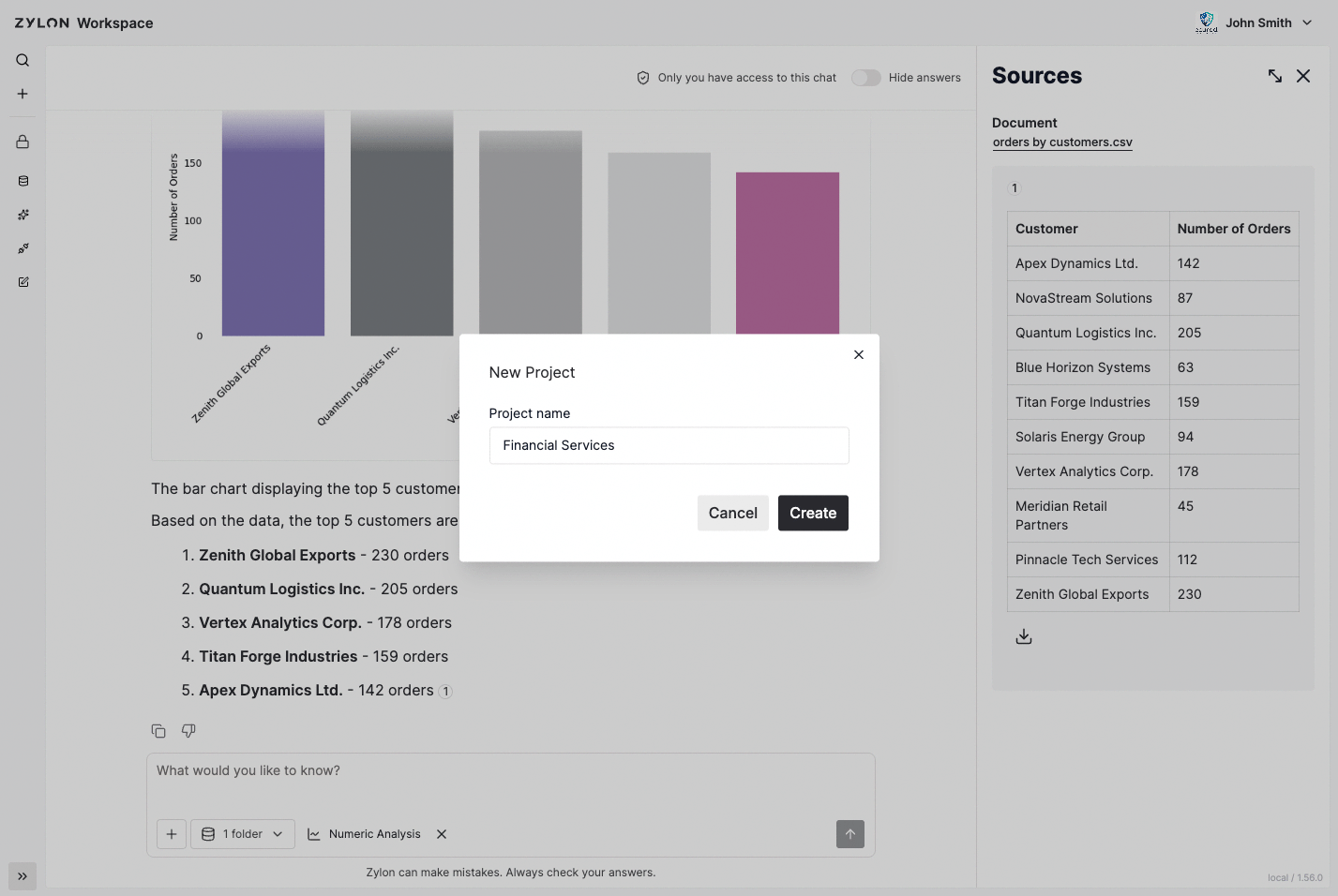 Projects are private by default. Only you can see them unless you explicitly share them with others.
## Step 2: Connect Your Knowledge (5 minutes)
Add documents so Zylon can help you with your actual work. Navigate to the Knowledge Base section of your project.
**Option A: Upload Files**
1. **Drag and drop** 2-3 documents you work with regularly
2. **Wait for processing** (usually 2-5 minutes)
3. **Check the knowledge base** to confirm they're ready
**Option B: Connect to an external source, like SharePoint**
1. **Click "Connect SharePoint"** in your project
2. **Authenticate** with your credentials
3. **Select a specific folder** (not the entire site)
Projects are private by default. Only you can see them unless you explicitly share them with others.
## Step 2: Connect Your Knowledge (5 minutes)
Add documents so Zylon can help you with your actual work. Navigate to the Knowledge Base section of your project.
**Option A: Upload Files**
1. **Drag and drop** 2-3 documents you work with regularly
2. **Wait for processing** (usually 2-5 minutes)
3. **Check the knowledge base** to confirm they're ready
**Option B: Connect to an external source, like SharePoint**
1. **Click "Connect SharePoint"** in your project
2. **Authenticate** with your credentials
3. **Select a specific folder** (not the entire site)
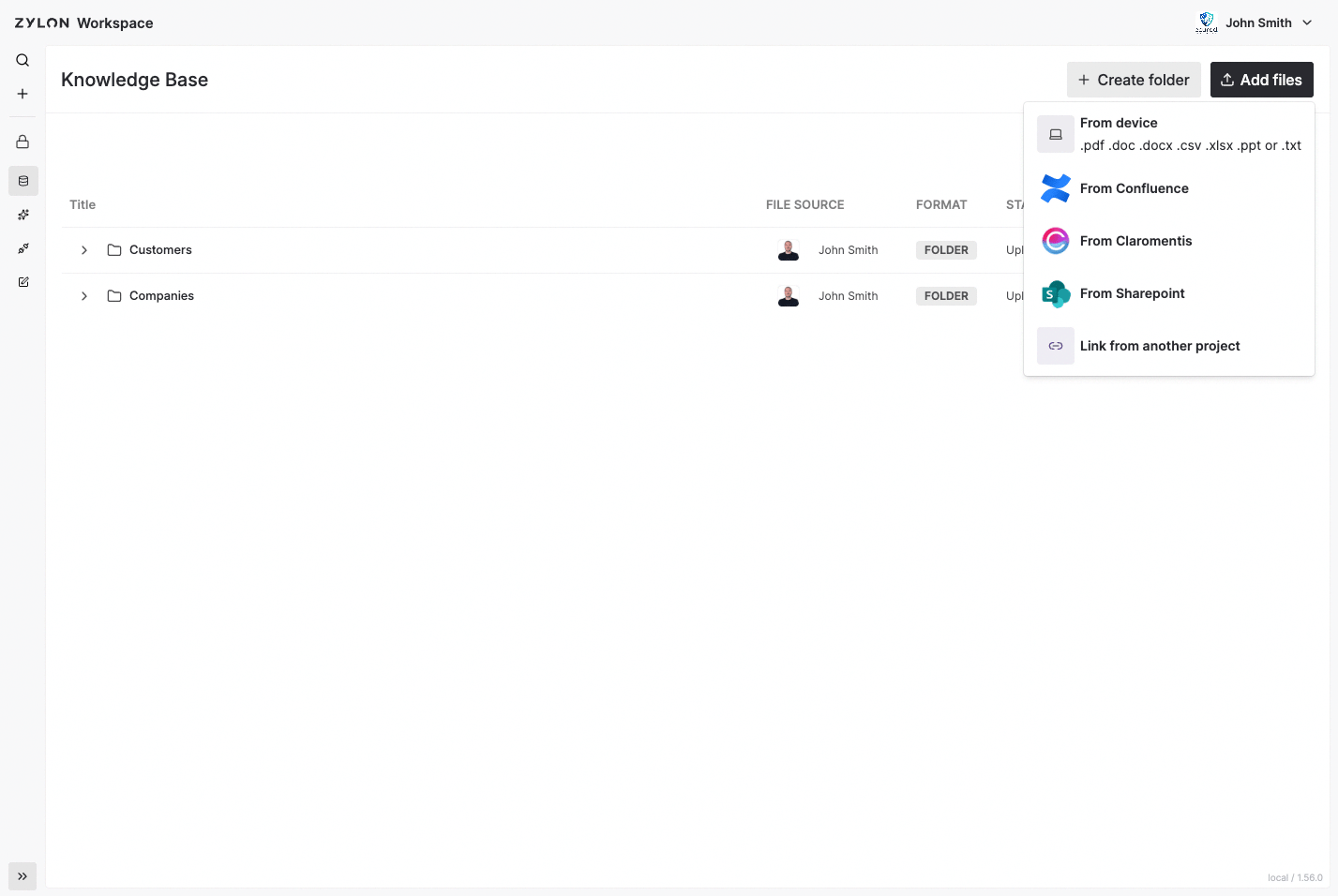 **Supported file types:**
* PDFs, Word documents, Excel spreadsheets
* PowerPoint presentations, plain text files
* SharePoint folders, Confluence spaces, FTP/Samba
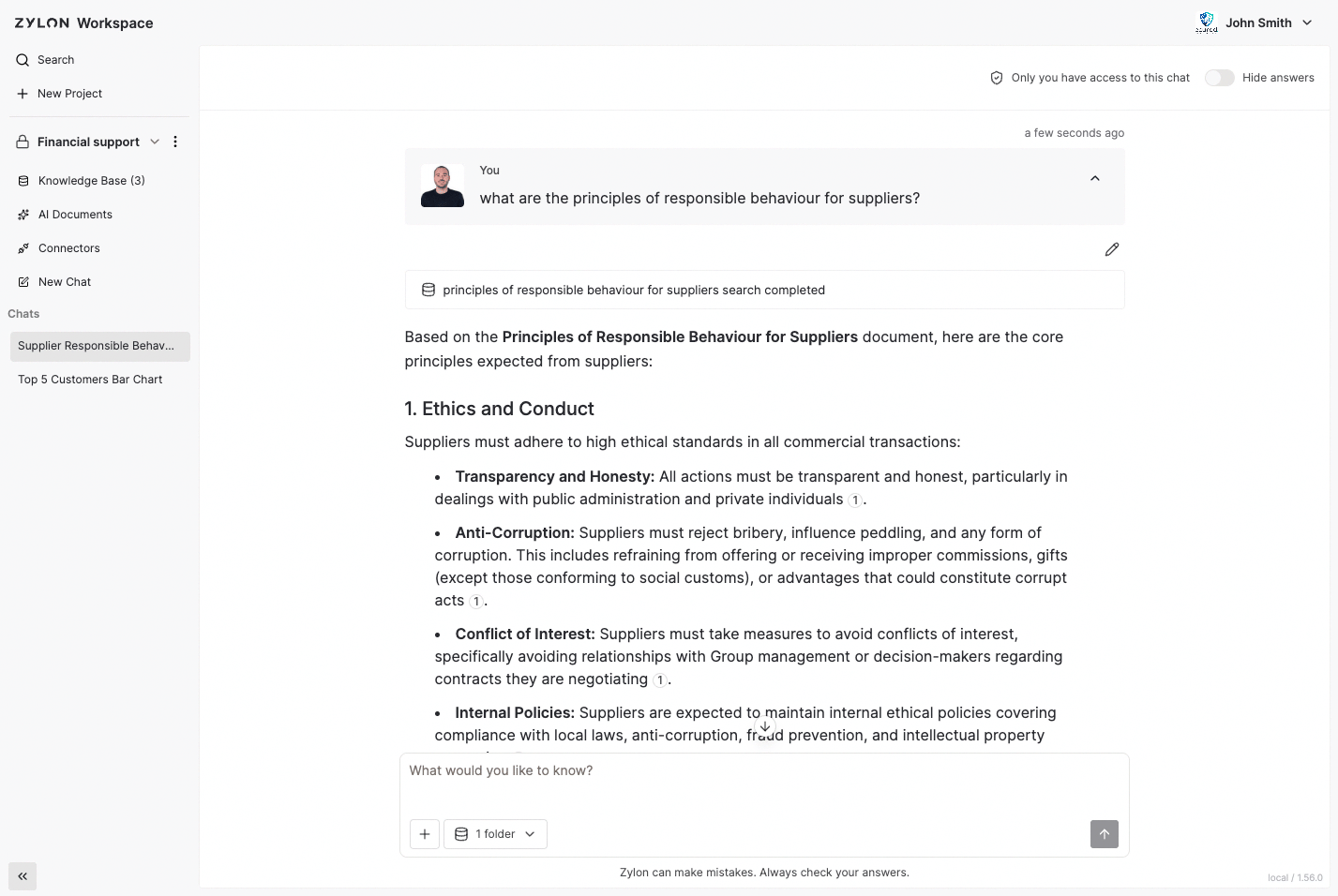
## Step 3: Ask Your First Question (3 minutes)
Now test Zylon with a real question about your documents.
1. **Start a new chat** (choose Personal for now)
2. **Ask a specific question** about the documents you uploaded
3. **Review the response** and click on the citations
4. **Ask a follow-up question** to see how Zylon maintains context
**Good example questions:**
```
"What are the key requirements mentioned in [document name]?"
"What's our policy on [specific topic]?"
```
**Supported file types:**
* PDFs, Word documents, Excel spreadsheets
* PowerPoint presentations, plain text files
* SharePoint folders, Confluence spaces, FTP/Samba
## Step 3: Ask Your First Question (3 minutes)
Now test Zylon with a real question about your documents.
1. **Start a new chat** (choose Personal for now)
2. **Ask a specific question** about the documents you uploaded
3. **Review the response** and click on the citations
4. **Ask a follow-up question** to see how Zylon maintains context
**Good example questions:**
```
"What are the key requirements mentioned in [document name]?"
"What's our policy on [specific topic]?"
```
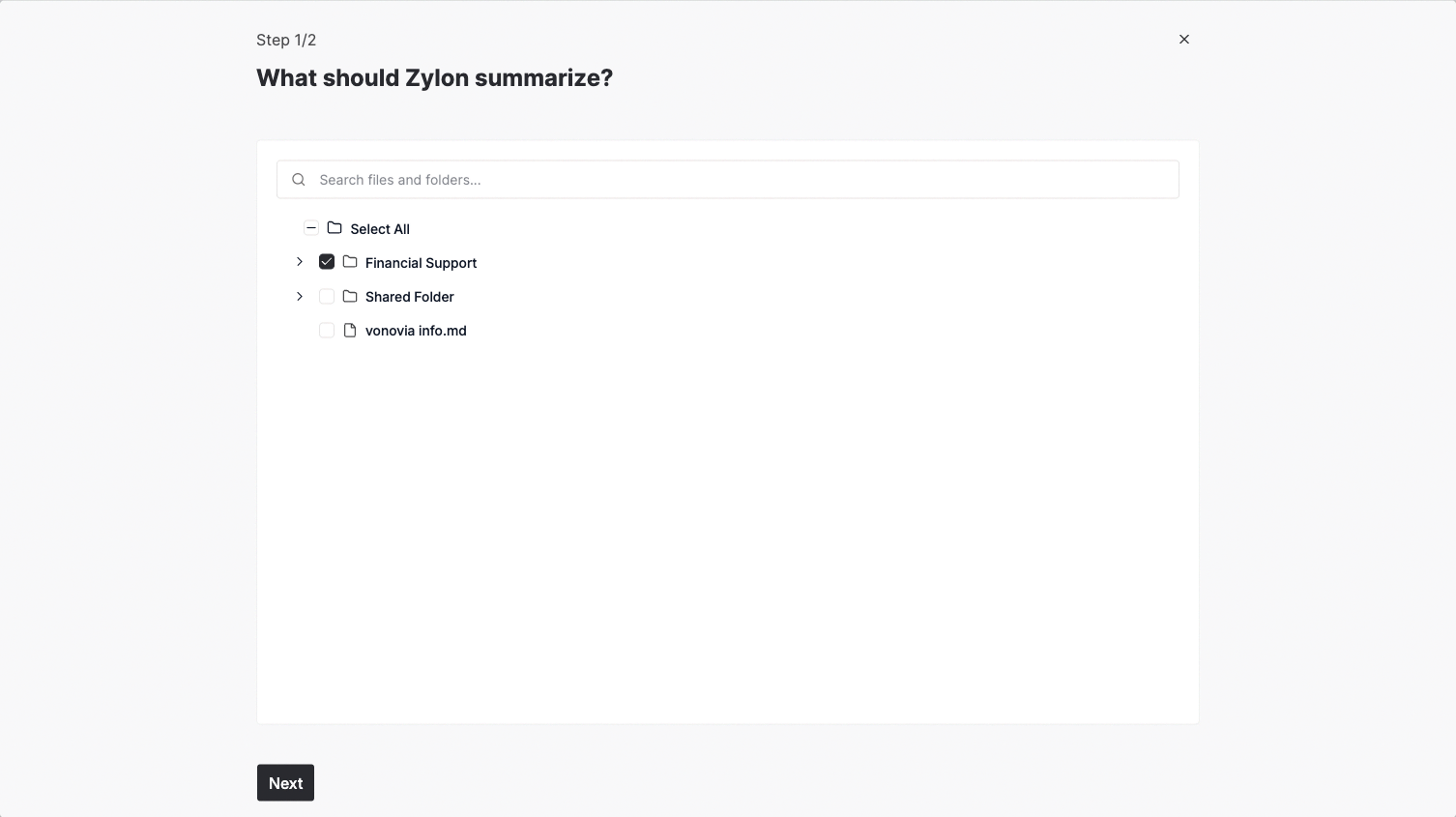
 ## Step 4: Try an AI Document (4 minutes)
AI Documents handle complex tasks automatically in the background.
1. **Go to AI Documents** in your project
2. **Choose "Summarize a File"**
3. **Select one of your uploaded documents**
4. **Add instructions** like "Create an executive summary focusing on key decisions"
5. **Click Start** and let it run in the background
## Step 4: Try an AI Document (4 minutes)
AI Documents handle complex tasks automatically in the background.
1. **Go to AI Documents** in your project
2. **Choose "Summarize a File"**
3. **Select one of your uploaded documents**
4. **Add instructions** like "Create an executive summary focusing on key decisions"
5. **Click Start** and let it run in the background
 **Other AI Documents to try:**
* **Answer in Bulk**: Upload a list of questions for automatic answers
* **Generate a Draft**: Create new documents from prompts
* **Read & Extract**: Pull specific information from multiple documents
## What You've Accomplished
✅ **Created and organized** your first project\
✅ **Connected knowledge sources** so Zylon can help with real work\
✅ **Had AI conversations** with citations and context\
✅ **Used automated workflows** for complex document tasks
This documentation is built and hosted on [Mintlify](https://mintlify.com), a developer documentation platform.
**Other AI Documents to try:**
* **Answer in Bulk**: Upload a list of questions for automatic answers
* **Generate a Draft**: Create new documents from prompts
* **Read & Extract**: Pull specific information from multiple documents
## What You've Accomplished
✅ **Created and organized** your first project\
✅ **Connected knowledge sources** so Zylon can help with real work\
✅ **Had AI conversations** with citations and context\
✅ **Used automated workflows** for complex document tasks
This documentation is built and hosted on [Mintlify](https://mintlify.com), a developer documentation platform.