> ## Documentation Index
> Fetch the complete documentation index at: https://docs.zylon.ai/llms.txt
> Use this file to discover all available pages before exploring further.
# Workspace Look & Feel
> Customize Zylon Workspace branding and appearance for your organization
As an administrator, you can customize Zylon Workspace to match your organization's branding and preferences. Zylon is a fully white-label solution.
 ## Customization Options
**Company Branding**
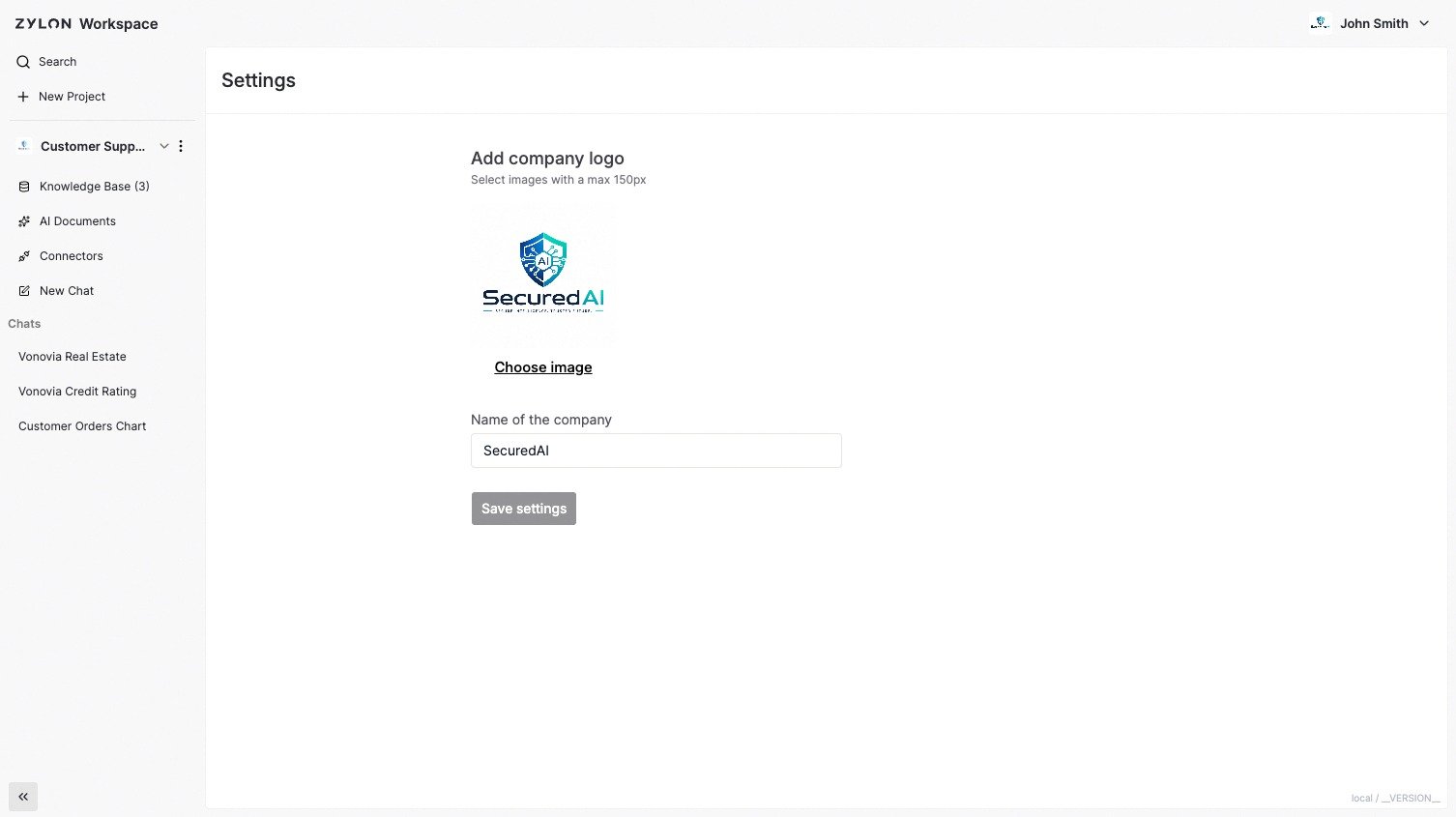
* **Workspace Name**: Choose the name of the Workspace (e.g., "Acme GPT")
* **Company Logo**: Upload your organization's logo for the interface
* **AI Assistant Name**: During installation, you can also choose what to call your AI (e.g., "Acme Assistant", "CompanyBot").
Refer to the Operator Manual to learn how to do it.
## Accessing Customization Settings
Only users with Administrator privileges can modify workspace appearance. Contact your IT team if you need these permissions.
1. **Click on the Workspace name** on the top right
2. **Select "Settings"** section
3. **Make your changes** to the Workspace Name and Logo
4. **Save and apply** changes organization-wide
## Customization Options
**Company Branding**
* **Workspace Name**: Choose the name of the Workspace (e.g., "Acme GPT")
* **Company Logo**: Upload your organization's logo for the interface
* **AI Assistant Name**: During installation, you can also choose what to call your AI (e.g., "Acme Assistant", "CompanyBot").
Refer to the Operator Manual to learn how to do it.
## Accessing Customization Settings
Only users with Administrator privileges can modify workspace appearance. Contact your IT team if you need these permissions.
1. **Click on the Workspace name** on the top right
2. **Select "Settings"** section
3. **Make your changes** to the Workspace Name and Logo
4. **Save and apply** changes organization-wide