> ## Documentation Index
> Fetch the complete documentation index at: https://docs.zylon.ai/llms.txt
> Use this file to discover all available pages before exploring further.
# Using a Skill in chat
> Apply a Skill to a conversation, or have it turn on automatically.
Once a Skill is available in your project, you can bring it into any conversation from the chat message box.
## Steps
1. Start typing in the message box, then click the **+** button.
2. Select **Skills**.
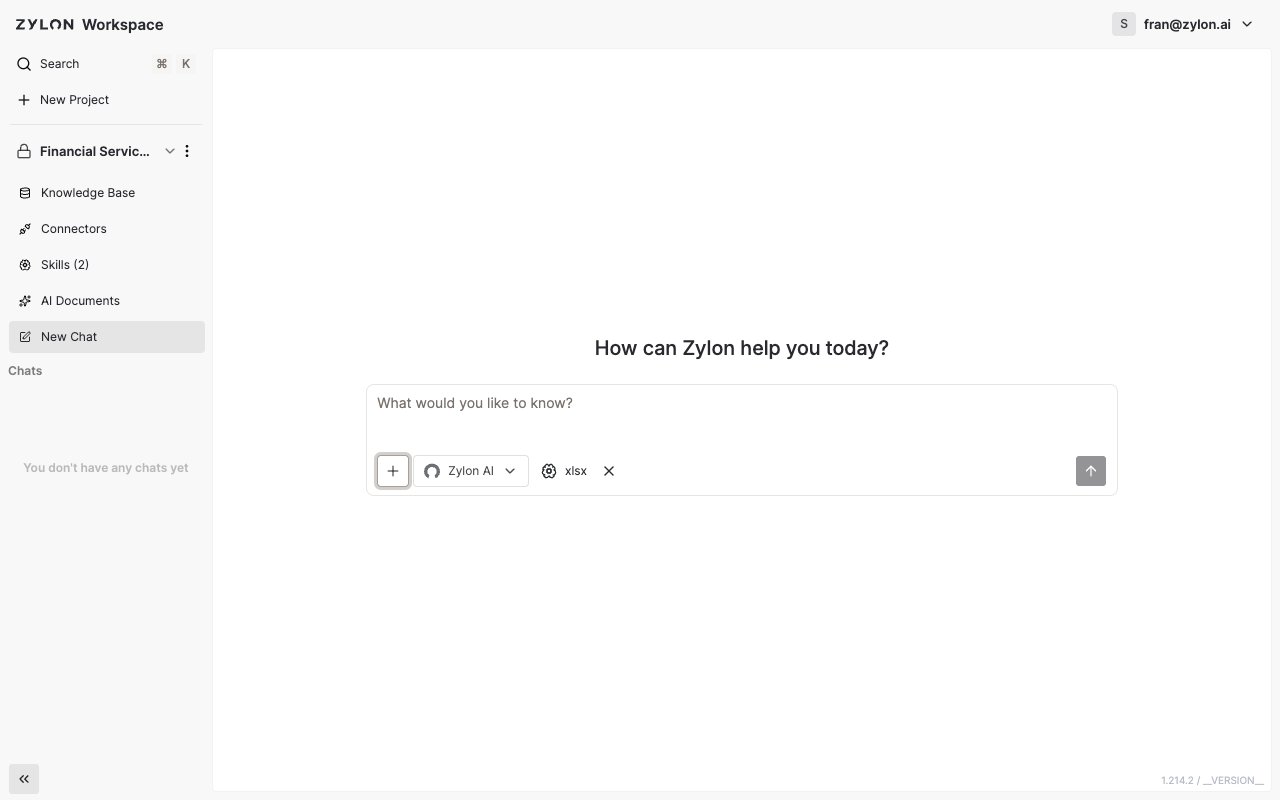
3. Pick one or more Skills from the list.
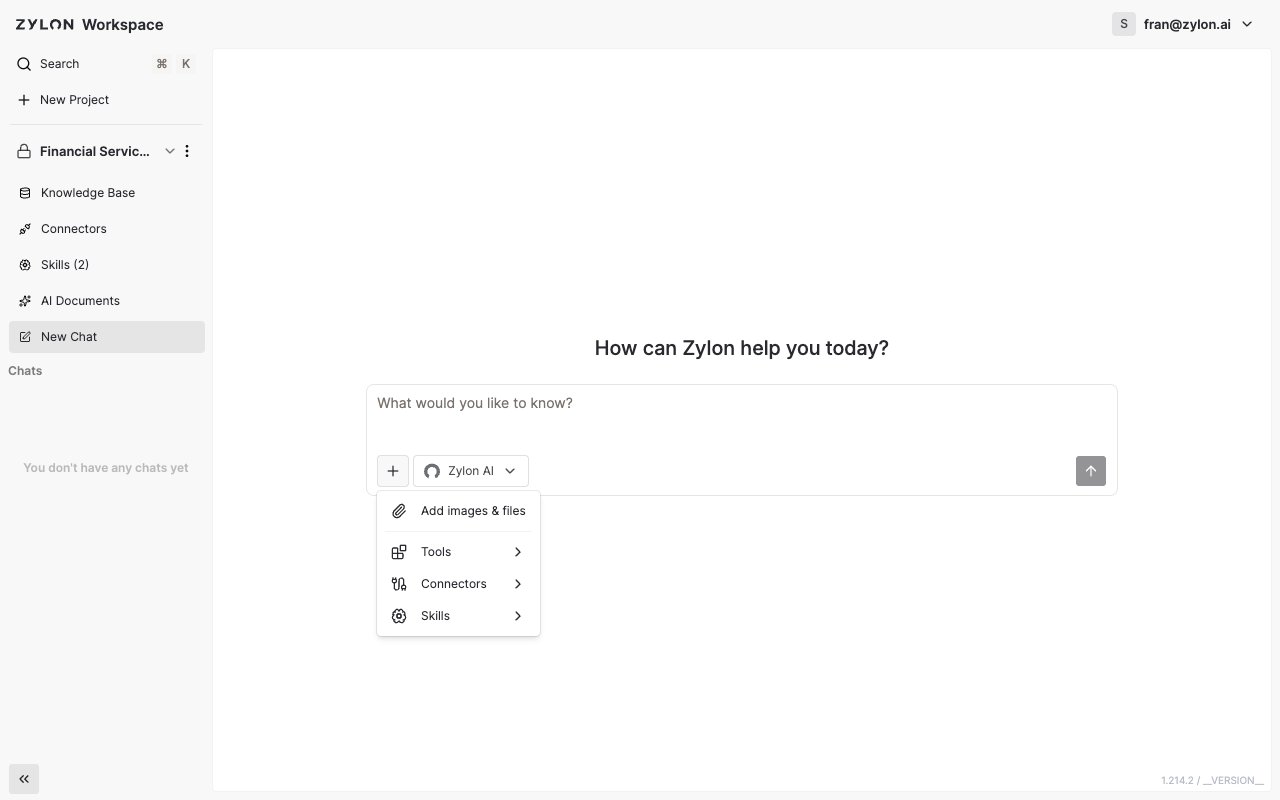
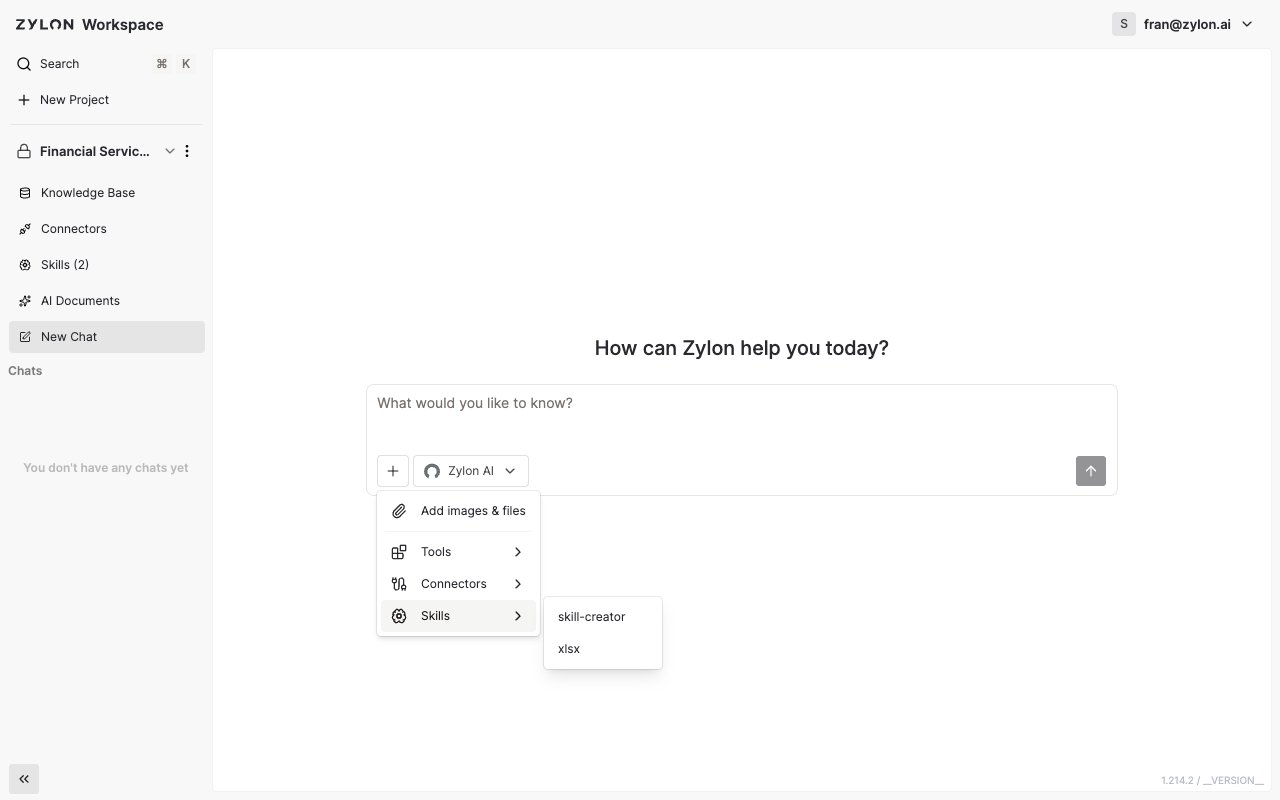 Selected Skills appear as chips above the message box. Click the **×** on a chip to remove it before sending.
 ***
## Turning a Skill on by default
If a Skill should apply to every new chat in a project — without picking it manually each time — a project admin can turn on **Enable on chat by default** for it from the project's **Skills** page.
You can select more than one Skill in the same message. Zylon uses all of them together to shape its response.
***
## Turning a Skill on by default
If a Skill should apply to every new chat in a project — without picking it manually each time — a project admin can turn on **Enable on chat by default** for it from the project's **Skills** page.
You can select more than one Skill in the same message. Zylon uses all of them together to shape its response.