> ## Documentation Index
> Fetch the complete documentation index at: https://docs.zylon.ai/llms.txt
> Use this file to discover all available pages before exploring further.
# Quick Start Guide
> Get productive with Zylon Workspace in 15 minutes
Complete these essential tasks to start using Zylon effectively. This guide takes about 15 minutes and covers everything you need to be productive.
## Step 1: Create Your First Project (3 minutes)
Projects organize your AI work by topic or team. Start with a simple personal project.
1. **Click "Create Project"** from your dashboard
2. **Name it descriptively** - e.g., "Personal Research" or "Customer Support"
3. **Keep it private** for now (you can share it later)
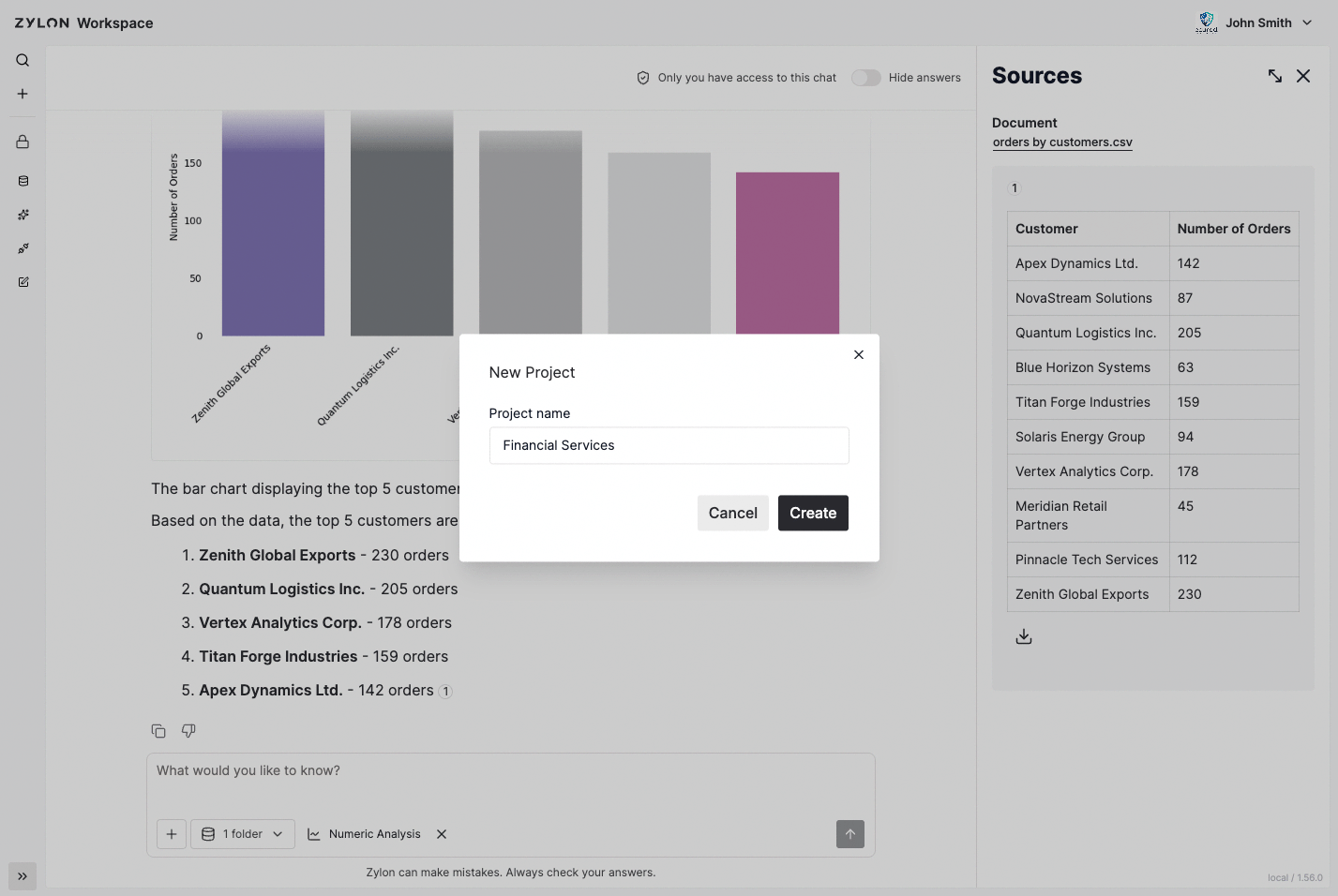 Projects are private by default. Only you can see them unless you explicitly share them with others.
## Step 2: Connect Your Knowledge (5 minutes)
Add documents so Zylon can help you with your actual work. Navigate to the Knowledge Base section of your project.
**Option A: Upload Files**
1. **Drag and drop** 2-3 documents you work with regularly
2. **Wait for processing** (usually 2-5 minutes)
3. **Check the knowledge base** to confirm they're ready
**Option B: Connect to an external source, like SharePoint**
1. **Click "Connect SharePoint"** in your project
2. **Authenticate** with your credentials
3. **Select a specific folder** (not the entire site)
Projects are private by default. Only you can see them unless you explicitly share them with others.
## Step 2: Connect Your Knowledge (5 minutes)
Add documents so Zylon can help you with your actual work. Navigate to the Knowledge Base section of your project.
**Option A: Upload Files**
1. **Drag and drop** 2-3 documents you work with regularly
2. **Wait for processing** (usually 2-5 minutes)
3. **Check the knowledge base** to confirm they're ready
**Option B: Connect to an external source, like SharePoint**
1. **Click "Connect SharePoint"** in your project
2. **Authenticate** with your credentials
3. **Select a specific folder** (not the entire site)
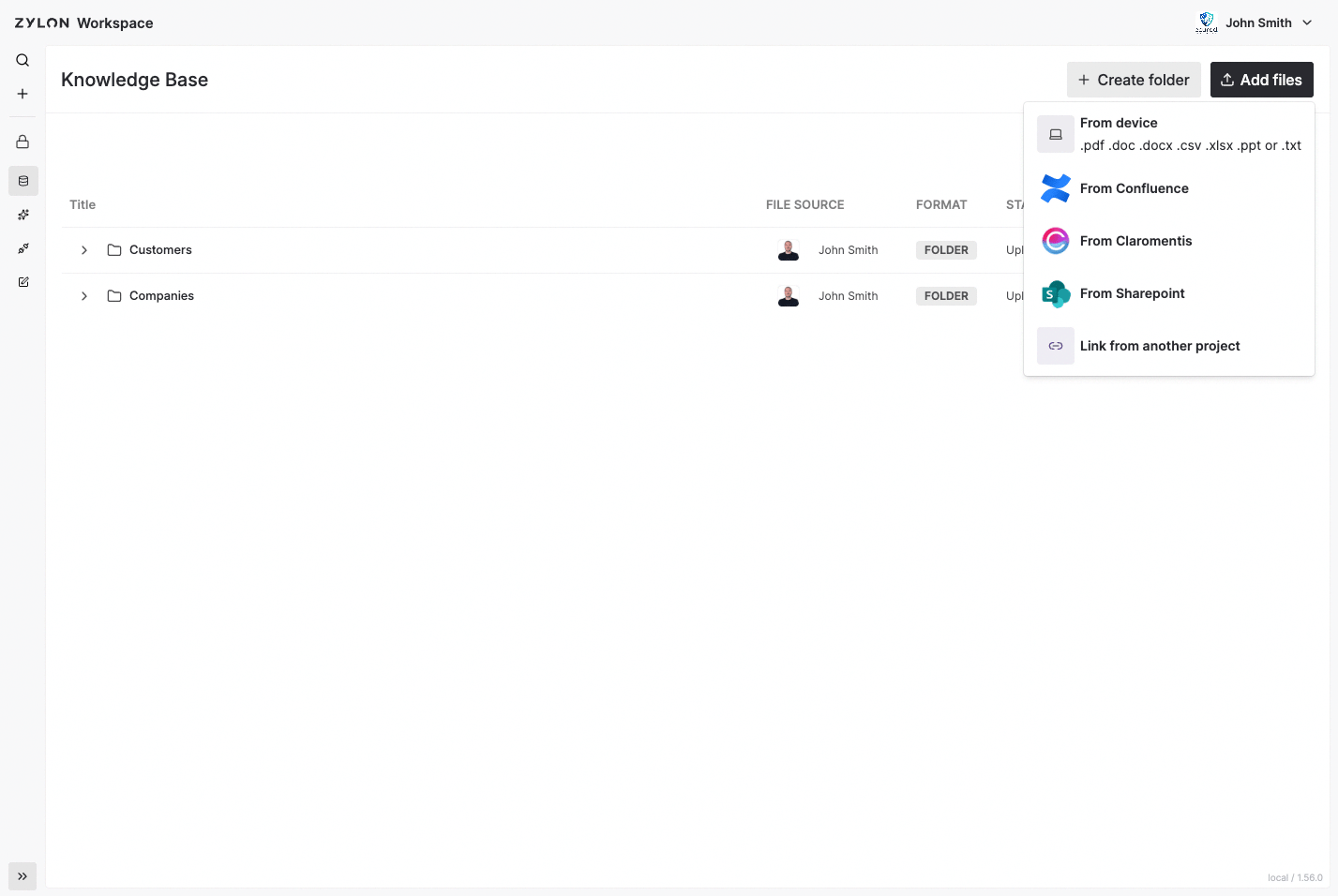 **Supported file types:**
* PDFs, Word documents, Excel spreadsheets
* PowerPoint presentations, plain text files
* SharePoint folders, Confluence spaces, FTP/Samba
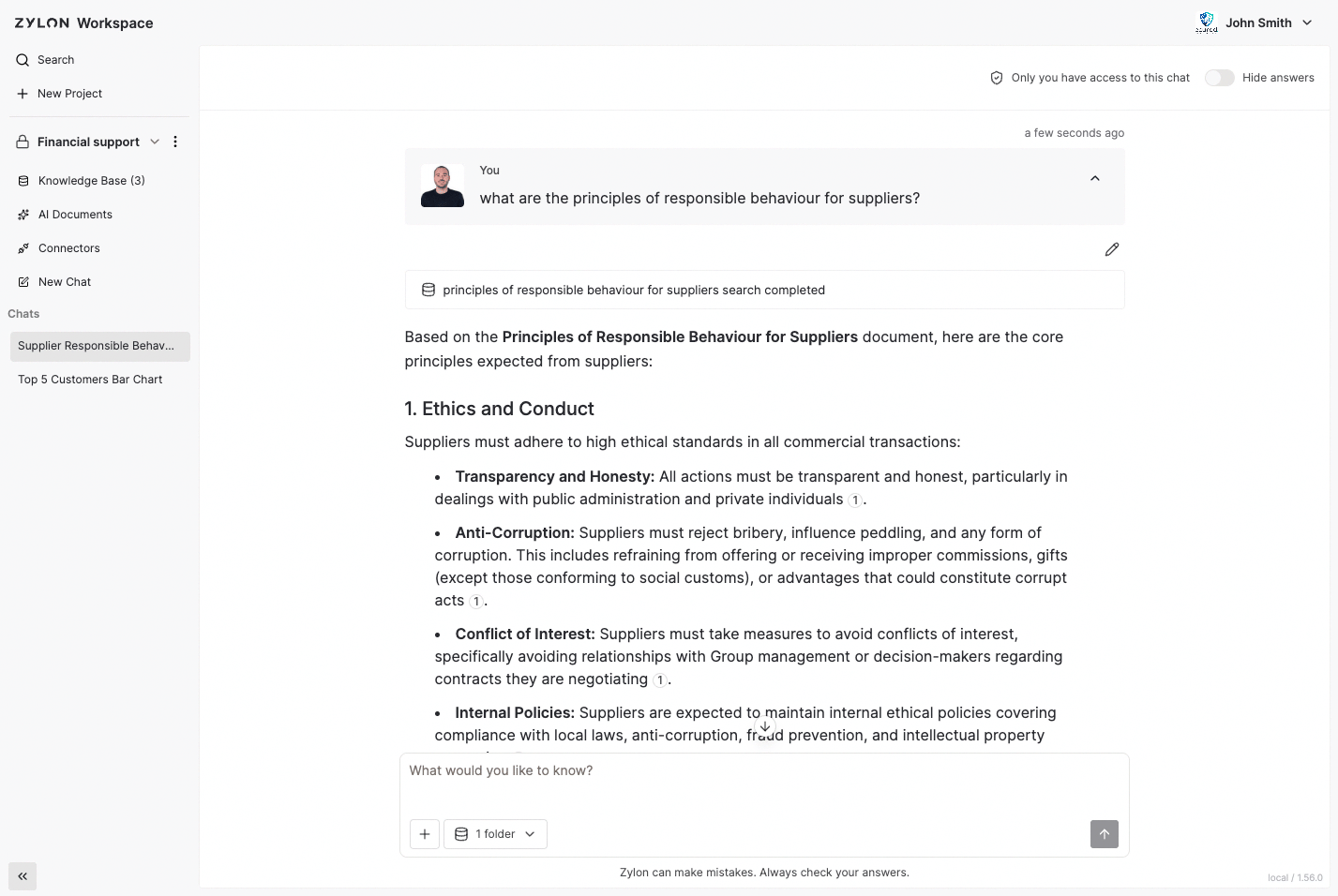
## Step 3: Ask Your First Question (3 minutes)
Now test Zylon with a real question about your documents.
1. **Start a new chat** (choose Personal for now)
2. **Ask a specific question** about the documents you uploaded
3. **Review the response** and click on the citations
4. **Ask a follow-up question** to see how Zylon maintains context
**Good example questions:**
```
"What are the key requirements mentioned in [document name]?"
"What's our policy on [specific topic]?"
```
**Supported file types:**
* PDFs, Word documents, Excel spreadsheets
* PowerPoint presentations, plain text files
* SharePoint folders, Confluence spaces, FTP/Samba
## Step 3: Ask Your First Question (3 minutes)
Now test Zylon with a real question about your documents.
1. **Start a new chat** (choose Personal for now)
2. **Ask a specific question** about the documents you uploaded
3. **Review the response** and click on the citations
4. **Ask a follow-up question** to see how Zylon maintains context
**Good example questions:**
```
"What are the key requirements mentioned in [document name]?"
"What's our policy on [specific topic]?"
```
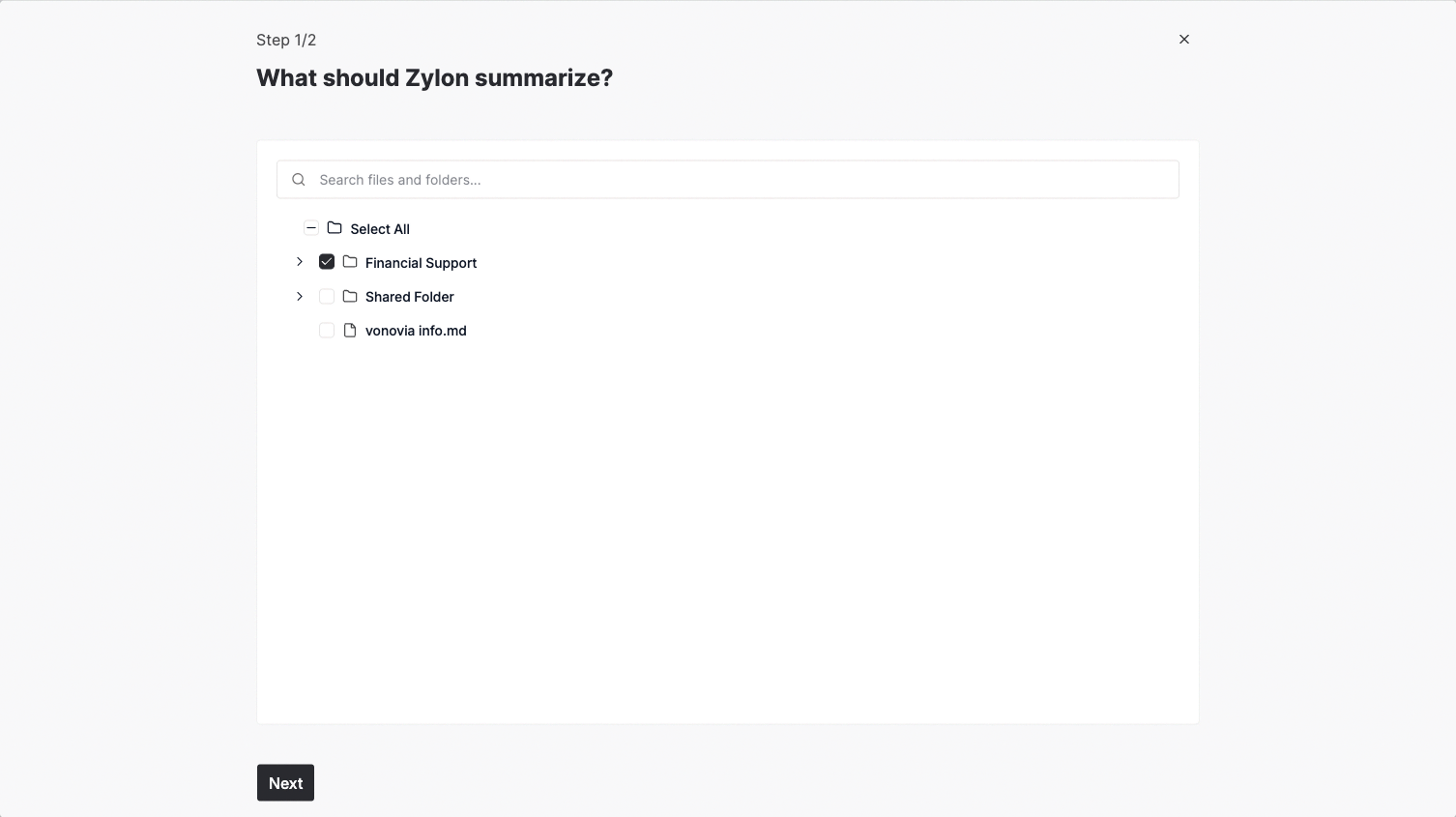
 ## Step 4: Try an AI Document (4 minutes)
AI Documents handle complex tasks automatically in the background.
1. **Go to AI Documents** in your project
2. **Choose "Summarize a File"**
3. **Select one of your uploaded documents**
4. **Add instructions** like "Create an executive summary focusing on key decisions"
5. **Click Start** and let it run in the background
## Step 4: Try an AI Document (4 minutes)
AI Documents handle complex tasks automatically in the background.
1. **Go to AI Documents** in your project
2. **Choose "Summarize a File"**
3. **Select one of your uploaded documents**
4. **Add instructions** like "Create an executive summary focusing on key decisions"
5. **Click Start** and let it run in the background
 **Other AI Documents to try:**
* **Answer in Bulk**: Upload a list of questions for automatic answers
* **Generate a Draft**: Create new documents from prompts
* **Read & Extract**: Pull specific information from multiple documents
## What You've Accomplished
✅ **Created and organized** your first project\
✅ **Connected knowledge sources** so Zylon can help with real work\
✅ **Had AI conversations** with citations and context\
✅ **Used automated workflows** for complex document tasks
**Other AI Documents to try:**
* **Answer in Bulk**: Upload a list of questions for automatic answers
* **Generate a Draft**: Create new documents from prompts
* **Read & Extract**: Pull specific information from multiple documents
## What You've Accomplished
✅ **Created and organized** your first project\
✅ **Connected knowledge sources** so Zylon can help with real work\
✅ **Had AI conversations** with citations and context\
✅ **Used automated workflows** for complex document tasks