> ## Documentation Index
> Fetch the complete documentation index at: https://docs.zylon.ai/llms.txt
> Use this file to discover all available pages before exploring further.
# Block Resource Downloads
> Control whether users can download uploaded Knowledge Base files and AI-generated resources.
Zylon lets administrators control downloads separately for **uploaded Knowledge Base files** and **AI-generated resources**. This helps organizations meet data-handling, compliance, and information-governance requirements while continuing to let users work with the content in Zylon.
Blocking downloads reduces the ways users can export content from Zylon; it does not remove their access to content they are otherwise allowed to view. Consider this setting alongside project membership, roles, and your organization's data-handling policies.
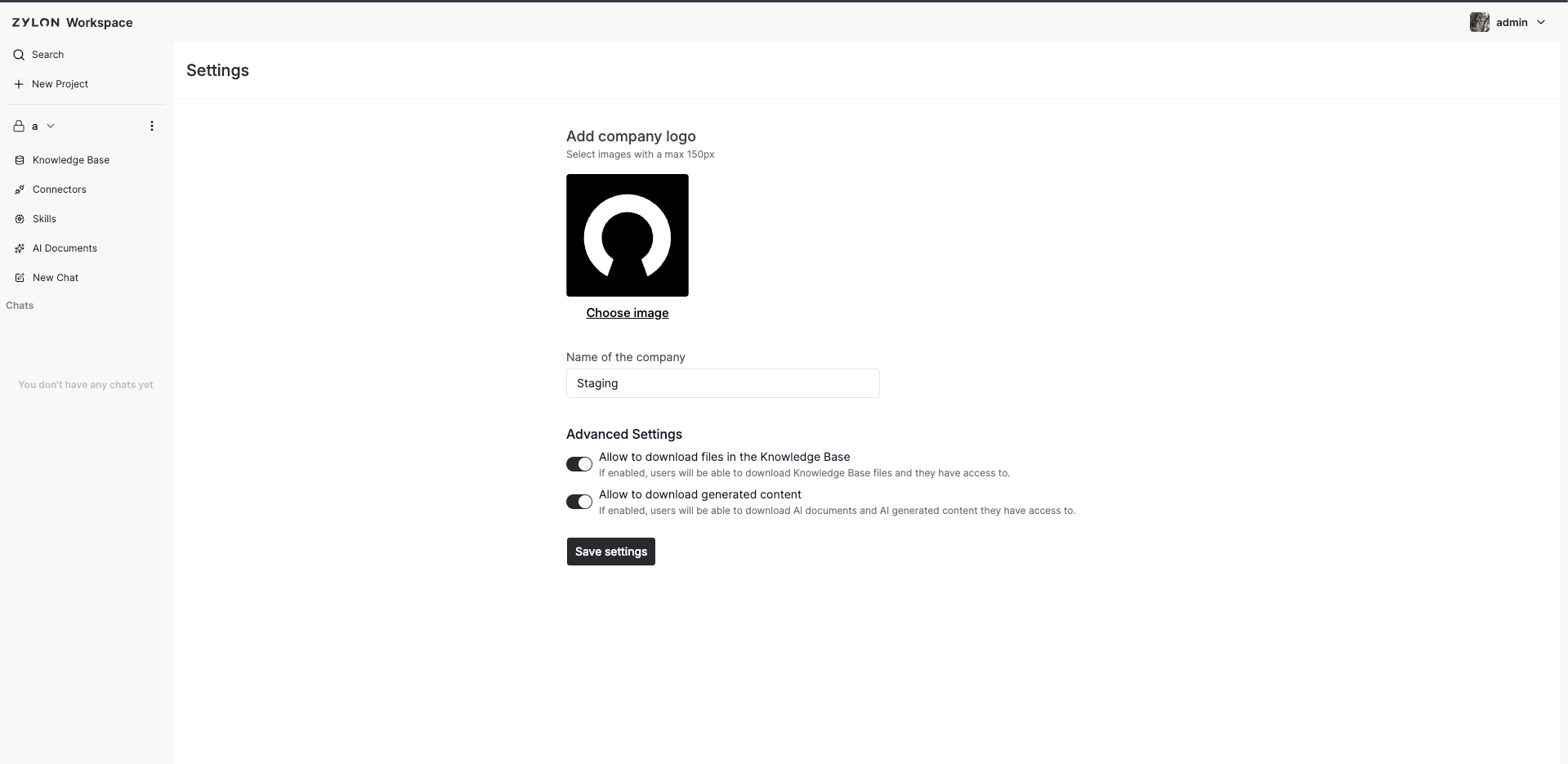 ## Enable or block downloads
Only Workspace administrators can change these settings.
1. Select the **Workspace name** in the upper-right corner.
2. Select **Settings**.
3. Under **Advanced Settings**, set either or both download controls.
4. Select **Save**. The change applies across the Workspace.
The settings are enabled by default. Turn a setting off to block that category of downloads.
## What each setting controls
Turn on the setting shown in the table to allow the corresponding download action. Turning it off blocks that action throughout the Workspace. **✓** means the setting controls the action; **✕** means it does not.
| Download action | **Allow to download files in the Knowledge Base** | **Allow to download generated content** |
| ----------------------------------------------------------------- | ------------------------------------------------- | --------------------------------------- |
| Download an original file retained in a Knowledge Base | ✓ | ✕ |
| Download a source file from a chat citation or source panel | ✓ | ✕ |
| Download a source file from an AI Document's source details | ✓ | ✕ |
| Open a PDF preview that requires the original Knowledge Base file | ✓ | ✕ |
| Download an AI-generated file from chat | ✕ | ✓ |
| Download a generated code block, CSV, or table result from chat | ✕ | ✓ |
| Export an AI Document as PDF or DOCX | ✕ | ✓ |
Users can still view processed Knowledge Base content, citations, AI responses, and AI Documents when the relevant download setting is disabled, provided they otherwise have access. Non-download actions, such as reporting an issue, also remain available.
## Important considerations
* These are Workspace-wide controls. They apply to all projects in the Workspace once the settings are saved.
* Enabling Knowledge Base file downloads does not grant extra access. Users must also have access to the project and the relevant **Download Files** project permission.
* Disabling a setting also blocks the corresponding download actions through the Zylon API; it is not limited to hiding buttons in the Workspace interface.
* Blocking downloads does not change access to external links supplied by a connected source. Apply the source system's own sharing and download policies where needed.
* Review the settings regularly with your security or compliance team, especially before adding sensitive source material or enabling document exports.
## Enable or block downloads
Only Workspace administrators can change these settings.
1. Select the **Workspace name** in the upper-right corner.
2. Select **Settings**.
3. Under **Advanced Settings**, set either or both download controls.
4. Select **Save**. The change applies across the Workspace.
The settings are enabled by default. Turn a setting off to block that category of downloads.
## What each setting controls
Turn on the setting shown in the table to allow the corresponding download action. Turning it off blocks that action throughout the Workspace. **✓** means the setting controls the action; **✕** means it does not.
| Download action | **Allow to download files in the Knowledge Base** | **Allow to download generated content** |
| ----------------------------------------------------------------- | ------------------------------------------------- | --------------------------------------- |
| Download an original file retained in a Knowledge Base | ✓ | ✕ |
| Download a source file from a chat citation or source panel | ✓ | ✕ |
| Download a source file from an AI Document's source details | ✓ | ✕ |
| Open a PDF preview that requires the original Knowledge Base file | ✓ | ✕ |
| Download an AI-generated file from chat | ✕ | ✓ |
| Download a generated code block, CSV, or table result from chat | ✕ | ✓ |
| Export an AI Document as PDF or DOCX | ✕ | ✓ |
Users can still view processed Knowledge Base content, citations, AI responses, and AI Documents when the relevant download setting is disabled, provided they otherwise have access. Non-download actions, such as reporting an issue, also remain available.
## Important considerations
* These are Workspace-wide controls. They apply to all projects in the Workspace once the settings are saved.
* Enabling Knowledge Base file downloads does not grant extra access. Users must also have access to the project and the relevant **Download Files** project permission.
* Disabling a setting also blocks the corresponding download actions through the Zylon API; it is not limited to hiding buttons in the Workspace interface.
* Blocking downloads does not change access to external links supplied by a connected source. Apply the source system's own sharing and download policies where needed.
* Review the settings regularly with your security or compliance team, especially before adding sensitive source material or enabling document exports.