> ## Documentation Index
> Fetch the complete documentation index at: https://docs.zylon.ai/llms.txt
> Use this file to discover all available pages before exploring further.
# Microsoft Entra Integration (SSO)
### Add a new application for Zylon
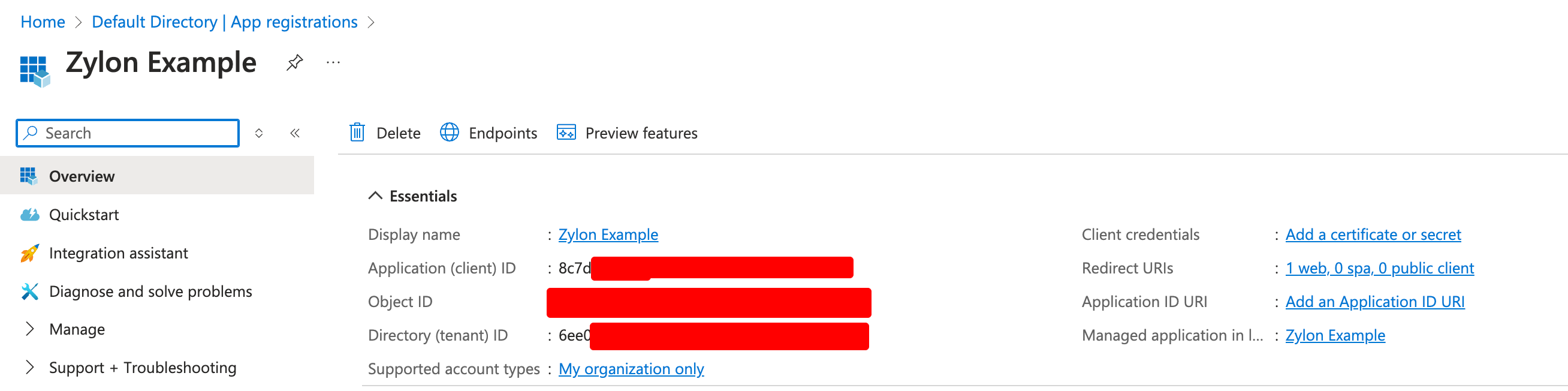
The objective is to obtain 3 values that will be used to configure Zylon to be able log in with a Microsoft Account.
* `Application (client) ID`
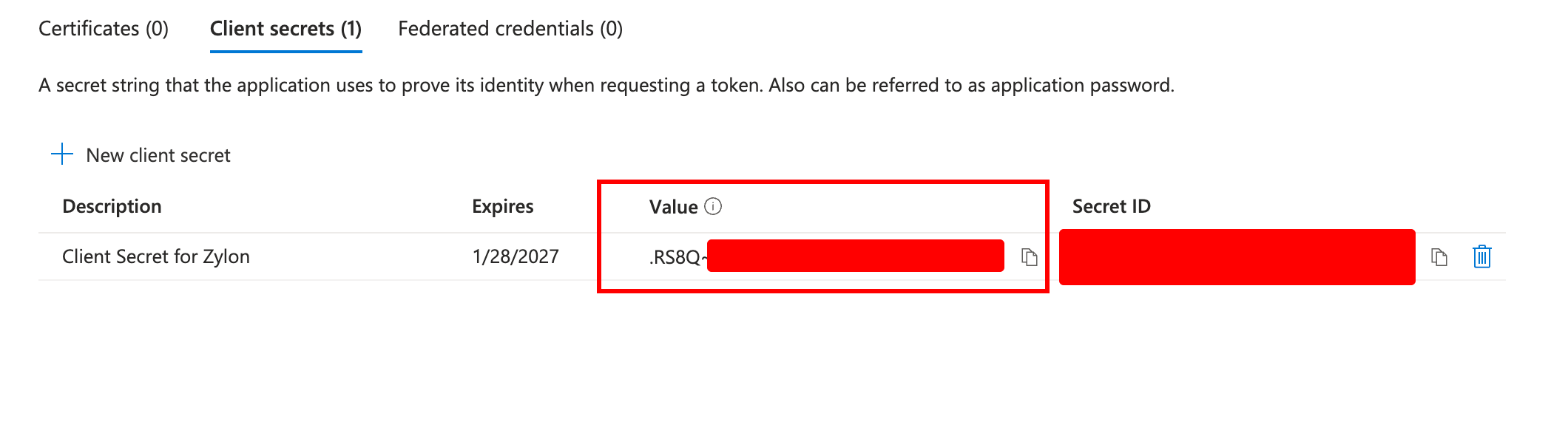
* `Client Secret`
1. First of all you need to login into [https://portal.azure.com/#home](https://portal.azure.com/#home) console dashboard
2. Click `Microsoft Entra Id`
 3. Register a new App. Click on `App registrations` on the left menu.
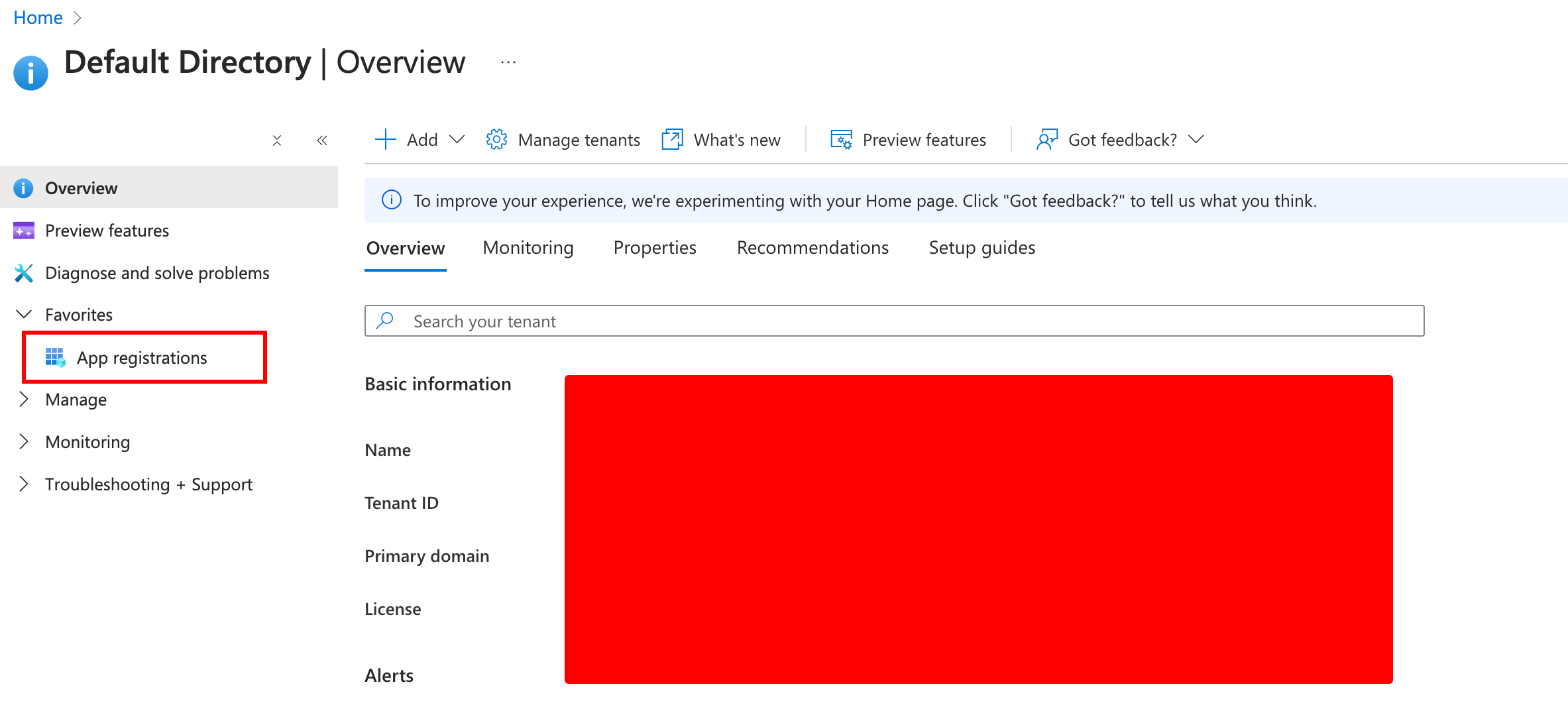 4. Click on `New Registration`.
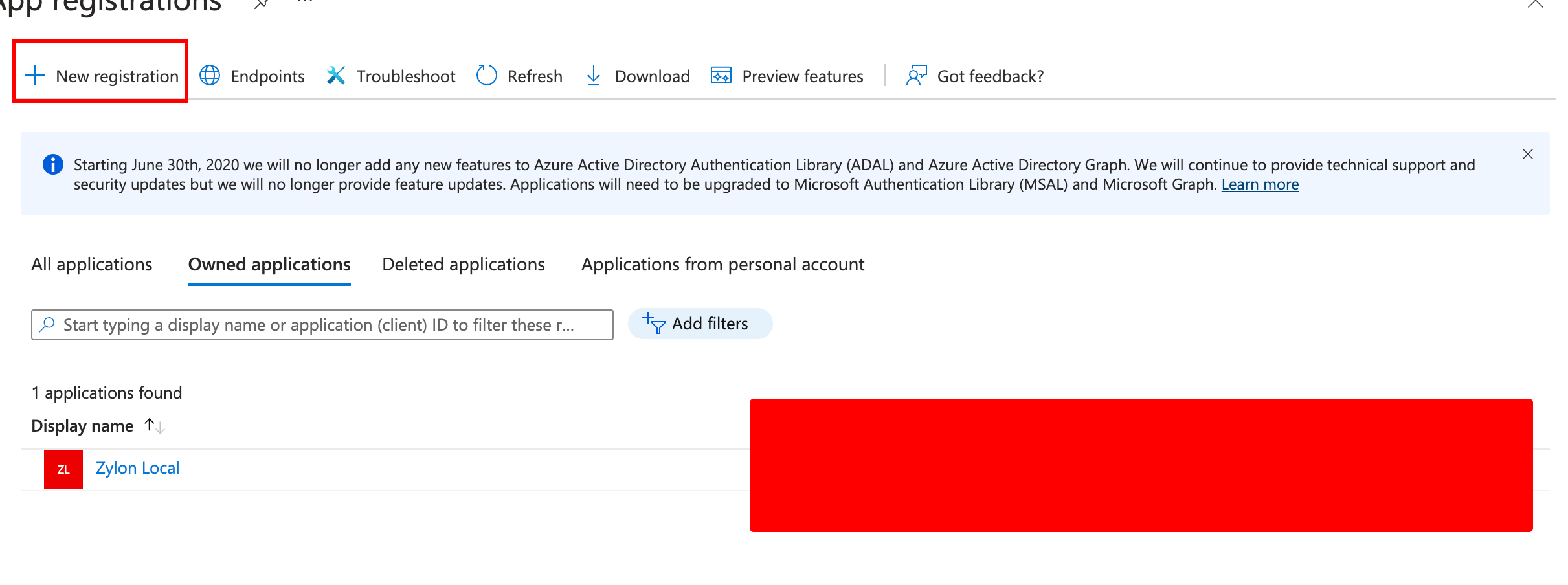 1. A new window will open and you will need to add the following information
* ⚠️ Redirect URI type is **web**⚠️
* Domain: `https://zylon.company.com/api/v1/auth/microsoft/callback`. Replace `zylon.company.com` with the domain where Zylon is hosted (It is the same domain as in the config file located in `/etc/zylon/zylon-conf.yaml`).
* Supported account types: All account types are supported. Choose based on your specific needs.
1. A new window will open and you will need to add the following information
* ⚠️ Redirect URI type is **web**⚠️
* Domain: `https://zylon.company.com/api/v1/auth/microsoft/callback`. Replace `zylon.company.com` with the domain where Zylon is hosted (It is the same domain as in the config file located in `/etc/zylon/zylon-conf.yaml`).
* Supported account types: All account types are supported. Choose based on your specific needs.
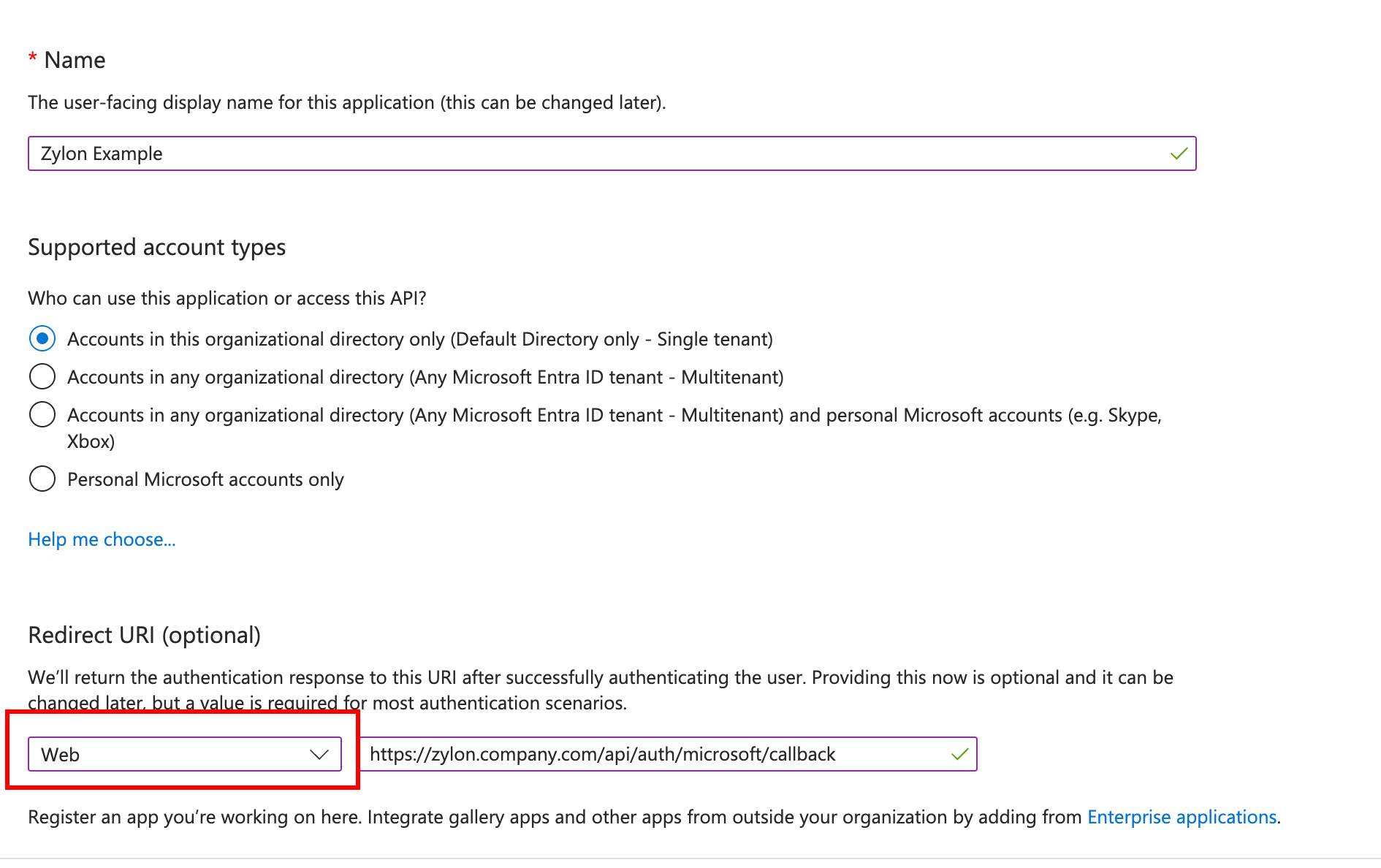 * In case you want to change it later you can do so in the `Application Overview`
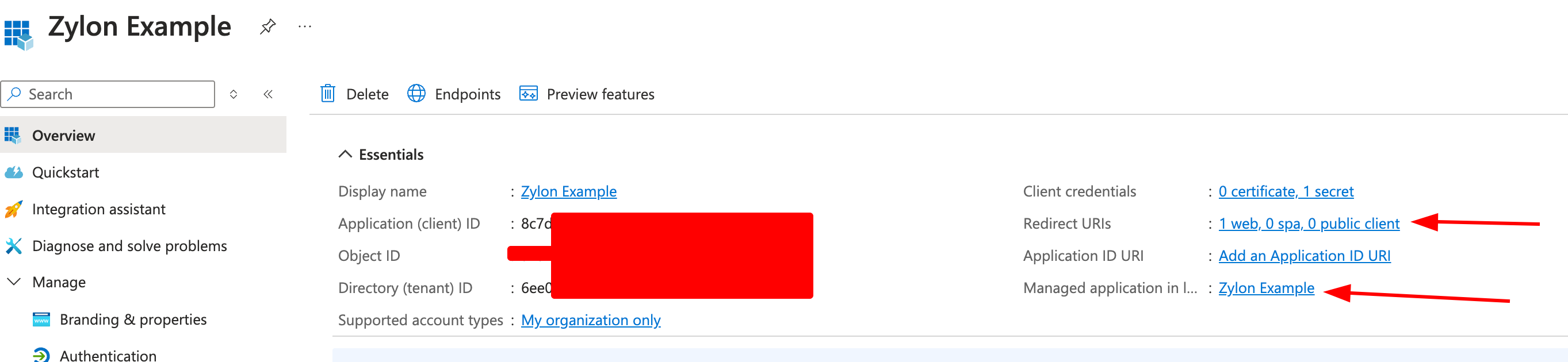 5. Save the following value that will be used later in the config file for Zylon.
* Application (client) ID
5. Save the following value that will be used later in the config file for Zylon.
* Application (client) ID
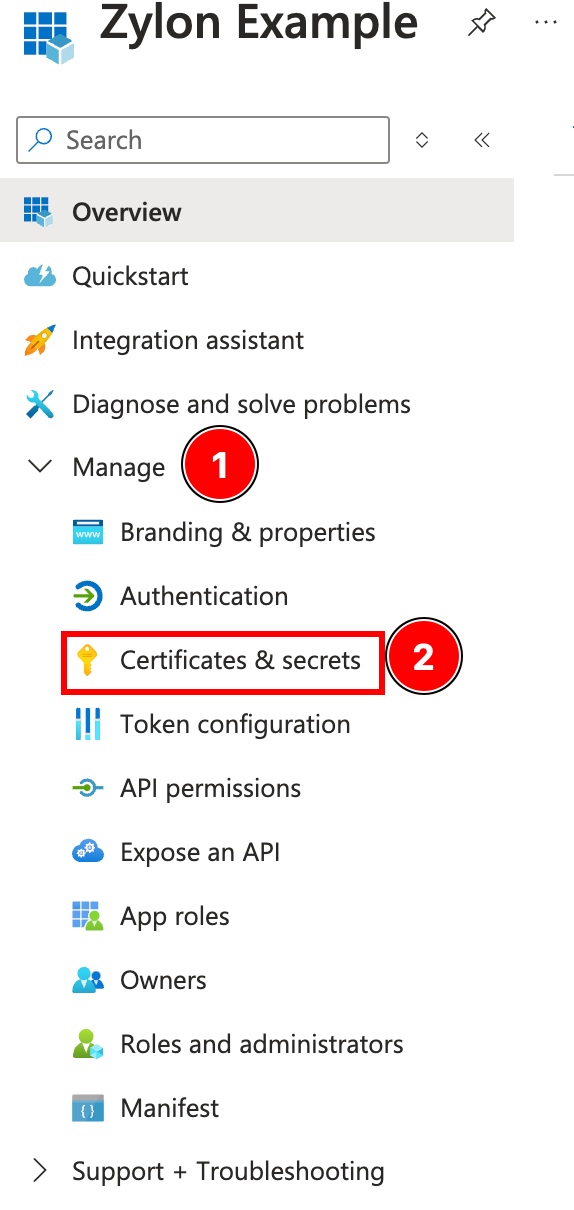
 6. Now we need to generate the `ClientSecret`. Go to the left menu and click `Manage > Certificates & secrets`
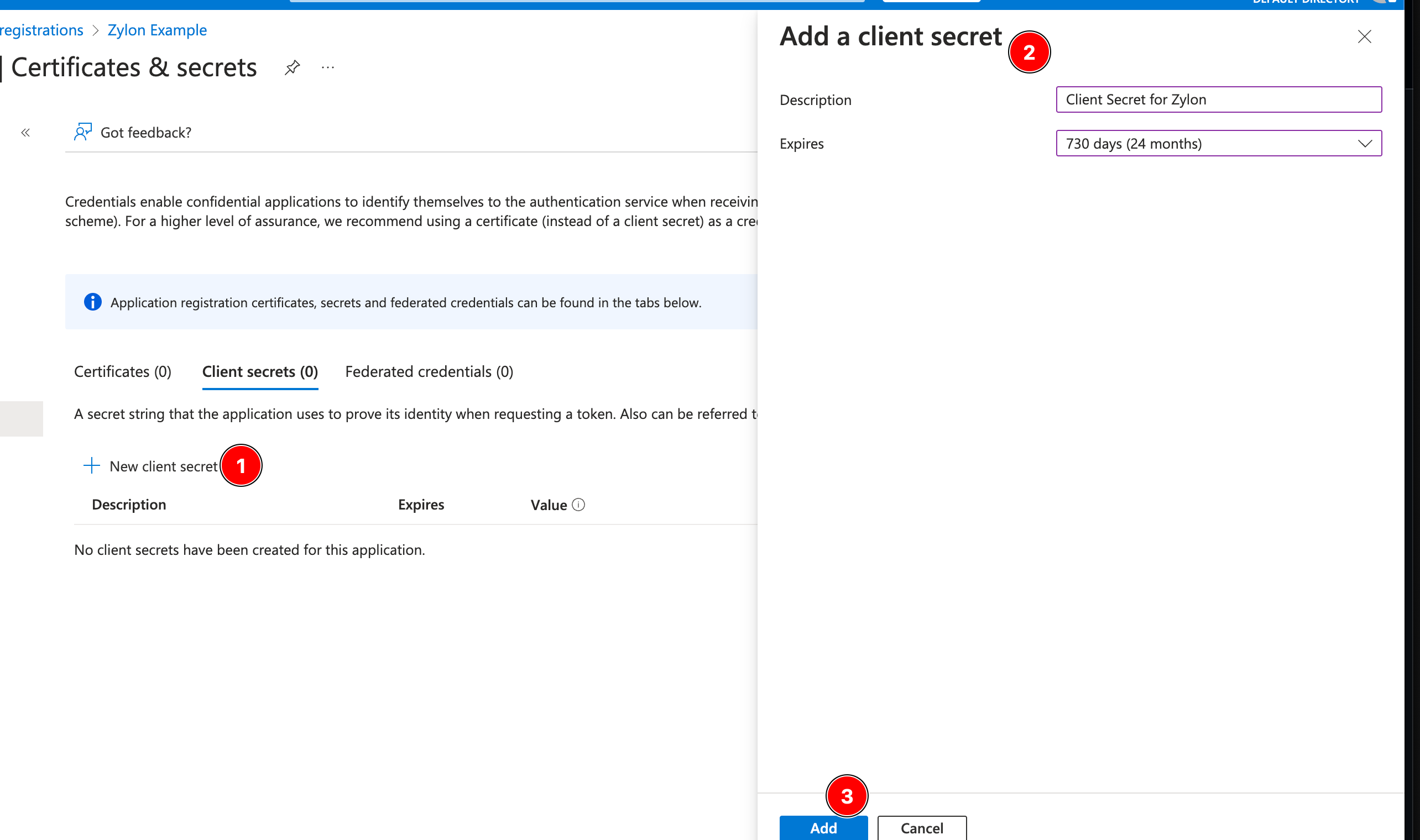
 7. Click on `New client secret` and add the required information
 8. Copy the `Value` for client secret.
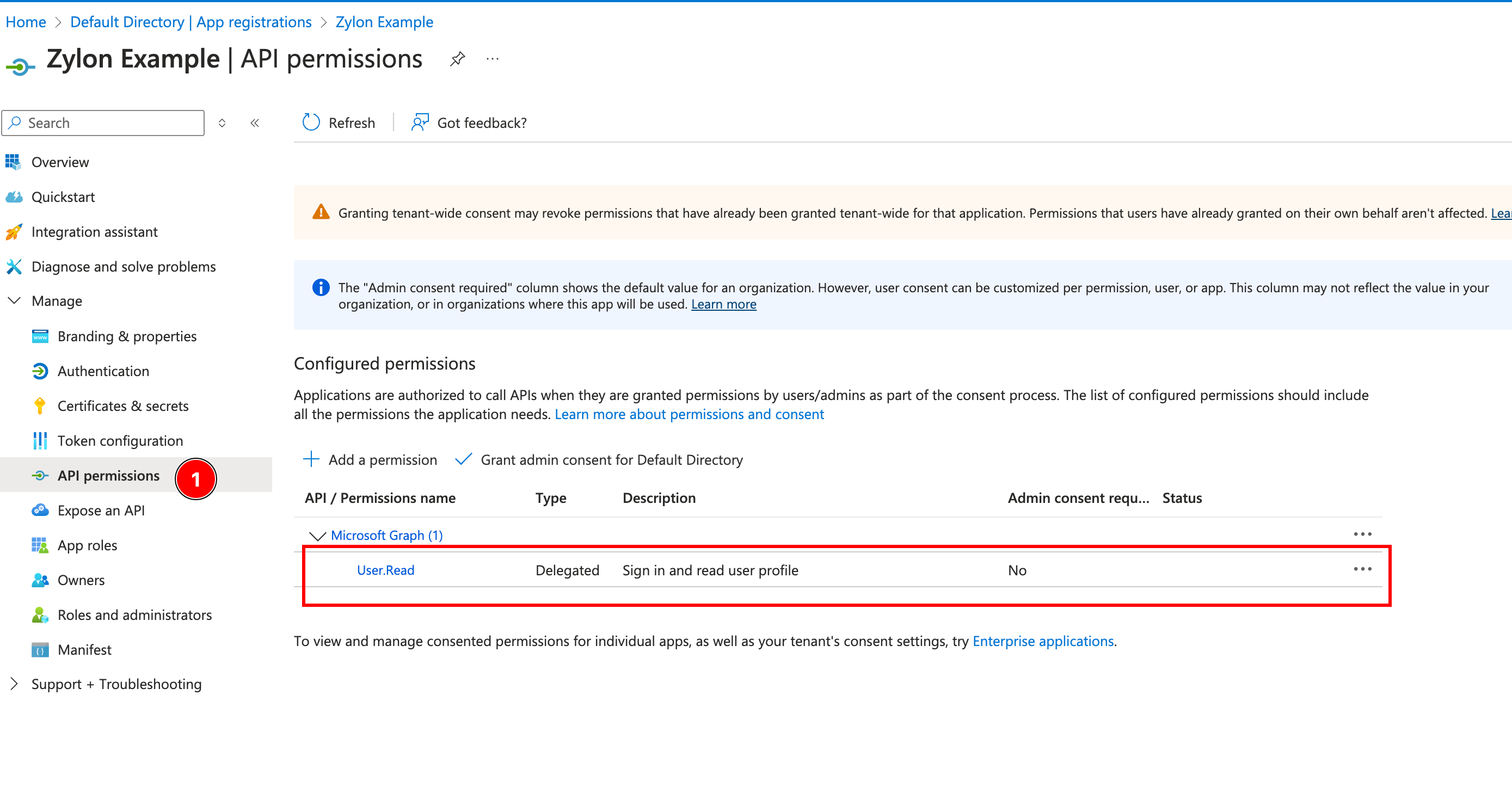
 9. Verify that the `User.read` permission is granted. Click on `API Permissions` on the left menu. You should see it there by default. In case it is missing, grant it.
 10. Add the following configuration to `/etc/zylon/zylon-conf.yaml`
The config file is a `.yaml` file so indentation, spaces, semicolons, double quotes are very important
```yaml theme={null}
auth:
microsoft:
enabled: true
redirectUri: "https://zylon.company.com/api/v1/auth/microsoft/callback"
tenantId: "common"
clientId: "8c7d......"
clientSecret: ".RS8Q~....."
```
Run the following command to refresh the configuration
```yaml theme={null}
sudo zylon-cli sync
```
Now you should see the Microsoft Account SSO
In case you don’t see the Microsoft Account button to log in, clear the browser cache.
### How to manage users
To limit the number of users that are able to log into Zylon check the following link, by default everybody in the Directory can access Zylon and will be granted the `member` role
[https://learn.microsoft.com/en-us/entra/identity/enterprise-apps/what-is-access-management](https://learn.microsoft.com/en-us/entra/identity/enterprise-apps/what-is-access-management)
10. Add the following configuration to `/etc/zylon/zylon-conf.yaml`
The config file is a `.yaml` file so indentation, spaces, semicolons, double quotes are very important
```yaml theme={null}
auth:
microsoft:
enabled: true
redirectUri: "https://zylon.company.com/api/v1/auth/microsoft/callback"
tenantId: "common"
clientId: "8c7d......"
clientSecret: ".RS8Q~....."
```
Run the following command to refresh the configuration
```yaml theme={null}
sudo zylon-cli sync
```
Now you should see the Microsoft Account SSO
In case you don’t see the Microsoft Account button to log in, clear the browser cache.
### How to manage users
To limit the number of users that are able to log into Zylon check the following link, by default everybody in the Directory can access Zylon and will be granted the `member` role
[https://learn.microsoft.com/en-us/entra/identity/enterprise-apps/what-is-access-management](https://learn.microsoft.com/en-us/entra/identity/enterprise-apps/what-is-access-management)