> ## Documentation Index
> Fetch the complete documentation index at: https://docs.zylon.ai/llms.txt
> Use this file to discover all available pages before exploring further.
# Google Integration (SSO)
### Create a new Oauth application for Zylon
In order to enable Google SSO for Zylon, you need to create an OAuth 2.0 application in the Google Cloud Console.
Navigate to the [Google Cloud Console](https://console.cloud.google.com/).
You might need to create a new Google project for Zylon if you don't have one already to host the OAuth application.
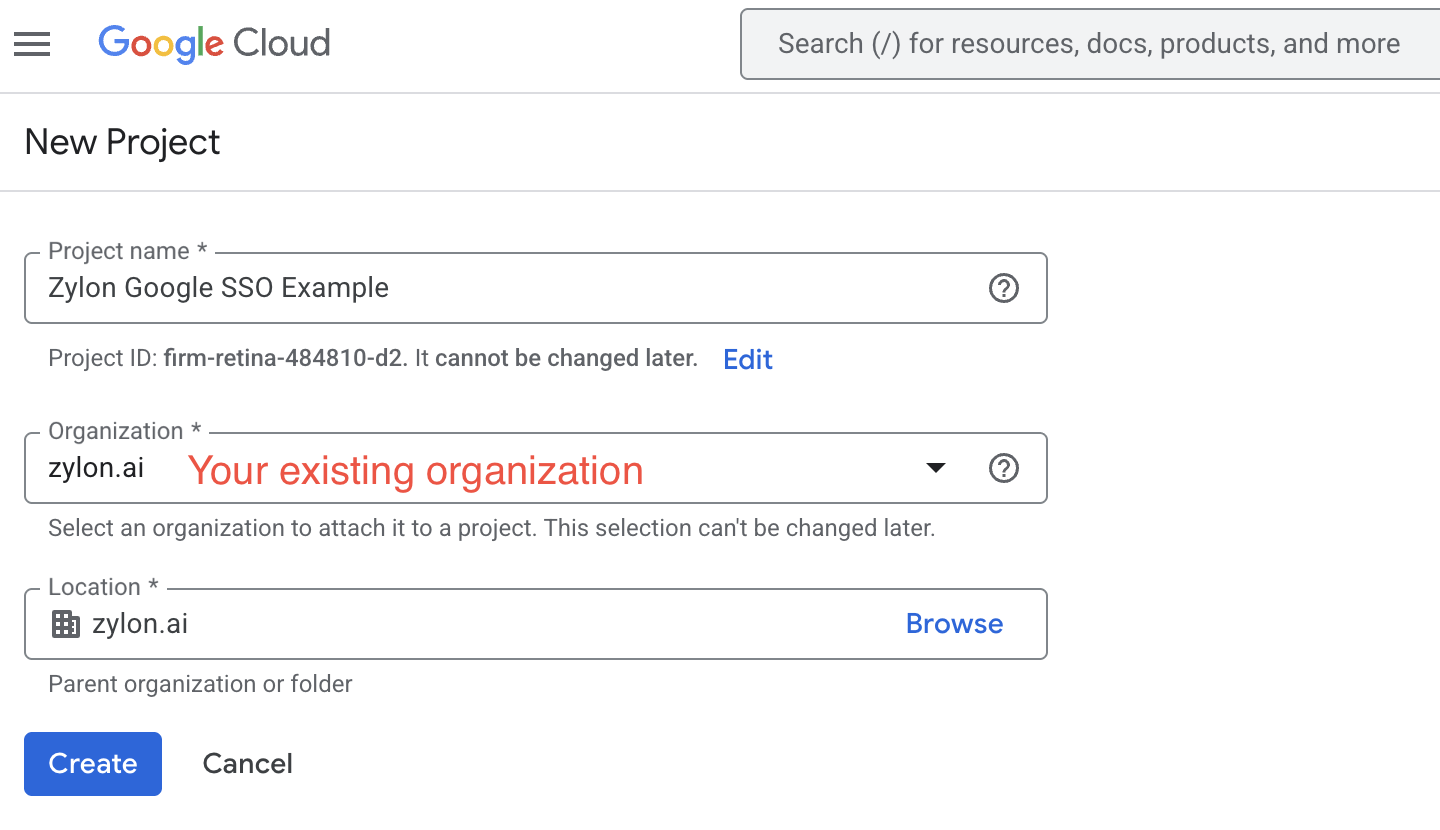 Navigate to the [Google Auth Section](https://console.cloud.google.com/auth/), to create the app.
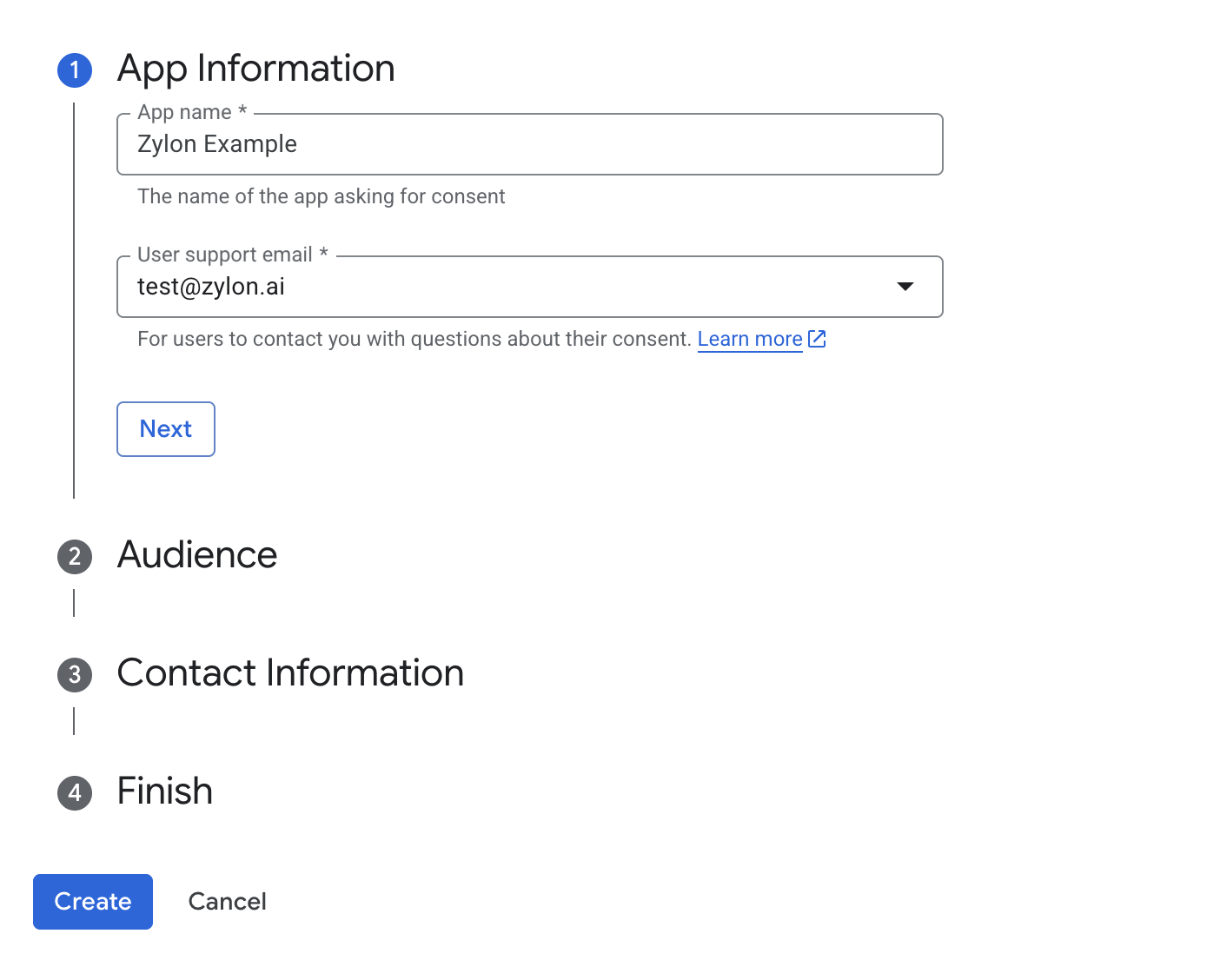
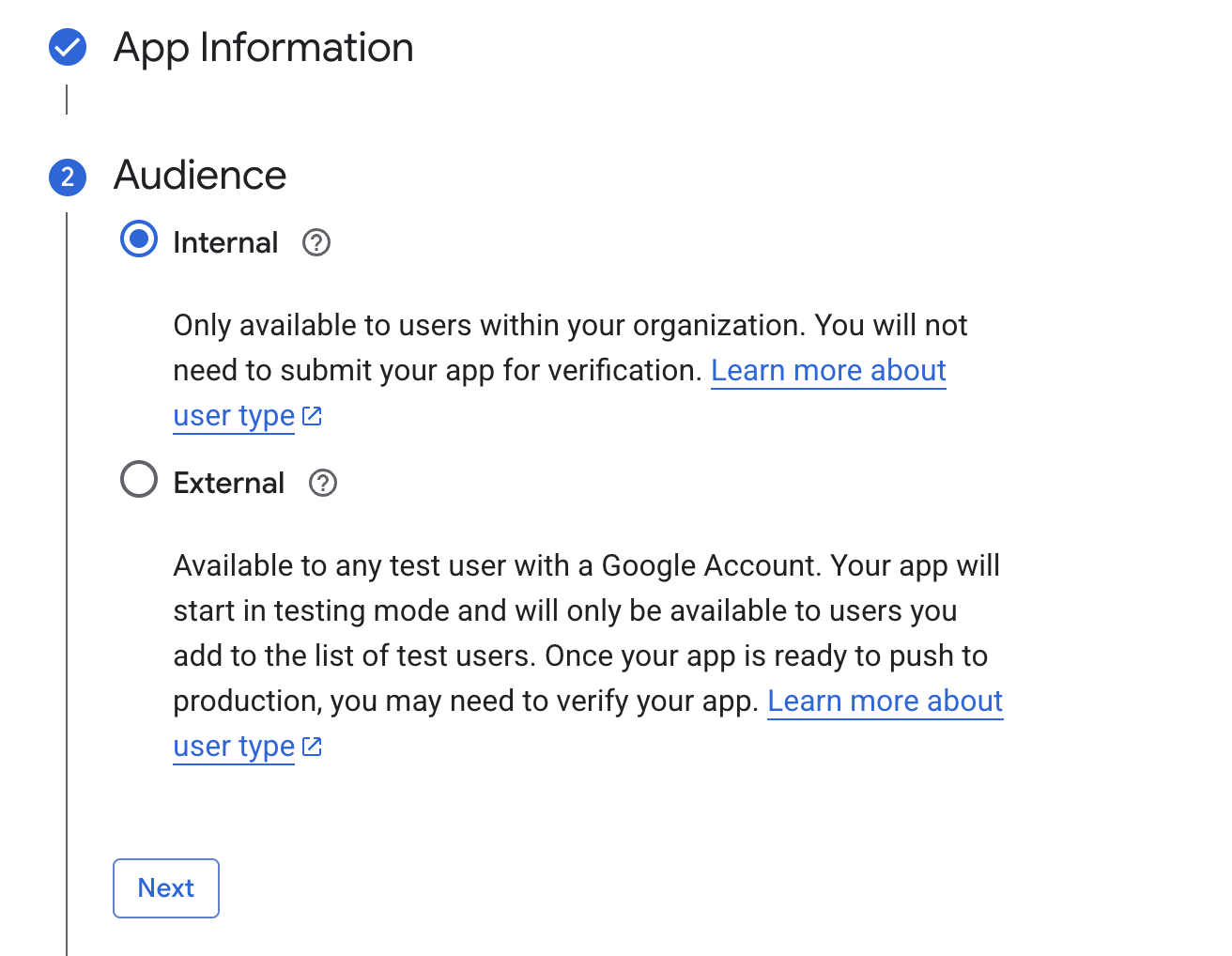 For the audience configuration, set it to internal so only users from your organization can log in,
otherwise you will need to go through Google's verification process.
### Configure the Oauth client
Next, configure the Oauth client
For the audience configuration, set it to internal so only users from your organization can log in,
otherwise you will need to go through Google's verification process.
### Configure the Oauth client
Next, configure the Oauth client
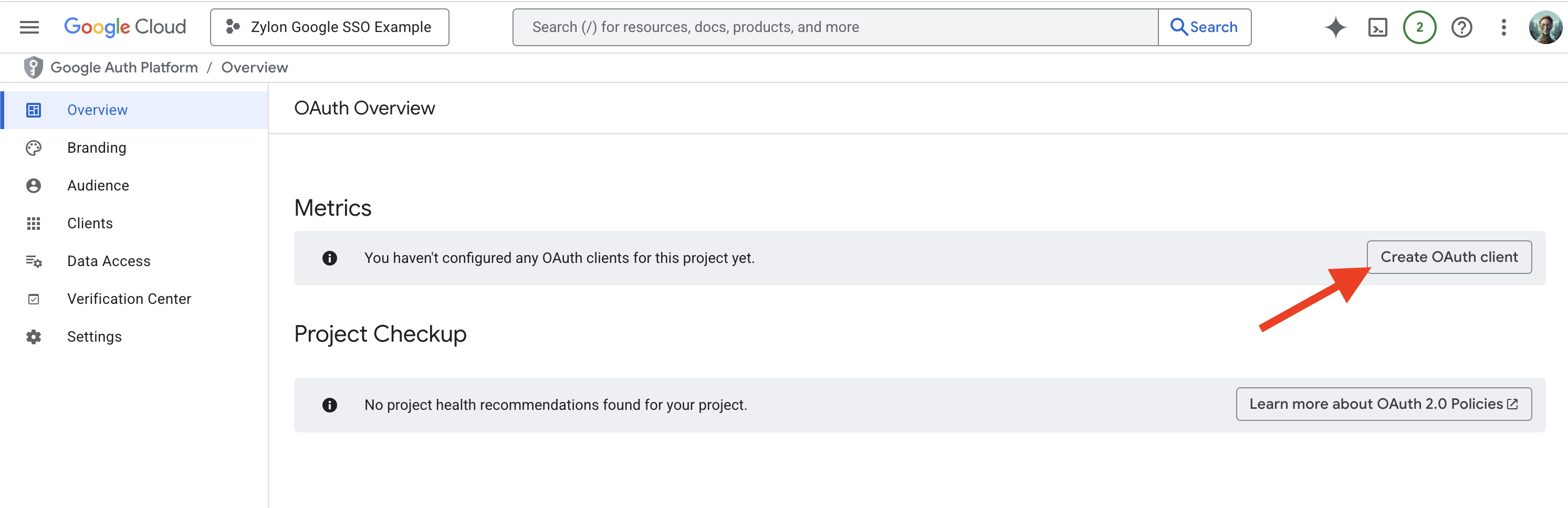 Make sure of the following settings:
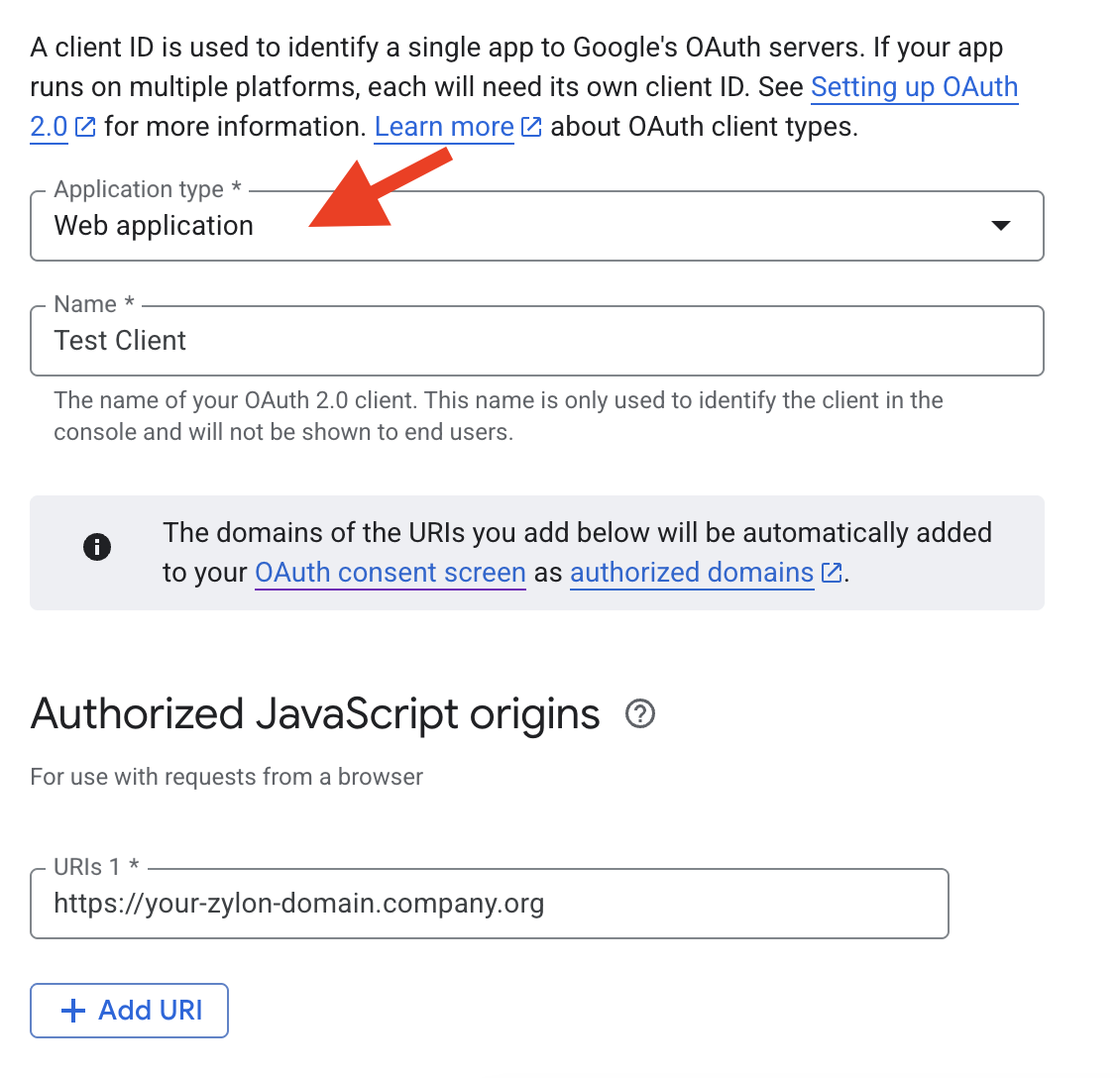
* The application type is set to **Web application**.
* The allowed JavaScript origins is set to `https://zylon.company.com`, replacing `zylon.company.com` with the domain where Zylon is hosted (It is the same domain as the host in the config file located in `/etc/zylon/zylon-conf.yaml`).
* The authorized redirect URI is set to `https://zylon.company.com/api/v1/auth/google/callback`, same as above replace `zylon.company.com` with the domain where Zylon is hosted.
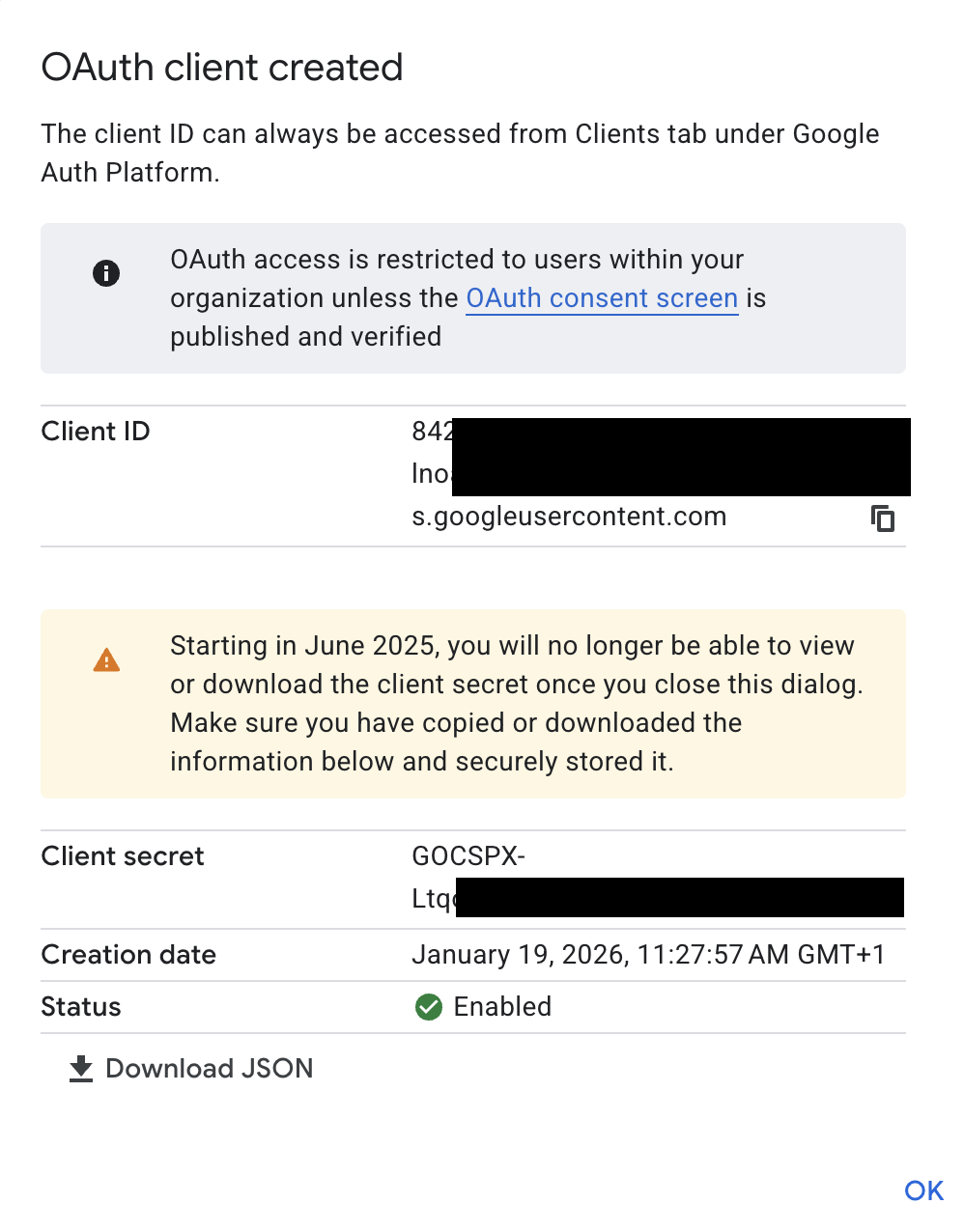
* Apply the changes and save the `Client ID` and `Client Secret` that will be used later in the config file for Zylon.
Select **Web application** as the application type:
Make sure of the following settings:
* The application type is set to **Web application**.
* The allowed JavaScript origins is set to `https://zylon.company.com`, replacing `zylon.company.com` with the domain where Zylon is hosted (It is the same domain as the host in the config file located in `/etc/zylon/zylon-conf.yaml`).
* The authorized redirect URI is set to `https://zylon.company.com/api/v1/auth/google/callback`, same as above replace `zylon.company.com` with the domain where Zylon is hosted.
* Apply the changes and save the `Client ID` and `Client Secret` that will be used later in the config file for Zylon.
Select **Web application** as the application type:
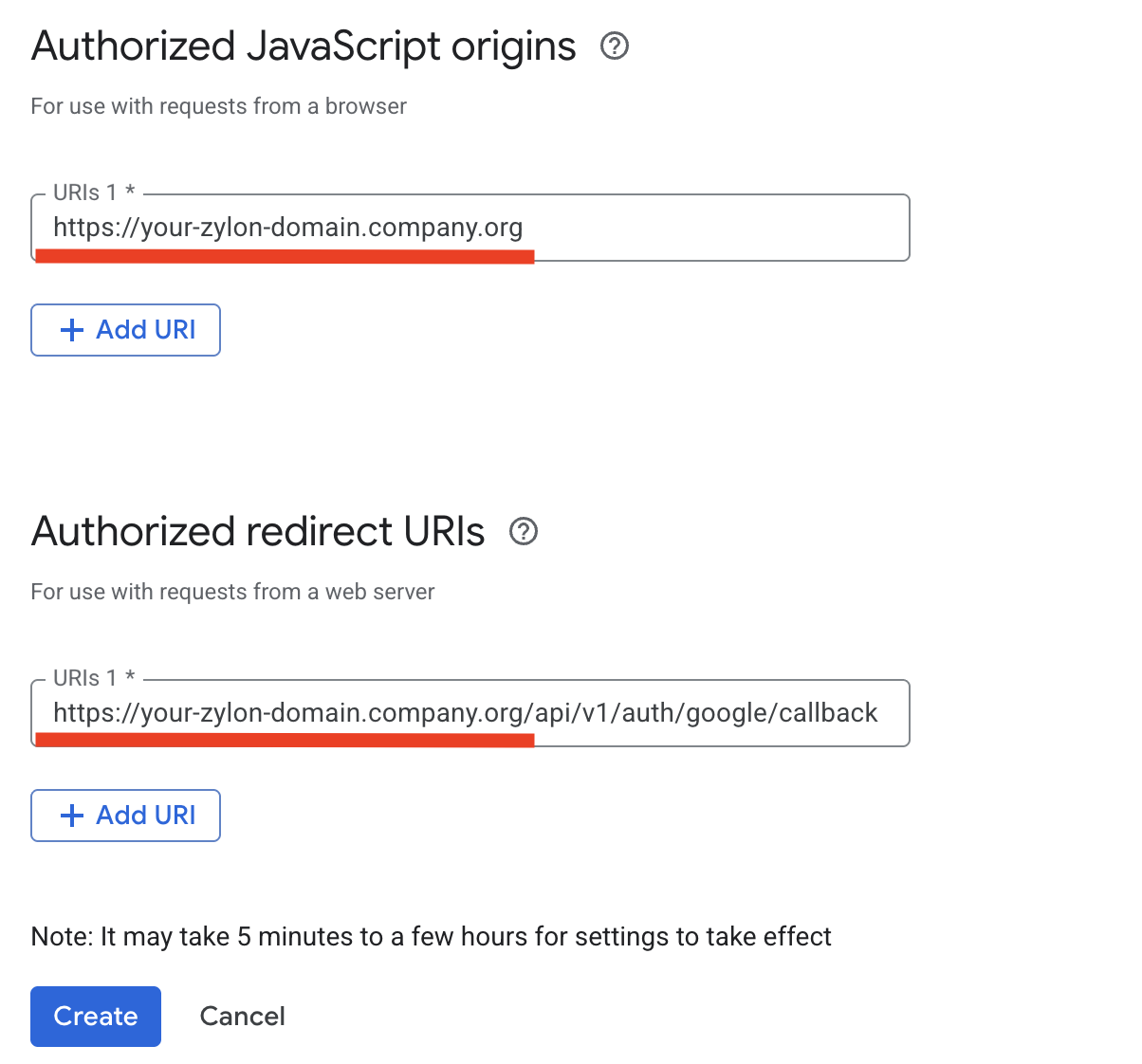
 Set the authorized redirect URI as mentioned before, double check that the domain is correct
and the suffix is `/api/v1/auth/google/callback`:
Set the authorized redirect URI as mentioned before, double check that the domain is correct
and the suffix is `/api/v1/auth/google/callback`:
 Create the OAuth client and save the `Client ID` and `Client Secret`:
 ### Grant openid scope
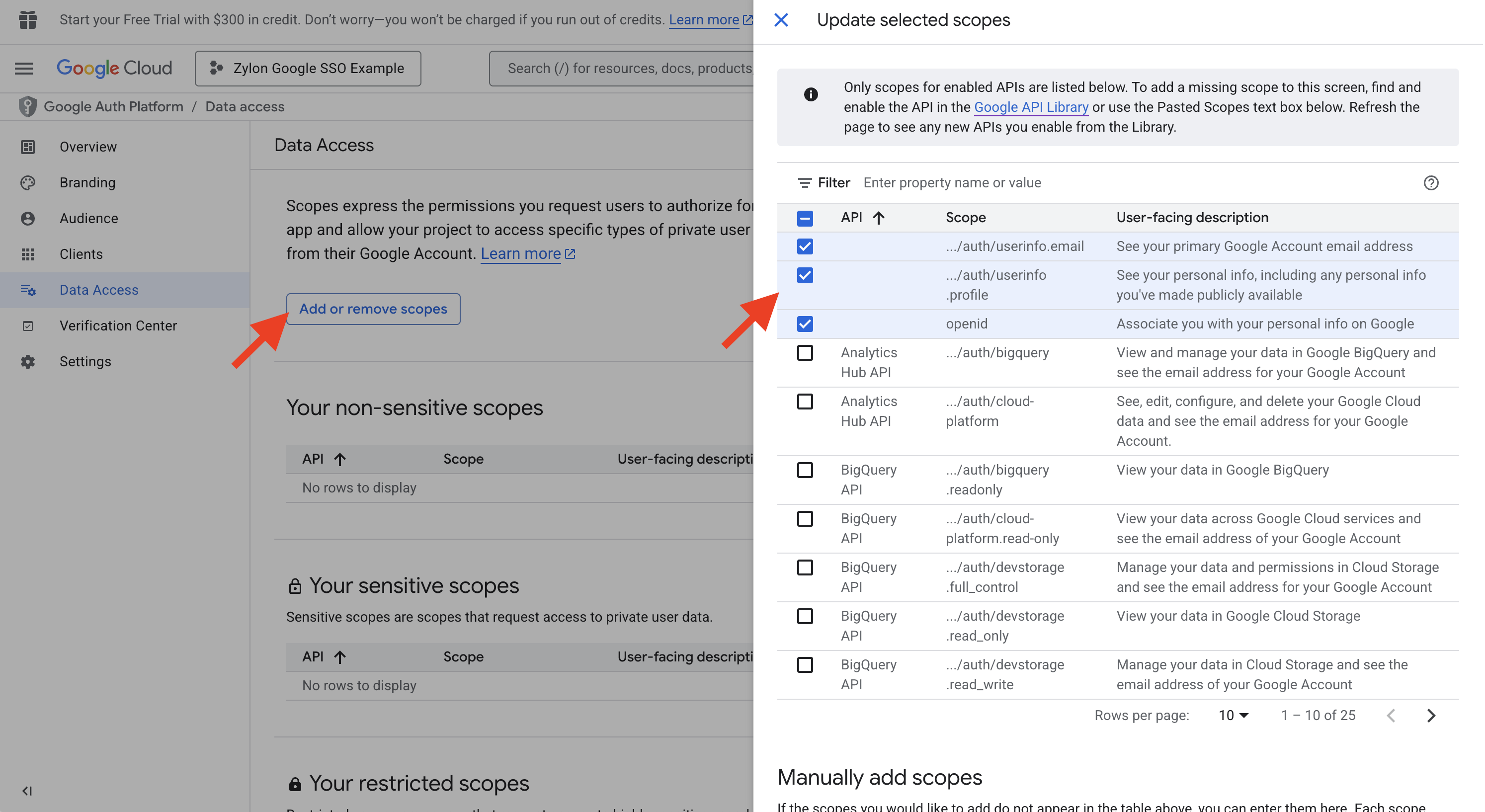
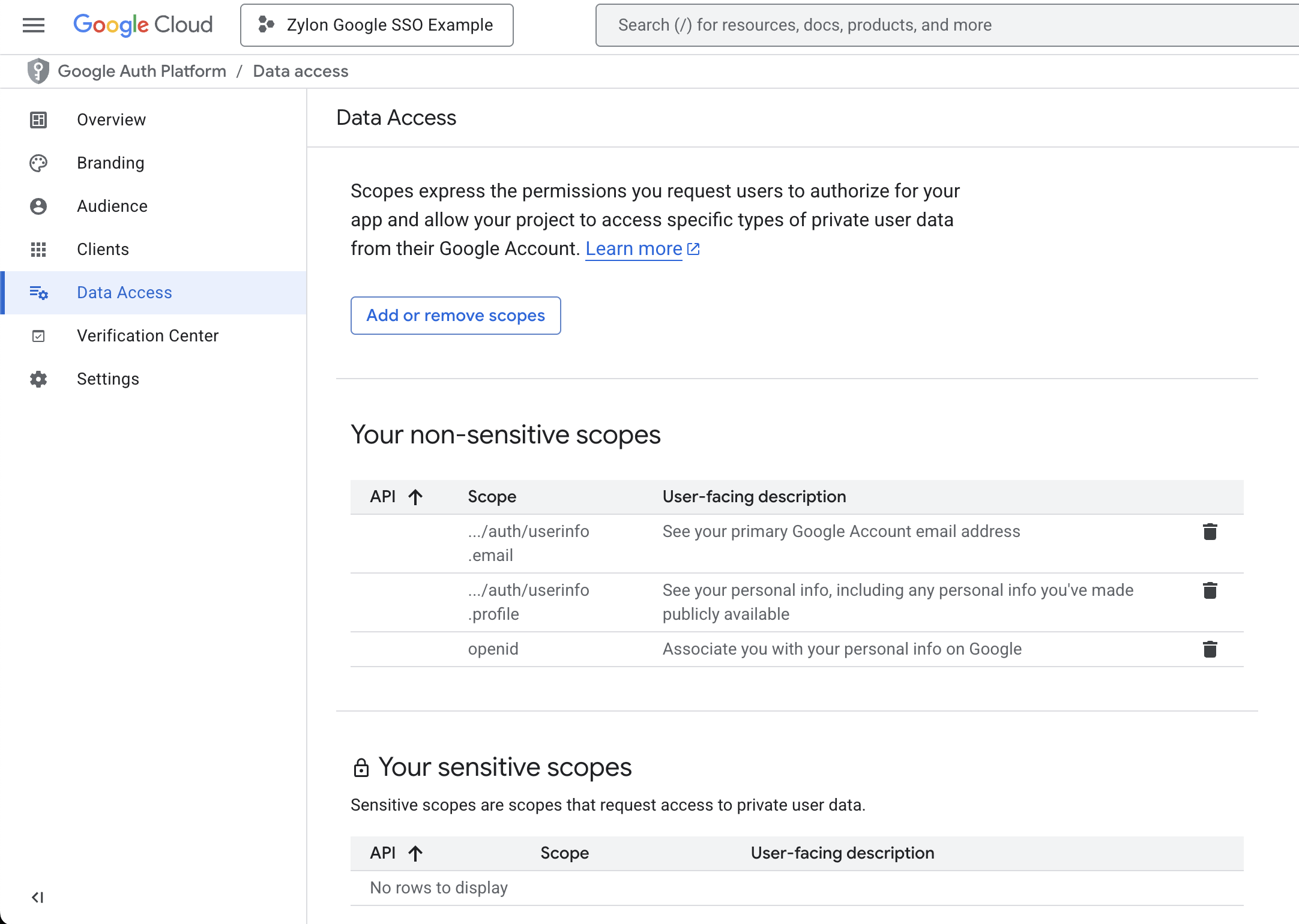
Navigate to the [Data Access/Scopes section](https://console.cloud.google.com/auth/scopes), and add the following scopes to your application:
* auth/userinfo.email (To get the user email)
* auth/userinfo.profile (To get user's name and profile picture)
* openid (To authenticate users with OpenID Connect)
### Grant openid scope
Navigate to the [Data Access/Scopes section](https://console.cloud.google.com/auth/scopes), and add the following scopes to your application:
* auth/userinfo.email (To get the user email)
* auth/userinfo.profile (To get user's name and profile picture)
* openid (To authenticate users with OpenID Connect)
 ### Add the configuration to Zylon
Add the following configuration to `/etc/zylon/zylon-conf.yaml`,
replacing the `clientId` and `clientSecret` values with the ones obtained in the previous steps
and the `redirectUri` with the correct domain where Zylon is hosted.
The config file is a `.yaml` file so indentation, spaces, semicolons, double quotes are very important
```yaml theme={null}
auth:
google:
enabled: true
clientId: "1234567890-abcde.apps.googleusercontent.com"
clientSecret: "GOCSPX-xxxxxxxxxxxxxxxxxxxxxxxx"
redirectUri: "https://zylon.company.com/api/v1/auth/google/callback"
```
Run the following command to refresh the configuration
```yaml theme={null}
sudo zylon-cli sync
```
Now you should see the Google SSO option when logging in.
In case you don’t see the Google button to log in, clear the browser cache.
### Add the configuration to Zylon
Add the following configuration to `/etc/zylon/zylon-conf.yaml`,
replacing the `clientId` and `clientSecret` values with the ones obtained in the previous steps
and the `redirectUri` with the correct domain where Zylon is hosted.
The config file is a `.yaml` file so indentation, spaces, semicolons, double quotes are very important
```yaml theme={null}
auth:
google:
enabled: true
clientId: "1234567890-abcde.apps.googleusercontent.com"
clientSecret: "GOCSPX-xxxxxxxxxxxxxxxxxxxxxxxx"
redirectUri: "https://zylon.company.com/api/v1/auth/google/callback"
```
Run the following command to refresh the configuration
```yaml theme={null}
sudo zylon-cli sync
```
Now you should see the Google SSO option when logging in.
In case you don’t see the Google button to log in, clear the browser cache.