> ## Documentation Index
> Fetch the complete documentation index at: https://docs.zylon.ai/llms.txt
> Use this file to discover all available pages before exploring further.
# Google Drive
To integrate with Google Drive, create a Google Cloud OAuth application and configure Zylon with its credentials. This enables users to sign in with Google, select files or folders through the Google Picker, and import them into a knowledge base.
## Before you begin
* Use a Google account that can manage the Google Cloud project. It does not need access to the Drive content that users will import.
* Know the public URL of your Zylon instance, for example `https://zylon.company.com`.
* Keep the OAuth client secret in a secure secret store. Do not commit it to source control. The Picker API key is used by the browser, so restrict it to the required APIs and, where applicable, your Zylon origin.
## Create or select a Google Cloud project
1. Open the [Google Cloud console](https://console.cloud.google.com/).
2. Select an existing project or create a new project for the integration.
3. Record the **Project number** from the project dashboard. Zylon uses this as the Picker **App ID**.
\[Placeholder: Add a screenshot showing the Google Cloud project number.]
## Enable the Google APIs
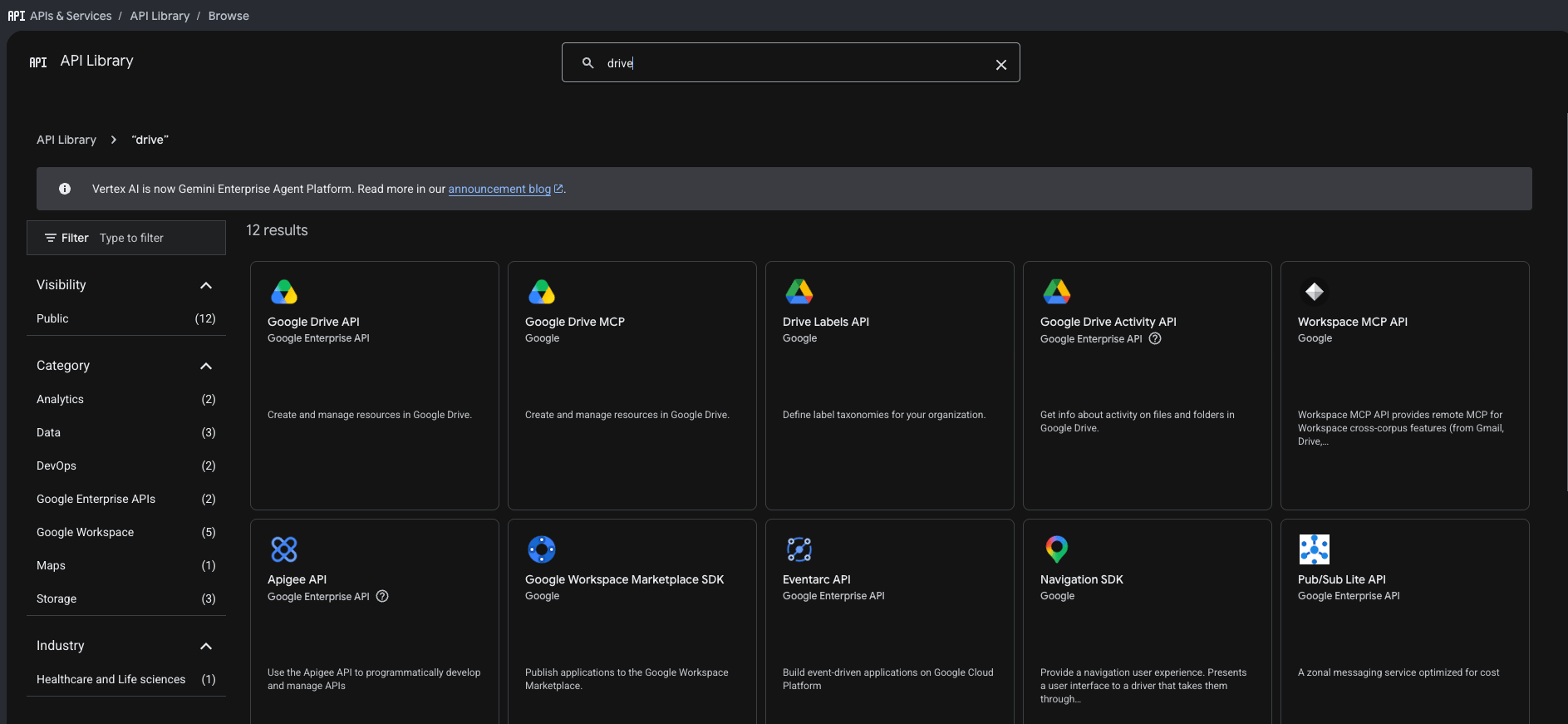
1. In the Google Cloud console, go to **APIs & Services** → **Library**.
2. Search for and enable **Google Drive API**.
3. Search for and enable **Google Picker API**.
 ## Create and restrict an API key
The Google Picker requires an API key in addition to the OAuth client credentials.
1. Go to **APIs & Services** → **Credentials**.
2. Select **Create credentials** → **API key**.
3. Copy the key; it is the value for Zylon's `apiKey` setting.
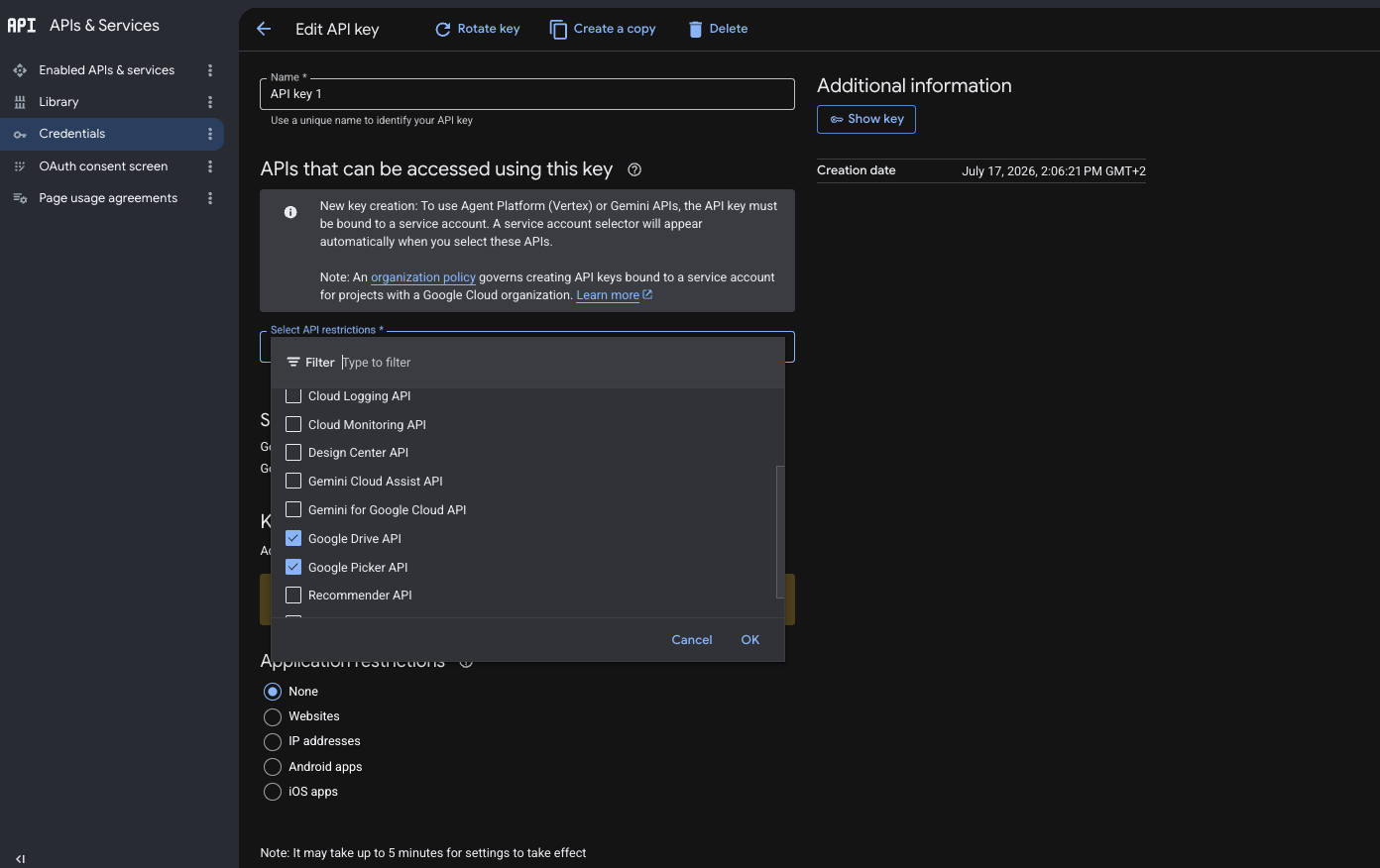
4. Open the new key and, under **API restrictions**, select **Restrict key**.
5. Select **Google Drive API** and **Google Picker API**, then save the key.
If your Google Cloud policy requires application restrictions, restrict the key to the public origin of your Zylon Workspace, for example `https://zylon.company.com`.
## Create and restrict an API key
The Google Picker requires an API key in addition to the OAuth client credentials.
1. Go to **APIs & Services** → **Credentials**.
2. Select **Create credentials** → **API key**.
3. Copy the key; it is the value for Zylon's `apiKey` setting.
4. Open the new key and, under **API restrictions**, select **Restrict key**.
5. Select **Google Drive API** and **Google Picker API**, then save the key.
If your Google Cloud policy requires application restrictions, restrict the key to the public origin of your Zylon Workspace, for example `https://zylon.company.com`.
 ## Configure the OAuth consent screen and data access
1. In the Google Cloud console, open **Google Auth platform**. Complete the required **Branding** and **Audience** settings for your organization.
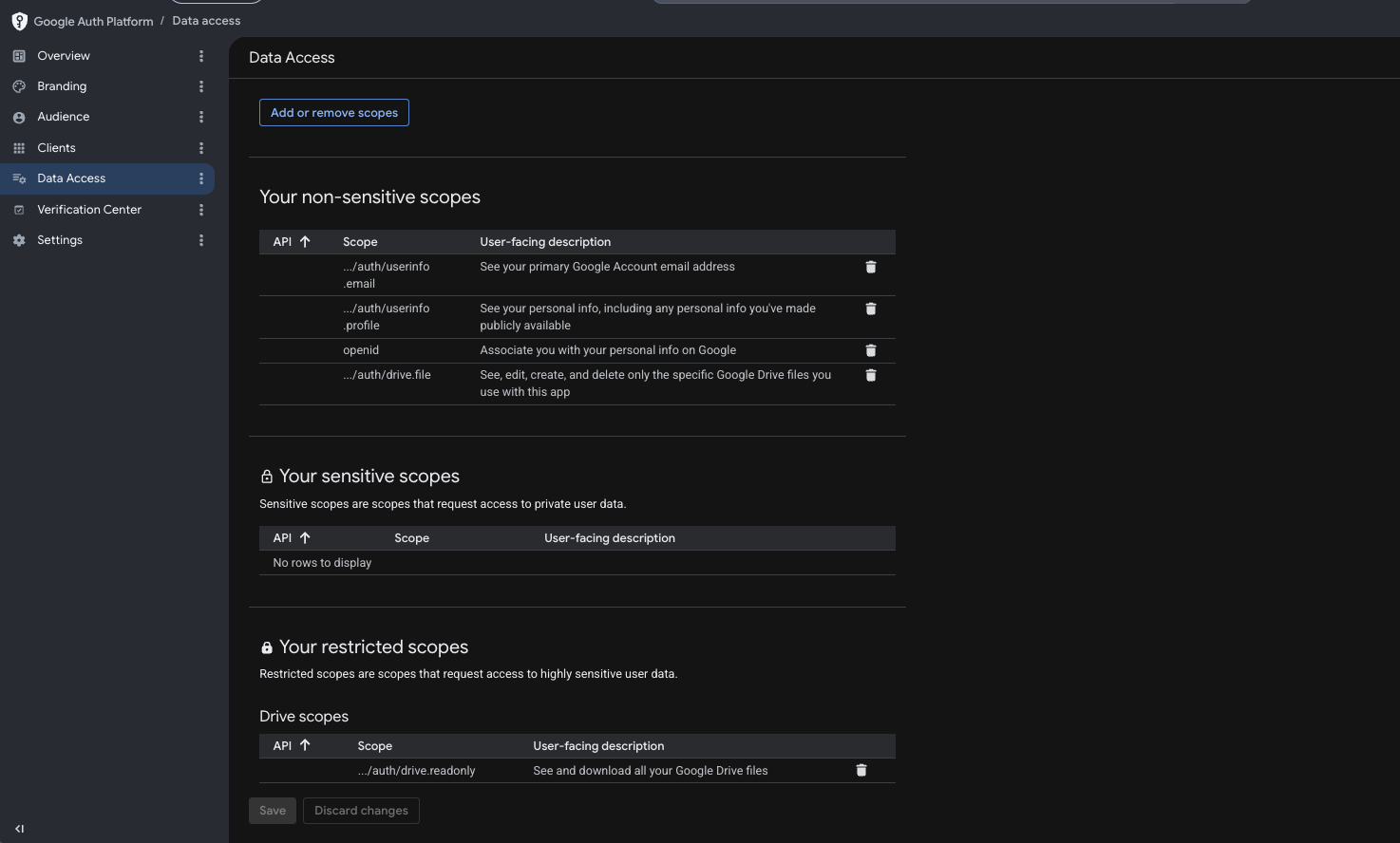
2. Open **Data Access** and select **Add or remove scopes**.
3. Add the following scopes, then save the changes.
| Scope | User-facing description |
| --------------------------------------------------------- | ----------------------------------------------------------------------------------------- |
| `https://www.googleapis.com/auth/drive.metadata.readonly` | View metadata for files in your Google Drive. |
| `https://www.googleapis.com/auth/drive.readonly` | View and download files from your Google Drive. |
| `https://www.googleapis.com/auth/userinfo.email` | See your primary Google Account email address. |
| `https://www.googleapis.com/auth/userinfo.profile` | See your personal info, including any personal info you have made publicly available. |
| `openid` | Associate you with your personal info on Google. |
| `https://www.googleapis.com/auth/drive.file` | See, edit, create, and delete only the specific Google Drive files you use with this app. |
Zylon requests all of these scopes during sign-in. The Drive metadata scope is required by the connector implementation as well as the Drive read-only scope.
## Configure the OAuth consent screen and data access
1. In the Google Cloud console, open **Google Auth platform**. Complete the required **Branding** and **Audience** settings for your organization.
2. Open **Data Access** and select **Add or remove scopes**.
3. Add the following scopes, then save the changes.
| Scope | User-facing description |
| --------------------------------------------------------- | ----------------------------------------------------------------------------------------- |
| `https://www.googleapis.com/auth/drive.metadata.readonly` | View metadata for files in your Google Drive. |
| `https://www.googleapis.com/auth/drive.readonly` | View and download files from your Google Drive. |
| `https://www.googleapis.com/auth/userinfo.email` | See your primary Google Account email address. |
| `https://www.googleapis.com/auth/userinfo.profile` | See your personal info, including any personal info you have made publicly available. |
| `openid` | Associate you with your personal info on Google. |
| `https://www.googleapis.com/auth/drive.file` | See, edit, create, and delete only the specific Google Drive files you use with this app. |
Zylon requests all of these scopes during sign-in. The Drive metadata scope is required by the connector implementation as well as the Drive read-only scope.
 ## Create an OAuth client
1. In **Google Auth platform**, open **Clients**.
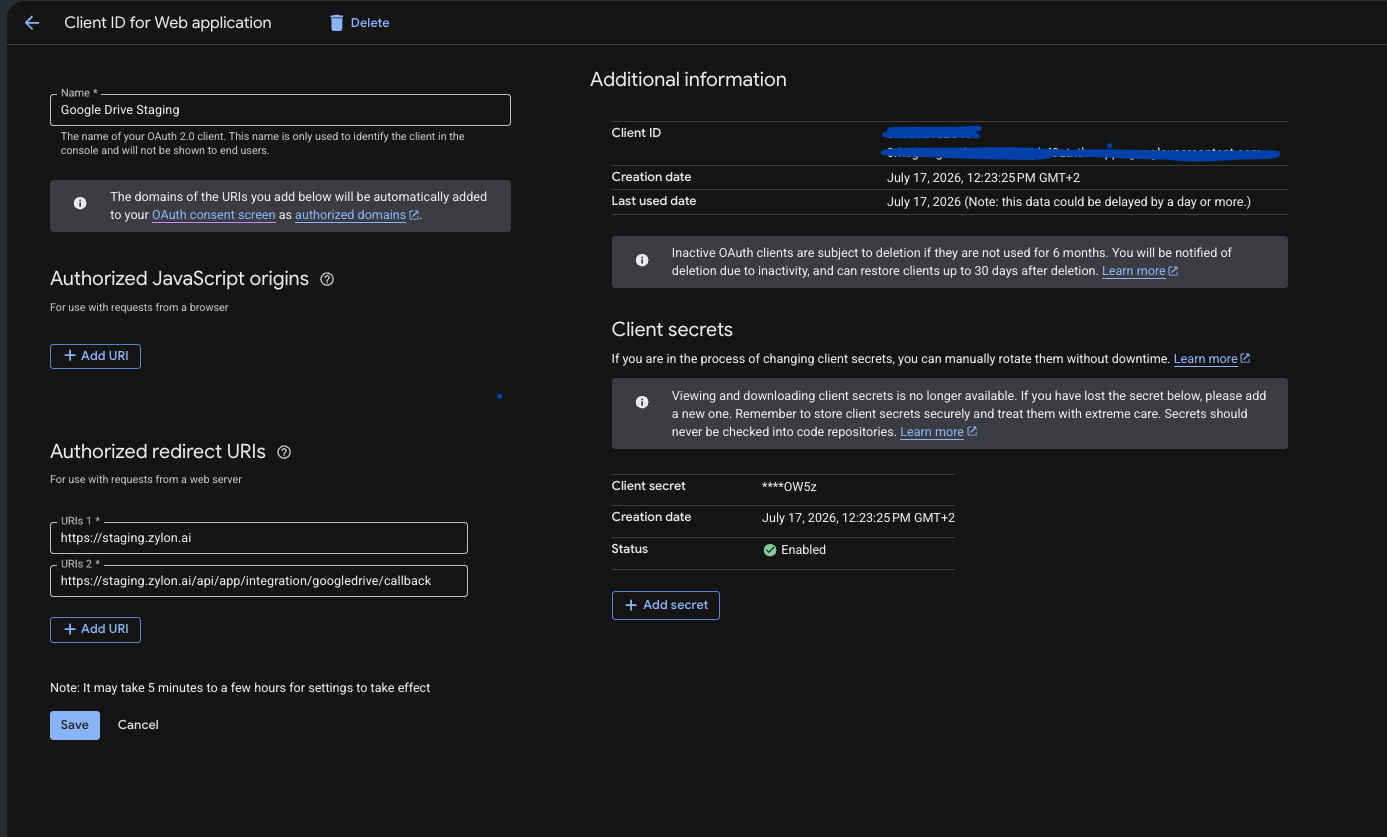
2. Select **Create client** and choose **Web application** as the application type.
3. Give the client a meaningful name, such as `Zylon Google Drive`.
4. Under **Authorized redirect URIs**, add the following URL, replacing the domain with your Zylon instance URL:
```text theme={null}
https://{your-zylon-domain}/api/app/integration/googledrive/callback
```
5. Create the client.
6. Copy the **Client ID** and **Client secret**. You will use them as `clientId` and `clientSecret` in the Zylon configuration.
The redirect URI in Google Cloud and Zylon must match exactly, including `https`, domain, path, and trailing slash behavior.
## Create an OAuth client
1. In **Google Auth platform**, open **Clients**.
2. Select **Create client** and choose **Web application** as the application type.
3. Give the client a meaningful name, such as `Zylon Google Drive`.
4. Under **Authorized redirect URIs**, add the following URL, replacing the domain with your Zylon instance URL:
```text theme={null}
https://{your-zylon-domain}/api/app/integration/googledrive/callback
```
5. Create the client.
6. Copy the **Client ID** and **Client secret**. You will use them as `clientId` and `clientSecret` in the Zylon configuration.
The redirect URI in Google Cloud and Zylon must match exactly, including `https`, domain, path, and trailing slash behavior.
 ## Configure Zylon
Add the following values to your Zylon configuration. The same `apiKey` and `appId` values are made available to the Workspace frontend for the Google Picker.
```yaml theme={null}
integration:
googleDrive:
enabled: true
clientId: "{Google OAuth client ID}"
clientSecret: "{Google OAuth client secret}"
redirectUri: "https://{your-zylon-domain}/api/app/integration/googledrive/callback"
apiKey: "{Google API key}"
appId: "{Google Cloud project number}"
```
For Helm installations, set the equivalent values in your values file under `integration.googleDrive`:
```yaml theme={null}
integration:
googleDrive:
enabled: true
clientId: "{Google OAuth client ID}"
clientSecret: "{Google OAuth client secret}"
redirectUri: "https://{your-zylon-domain}/api/app/integration/googledrive/callback"
apiKey: "{Google API key}"
appId: "{Google Cloud project number}"
```
Apply the configuration using your normal Zylon deployment process. For installations managed with the Zylon CLI, run:
```bash theme={null}
sudo zylon-cli sync
```
You are ready to connect Google Drive from a project knowledge base.
## Troubleshooting
### The Google Drive option is unavailable or the picker closes immediately
* Confirm that `integration.googleDrive.enabled` is `true`.
* Confirm that `apiKey` and `appId` are configured. The Picker requires both values.
* Confirm that the Google Drive API and Google Picker API are enabled in the same Google Cloud project.
### Google sign-in reports a redirect URI error
* Verify that the **Authorized redirect URI** is exactly the same as `redirectUri` in the Zylon configuration.
* Confirm that the domain is the public HTTPS domain used to access Zylon.
### A user cannot see or import a Drive item
* Confirm that the user signs in with the Google account that can access the item.
* Confirm that the consent screen includes all scopes listed in [Configure the OAuth consent screen and data access](#configure-the-oauth-consent-screen-and-data-access).
## Configure Zylon
Add the following values to your Zylon configuration. The same `apiKey` and `appId` values are made available to the Workspace frontend for the Google Picker.
```yaml theme={null}
integration:
googleDrive:
enabled: true
clientId: "{Google OAuth client ID}"
clientSecret: "{Google OAuth client secret}"
redirectUri: "https://{your-zylon-domain}/api/app/integration/googledrive/callback"
apiKey: "{Google API key}"
appId: "{Google Cloud project number}"
```
For Helm installations, set the equivalent values in your values file under `integration.googleDrive`:
```yaml theme={null}
integration:
googleDrive:
enabled: true
clientId: "{Google OAuth client ID}"
clientSecret: "{Google OAuth client secret}"
redirectUri: "https://{your-zylon-domain}/api/app/integration/googledrive/callback"
apiKey: "{Google API key}"
appId: "{Google Cloud project number}"
```
Apply the configuration using your normal Zylon deployment process. For installations managed with the Zylon CLI, run:
```bash theme={null}
sudo zylon-cli sync
```
You are ready to connect Google Drive from a project knowledge base.
## Troubleshooting
### The Google Drive option is unavailable or the picker closes immediately
* Confirm that `integration.googleDrive.enabled` is `true`.
* Confirm that `apiKey` and `appId` are configured. The Picker requires both values.
* Confirm that the Google Drive API and Google Picker API are enabled in the same Google Cloud project.
### Google sign-in reports a redirect URI error
* Verify that the **Authorized redirect URI** is exactly the same as `redirectUri` in the Zylon configuration.
* Confirm that the domain is the public HTTPS domain used to access Zylon.
### A user cannot see or import a Drive item
* Confirm that the user signs in with the Google account that can access the item.
* Confirm that the consent screen includes all scopes listed in [Configure the OAuth consent screen and data access](#configure-the-oauth-consent-screen-and-data-access).