> ## Documentation Index
> Fetch the complete documentation index at: https://docs.zylon.ai/llms.txt
> Use this file to discover all available pages before exploring further.
# Claromentis
To integrate with Claromentis, you need a Claromentis intranet enabled for your company and your access credentials to **configure Zylon** to use Claromentis on the application
## Check your Claromentis domain
First, you need to verify that you can access your Claromentis intranet. Your credentials will be used later as the connection point between Zylon and Claromentis.
* Log in to your Claromentis intranet using your credentials
* Note your Claromentis domain (e.g., `https://your-company.myintranet.net` or your custom claromentis domain)
* Verify that your account has sufficient permissions to access the documents of your intranet
## Configure Zylon to use Claromentis API
With your Claromentis domain information ready from step 1,
you now need to edit the Zylon configuration file located in `/etc/zylon/zylon-conf.yaml`
```yaml theme={null}
integration:
claromentis:
enabled: true
domain: "https://your-company.myintranet.net"
```
And fill the properties with the values generated previously:
* domain → value generated on step 1.
Save and close `/etc/zylon/zylon-conf.yaml` file
Finally, execute the following command to reset Zylon and update the config
```bash theme={null}
zylon-cli sync
```
You are all set 🎉
## Troubleshooting
### I try to upload files to the knowledge base and Claromentis button is greyed out
Clear the browser cache and try again.
### When I click on `Upload files -> From Claromentis` the log in is not working
* Check that the user and password you are introducing are the same ones you use to login on Claromentis.
### I updated my credentials in Claromentis. My integration/user is stuck, and I’m not able to sync files anymore.
This fix is only for the early version of Zylon which it doesn’t have the integrations screen. If your Zylon
instance has a screen where to manage the user integrations, please use this screen instead of this guide.
**What we need is the `id` of the integration and the `zln_s` auth cookie.**
1. Go to your zylon instance and log in with the user you want to update
2. Open the developer tools of the browser (right click => inspect)
3. On the new sidebar open, go the `Application` tab,
select `Cookies` and select the domain of your zylon instance, then copy the value of the cookie `zln_s` and save it for later
4. Now, we have the auth token, let's find the `id` of the integration
5. Inside the zylon app, open the `Network` tab,
and select `Fetch/XHR` and filter by the word `integrations`
6. Now, inside the zylon app, navigate to the project you
integrated and go to the knowledge base, you will see in the network tab one request, click on it to see the details, and you'll be able to see a list of integrations, search for the `type: "Claromentis"`, now you can see the `id`
7. Next, open a terminal with cURL installed
8. Paste the next cURL command and replace the next variables:
* your-zylon-domain => domain of the zylon instance
* your-zylon-cookie => the `zln_s` cookie you copied in the step 3
* your-integration-id => the `id` you copied in the step 6
* your-user-name => the username of claromentis
* your-new-password-in-raw => the new password for that user in raw
* your-organization => the organization slug,
if you have just 1 organization, is `default` otherwise I'll write down how to get it
```bash theme={null}
curl 'https://{your-zylon-domain}/api/app/integration/claromentis/{your-integration-id}' \
-H 'accept: application/json, text/plain, */*' \
-H 'content-type: application/json' \
-b 'zln_s={your-zylon-cookie}' \
-H 'origin: https://{your-zylon-domain}' \
-H 'x-org: {your-organization}' \
--data-raw '{"username":"{your-user-name}","password":"{your-new-password-in-raw}"}'
```
## Additional Notes
### Linked documents (symlinks) are not supported
Some files in Claromentis may appear in folders but are actually **symlinks**—shortcuts pointing to files stored elsewhere. These are marked with a 🔗 icon in the Claromentis UI.
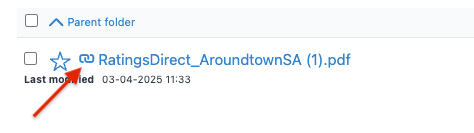 Zylon does **not** ingest these symlinked documents for the following reasons:
* The **Claromentis API does not support resolving symlinks**, making it impossible to fetch the actual target files.
* Ingesting both the original file and its symlink would create **duplicate content** in Zylon.
* If the **original file is restricted** or not accessible to the user performing the ingestion, ingestion will fail.
* It could lead to **infinite ingestion loops** if symlinks reference each other cyclically.
Zylon does **not** ingest these symlinked documents for the following reasons:
* The **Claromentis API does not support resolving symlinks**, making it impossible to fetch the actual target files.
* Ingesting both the original file and its symlink would create **duplicate content** in Zylon.
* If the **original file is restricted** or not accessible to the user performing the ingestion, ingestion will fail.
* It could lead to **infinite ingestion loops** if symlinks reference each other cyclically.