> ## Documentation Index
> Fetch the complete documentation index at: https://docs.zylon.ai/llms.txt
> Use this file to discover all available pages before exploring further.
# Token Management
> Choose the right token flow: Backoffice cross-API token or Workspace-only token.
Use this page to pick the right token flow for your integration.
## Which token do I need?
Routes `/api/v1/*`.
Automate Workspace operations — create projects, manage users, interact with ingested files, and more.
Routes `/api/gpt/v1/*`.
Call the ZylonGPT API directly, the same way you'd use the Anthropic API.
This flow is for **Workspace API** access under `/api/v1/*`.
Workspace token flow does **not** issue tokens for direct ZylonGPT API calls under `/api/gpt/v1/*`.
### Create a Workspace API token
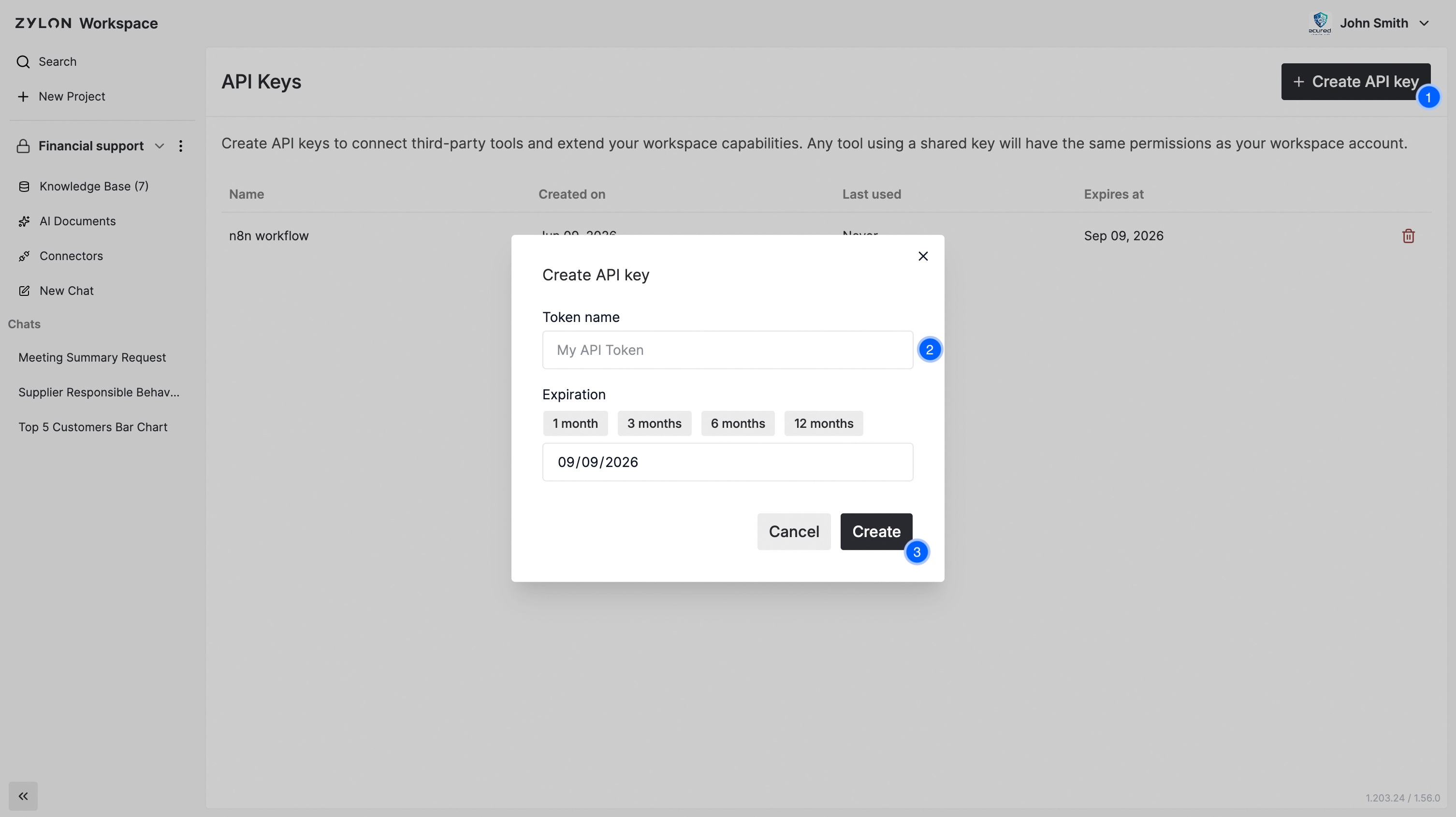
1. Sign in to Workspace as an account that can manage API tokens.
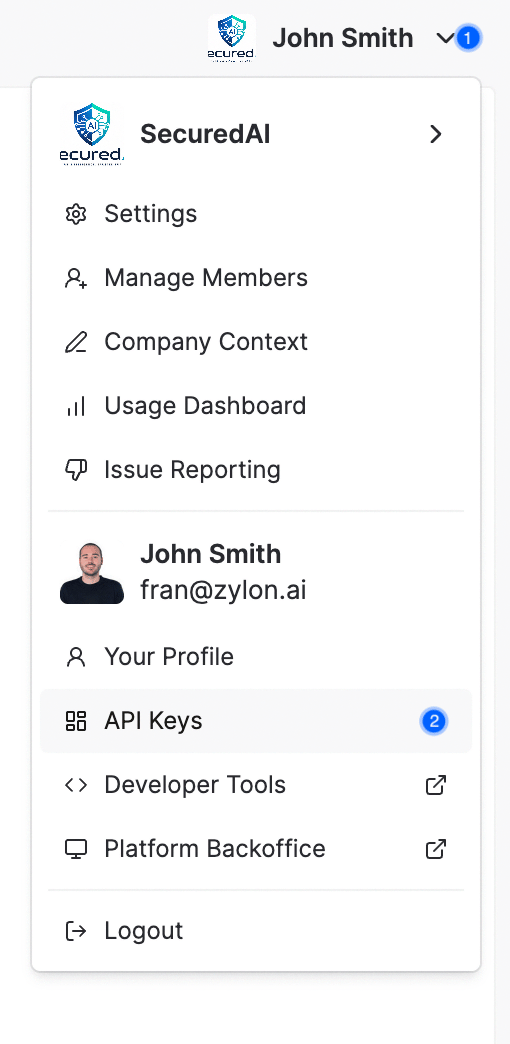
2. Click the organization logo and open **API Tokens**.
3. Click **Create API Token**, provide a name, and save.
4. Copy and store the token value immediately. It is shown once.
### Verify token access
Workspace endpoints under `/api/v1/app/*` require the `x-org` header.
```bash theme={null}
curl "https://{BASE_URL}/api/v1/app/me" \
-H "Authorization: Bearer {API_TOKEN}" \
-H "x-org: {org_slug}"
```
```json theme={null}
{
"id": "user_4b7c2a1d9e5f3c8b",
"org_id": "org_2f3a9d1c7b5e4a8f",
"account_id": "acct_6c8a1f3b2d4e5f7a",
"name": "Sasha Patel",
"email": "sasha@auroralabs.com",
"state": "Active",
"roles": ["AppAdmin"],
"created_at": "2026-02-08T14:12:45Z"
}
```
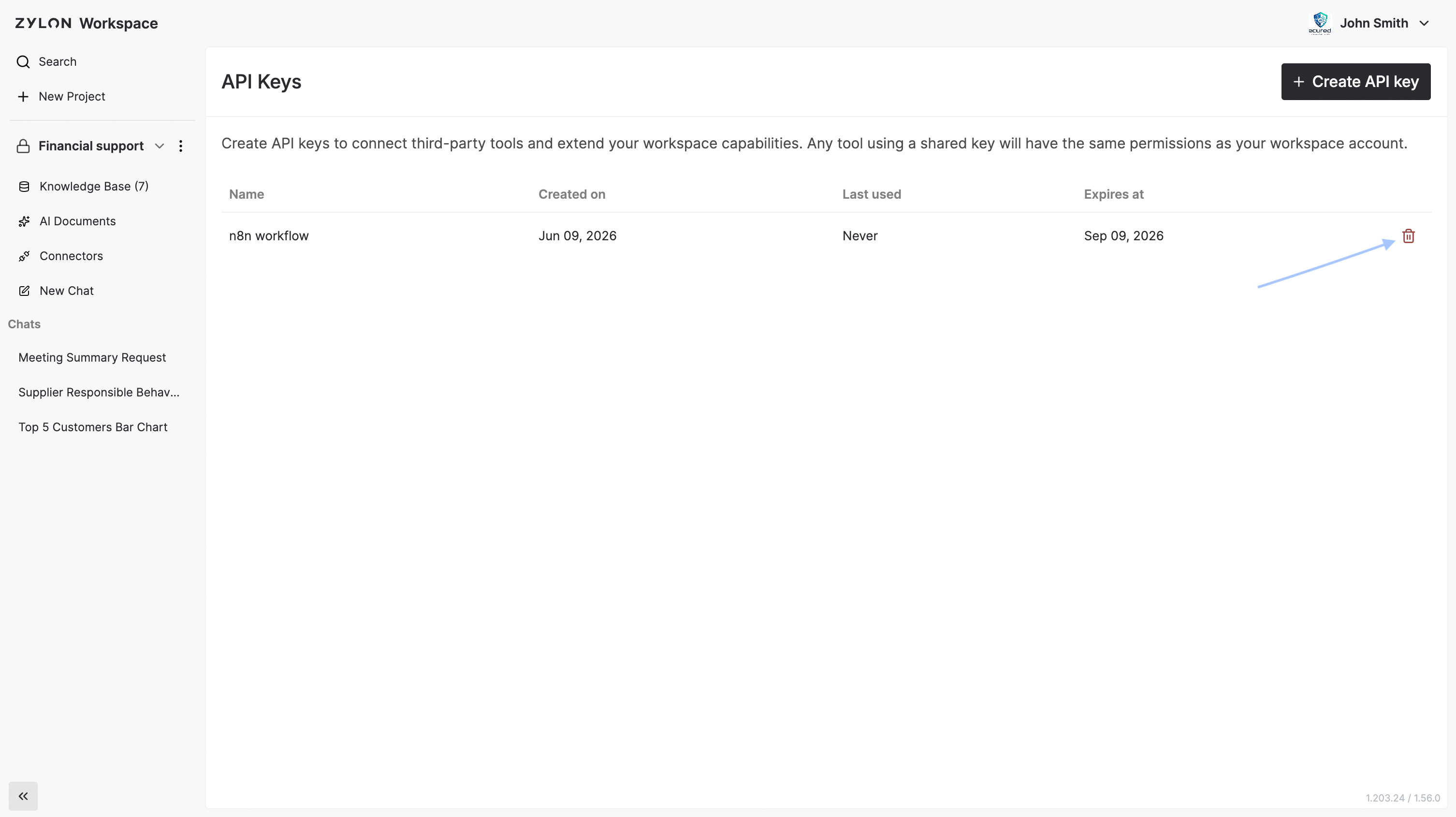
### Revoke a Workspace token
Open **API Tokens** and click the trash icon on the token row.
This flow grants access to the **ZylonGPT API** under `/api/gpt/v1/*`, as well as Workspace and Backoffice APIs.
### Create a Gateway token
1. Open **Developer Console**.
2. Select the target gateway.
3. Click **Create API Token**.
4. Enter a token name.
5. Generate the token.
6. Copy the token secret shown in the modal.
The token secret is shown **only once**. After closing the modal, it cannot be retrieved. Store it in a secure secret manager immediately.
 ### Verify token access
Workspace endpoints under `/api/v1/app/*` require the `x-org` header.
```bash theme={null}
curl "https://{BASE_URL}/api/v1/app/me" \
-H "Authorization: Bearer {API_TOKEN}" \
-H "x-org: {org_slug}"
```
### Verify token access
Workspace endpoints under `/api/v1/app/*` require the `x-org` header.
```bash theme={null}
curl "https://{BASE_URL}/api/v1/app/me" \
-H "Authorization: Bearer {API_TOKEN}" \
-H "x-org: {org_slug}"
```