> ## Documentation Index
> Fetch the complete documentation index at: https://docs.zylon.ai/llms.txt
> Use this file to discover all available pages before exploring further.
# Zendesk User Manual – Clients
> How to submit, track, and manage support requests through the Zylon Help Center.
This guide explains how Zylon users can **submit, track, and manage support requests** through the Help Center.
Each section includes step-by-step instructions.
***
## 1. Accessing the Help Center
### Step 1: Navigate to the Help Center
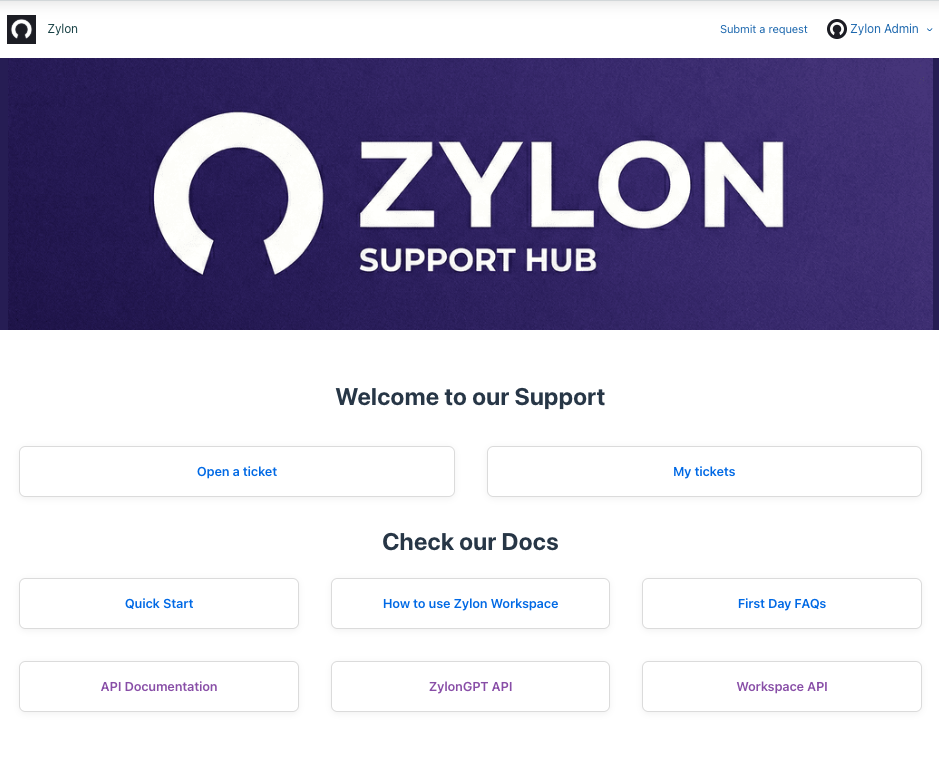
Go to the **Zylon Help Center (HC)**:
👉 [https://zylonsupport.zendesk.com/hc/](https://zylonsupport.zendesk.com/hc/)
You’ll find options to:
* **Submit a request**
* **View My Requests**
* Access documentation
 ***
## 2. Submitting a Request
### Step 1: Open the Request Form
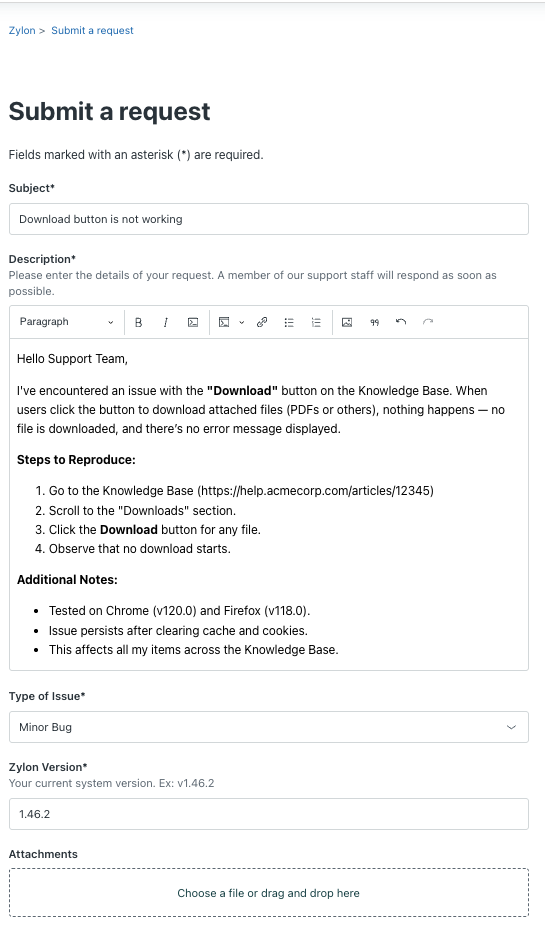
1. On the top navigation bar, click **Submit a request**.
### Step 2: Fill in the Request Details
The request form includes several required fields:
#### 1. Subject
* Write a short, clear summary of your issue or request.
*Example: “Unable to install Zylon app v1.45 on macOS”*
#### 2. Description
* Describe your issue or request in detail.
* Include relevant context, steps to reproduce (for bugs), or screenshots.
#### 3. Type of Issue
Select the most appropriate category:
* **Outage / System Down**
Zylon is completely unavailable or inaccessible for all users.
* **Major Bug**
A critical defect preventing core workflows or key functionality.
* **Minor Bug**
A non-critical issue causing inconvenience but not blocking workflows.
* **Feature Request / Improvement**
Suggestions for new functionality or enhancements.
* **App Installation / Update Issue**
Problems during installation or updates.
#### 4. Zylon Version
* Choose the product version related to your issue (e.g. **v1.45**).
* You can find this in the bottom-right corner of the Zylon app.
***
### Step 3: Submit Your Request
Once all fields are complete:
* Click **Submit** at the bottom of the form.
* A confirmation message will appear, and your request will be created.
***
## 3. Tracking Your Requests
### Step 1: View Submitted Requests
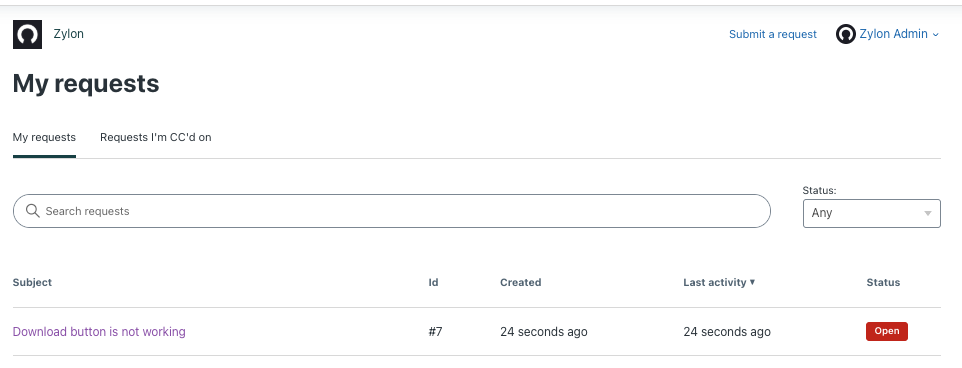
1. From the Help Center, click **My Requests** in the navigation bar.
2. You’ll see a list of all your requests, including:
* **Subject**
* **ID**
* **Created date**
* **Last activity**
* **Status** (Open, Solved, Closed)
***
## 2. Submitting a Request
### Step 1: Open the Request Form
1. On the top navigation bar, click **Submit a request**.
### Step 2: Fill in the Request Details
The request form includes several required fields:
#### 1. Subject
* Write a short, clear summary of your issue or request.
*Example: “Unable to install Zylon app v1.45 on macOS”*
#### 2. Description
* Describe your issue or request in detail.
* Include relevant context, steps to reproduce (for bugs), or screenshots.
#### 3. Type of Issue
Select the most appropriate category:
* **Outage / System Down**
Zylon is completely unavailable or inaccessible for all users.
* **Major Bug**
A critical defect preventing core workflows or key functionality.
* **Minor Bug**
A non-critical issue causing inconvenience but not blocking workflows.
* **Feature Request / Improvement**
Suggestions for new functionality or enhancements.
* **App Installation / Update Issue**
Problems during installation or updates.
#### 4. Zylon Version
* Choose the product version related to your issue (e.g. **v1.45**).
* You can find this in the bottom-right corner of the Zylon app.
***
### Step 3: Submit Your Request
Once all fields are complete:
* Click **Submit** at the bottom of the form.
* A confirmation message will appear, and your request will be created.
***
## 3. Tracking Your Requests
### Step 1: View Submitted Requests
1. From the Help Center, click **My Requests** in the navigation bar.
2. You’ll see a list of all your requests, including:
* **Subject**
* **ID**
* **Created date**
* **Last activity**
* **Status** (Open, Solved, Closed)
 ***
### Step 2: Check Request Details
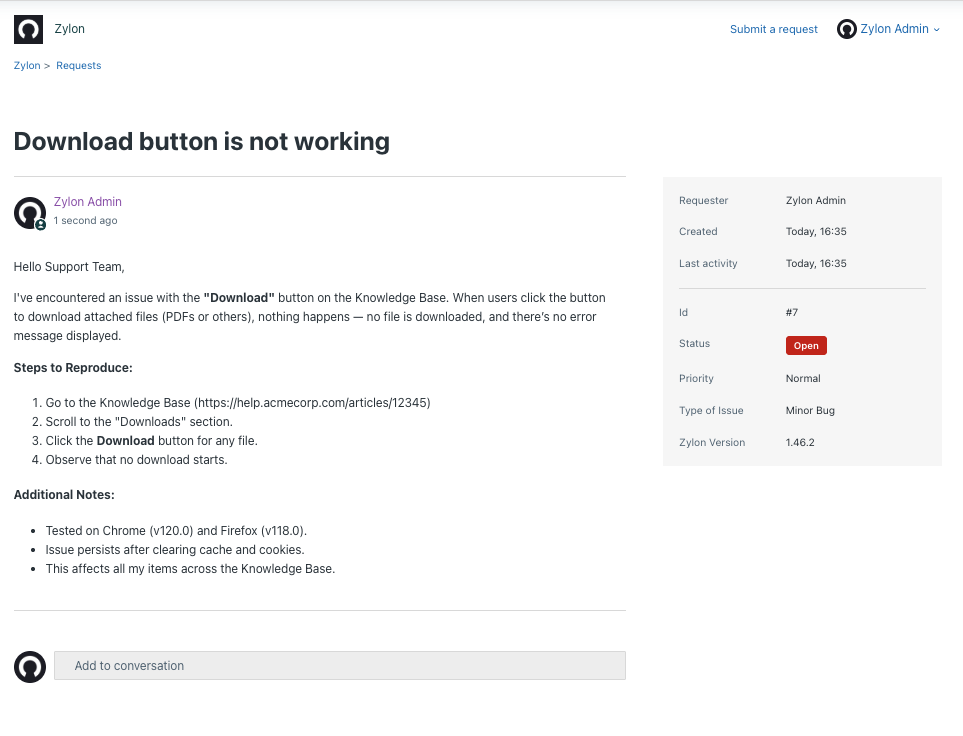
1. Click any request (e.g. “Download button is not working”).
2. The request detail page shows:
* **Requester**
* **Created / Last activity date**
* **Request ID**
* **Status**
* **Priority**
* **Type of Issue**
* **Zylon Version**
* **Zylon Doctor Output**(optional)
***
### Step 2: Check Request Details
1. Click any request (e.g. “Download button is not working”).
2. The request detail page shows:
* **Requester**
* **Created / Last activity date**
* **Request ID**
* **Status**
* **Priority**
* **Type of Issue**
* **Zylon Version**
* **Zylon Doctor Output**(optional)
 ***
### Step 3: Add to the Conversation
To reply or provide updates:
1. Scroll to the **Add to conversation** section.
2. Type your message or upload files if needed.
3. Click **Submit** or **Send**.
***
### Step 3: Add to the Conversation
To reply or provide updates:
1. Scroll to the **Add to conversation** section.
2. Type your message or upload files if needed.
3. Click **Submit** or **Send**.
 ***
## Quick Summary
| Action | Where to Go | What to Do |
| -------------------- | -------------------- | ---------------------------------------------------- |
| Submit a new request | **Submit a request** | Fill subject, description, issue type, Zylon version |
| Check request status | **My Requests** | View all submitted tickets |
| Respond or update | **Request Detail** | Add to conversation |
***
## Tips
* Always include your **Zylon version** when reporting issues.
* Try to attach the Zylon Doctor output if your problem is related with your platform status.
* Attach screenshots or logs to speed up troubleshooting.
* You’ll receive **email notifications** when there’s an update to your request.
***
## Quick Summary
| Action | Where to Go | What to Do |
| -------------------- | -------------------- | ---------------------------------------------------- |
| Submit a new request | **Submit a request** | Fill subject, description, issue type, Zylon version |
| Check request status | **My Requests** | View all submitted tickets |
| Respond or update | **Request Detail** | Add to conversation |
***
## Tips
* Always include your **Zylon version** when reporting issues.
* Try to attach the Zylon Doctor output if your problem is related with your platform status.
* Attach screenshots or logs to speed up troubleshooting.
* You’ll receive **email notifications** when there’s an update to your request.